
When a file is deleted and is no longer in the Recycle Bin — because it was removed with Shift+Delete, the bin was emptied, or the file was on a USB drive — it is not necessarily gone forever. According to official Microsoft documentation, deleting a file marks its disk space as available but does not immediately erase the data. The file remains physically on the drive until new data is written over it.
Microsoft provides a free official tool called Windows File Recovery that scans for and restores these deleted files. Speed matters: the sooner you act after deletion, the higher the chance of successful recovery.
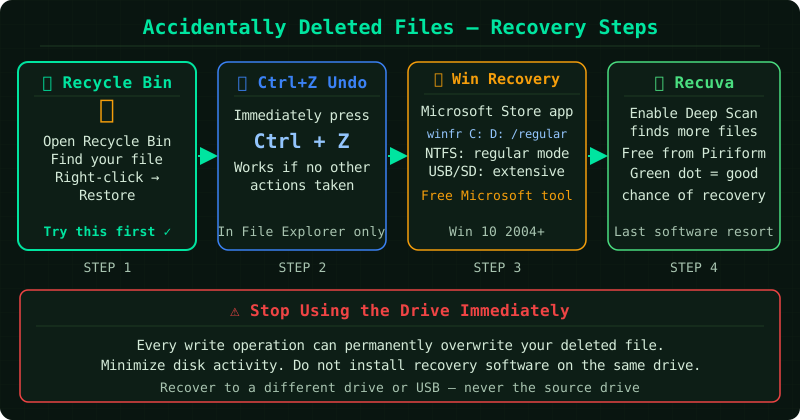
What causes files to bypass the Recycle Bin
According to Microsoft’s documentation, files are permanently deleted — skipping the Recycle Bin entirely — in three situations:
- Shift+Delete is used instead of the standard Delete key
- The Recycle Bin is manually emptied after deletion
- The file was stored on a USB drive, memory card, or external drive — the Recycle Bin does not cover removable storage
In all three cases, the file disappears from view immediately, but the underlying data typically remains on the drive until overwritten. Stop using the affected drive as soon as possible after deletion to preserve the best chance of recovery.
How to recover deleted files with Windows File Recovery
Step 1 — Install Windows File Recovery
Windows File Recovery is a free, official Microsoft tool distributed through the Microsoft Store.
- Open the Microsoft Store from the Start menu
- Search for Windows File Recovery
- Click Get to install — there is no charge
- Once installed, open the Start menu, type Windows File Recovery, right-click the result, and select Run as administrator
Administrator privileges are required for the tool to access drive-level data.
Step 2 — Choose the correct recovery mode
According to Microsoft’s documentation, Windows File Recovery offers two modes:
| Mode | Best for | File system | Speed | Use when |
|---|---|---|---|---|
| Regular | Recently deleted files | NTFS only | Fast | File deleted within hours or days, drive is healthy |
| Extensive | Older deletions, formatted drives | NTFS, FAT, exFAT | Slow | Regular returns nothing, drive was formatted or corrupted |
If you are unsure which to start with, try Regular mode first. Switch to Extensive mode if needed.
Step 3 — Run the recovery command
Windows File Recovery uses a command-line interface. The basic command structure is:
winfr SOURCE: DESTINATION: /MODE /n FILTERTo recover a specific folder using Regular mode (replace YourName with your Windows username):
winfr C: D:\Recovery /regular /n \Users\YourName\Documents\To recover all files with a specific extension using Extensive mode:
winfr C: D:\Recovery /extensive /n *.docxTo recover a specific file by name:
winfr C: D:\Recovery /regular /n \Users\YourName\Desktop\report.pdfTwo rules apply in every case:
- The source and destination drives must be different. If the deleted file was on
C:, save recovered files toD:or another drive. - Run the command as administrator, or the tool will not have permission to scan the drive.
Press Y when the tool asks for confirmation, then wait for the scan to complete.
Step 4 — Check the recovered files
When the scan finishes, Windows File Recovery saves whatever it found to the destination folder you specified.
- Open the destination folder in File Explorer
- Open recovered documents and preview recovered images to confirm the content is intact
- Some files may be partially recovered if their disk space was partially overwritten — this is expected behaviour and not a tool error
Known limitations
- Overwritten data cannot be recovered. If significant amounts of new data have been written to the drive since deletion, recovery becomes less likely or impossible. This is a physical limitation, not a software one. No tool — including professional services — can recover data that has been overwritten.
- SSDs with TRIM enabled. On solid-state drives, the TRIM feature instructs the drive to erase deleted data blocks proactively. This significantly reduces recovery success rates on SSDs compared to traditional hard drives. Act immediately after deletion on an SSD.
- Encrypted files. If BitLocker or another encryption tool was protecting the deleted files, the recovered data will still be encrypted. You will need the original decryption key to open the files after recovery.
- FAT32 and exFAT drives. On drives formatted with FAT32 or exFAT — common for USB drives and memory cards — only Extensive mode is supported. Regular mode will not work on these file systems.
Common Questions
Is Windows File Recovery free? Yes. It is an official Microsoft tool published on the Microsoft Store at no cost. No subscription or licence is required.
How long after deletion can I still recover a file? There is no fixed time limit. Recovery depends on how much new data has been written to the drive since deletion, not on time elapsed. A file deleted a week ago on a drive that has not been used since may be fully recoverable. A file deleted an hour ago on a drive that has been heavily used since may not be. Minimise drive activity immediately after accidental deletion.
I do not know how to use the command line. Can I still use this tool? Windows File Recovery is command-line only — there is no graphical interface. The commands in this guide can be copied directly and modified by replacing the drive letters and folder path with your own. Microsoft’s official documentation also includes a command builder at the top of the Windows File Recovery page in the Microsoft Store listing.
Regular mode found nothing. What should I try next? Switch to Extensive mode using the same destination folder. Extensive mode performs a deeper scan and can find files that Regular mode misses, particularly on drives where some data has been overwritten. Be aware that Extensive mode scans can take several hours on large drives.