
When files disappear — deleted by accident, lost after a format, or made inaccessible by corruption — the right recovery tool depends on what went wrong. Three free tools cover the vast majority of data recovery scenarios on Windows: Microsoft’s own Windows File Recovery, Recuva, and TestDisk. Each solves a different problem.
The most important rule applies before opening any tool: stop writing new data to the drive. Every file you save overwrites the space where deleted data may still exist.
Windows File Recovery — Microsoft’s official tool
Best for: Recently deleted files on healthy drives and formatted drives
Windows File Recovery is a free, official Microsoft tool available in the Microsoft Store. It runs from the Command Prompt and works on Windows 10 (version 2004 and later) and Windows 11.
Basic scan (recently deleted files on an intact file system):
winfr C: D:\Recovery\ /regularDeep scan (formatted drives or older deletions):
winfr C: D:\Recovery\ /extensiveReplace C: with the drive containing the lost files and D:\Recovery\ with a folder on a different drive for recovered output. Never save recovered files to the same drive being scanned.
According to Microsoft’s documentation, the /regular mode works fastest on NTFS drives with recently deleted files. The /extensive mode takes longer but recovers more — use it after a format or when /regular finds nothing.
Limitations: Command-line only (no graphical interface), does not work on hardware-failed drives, requires Windows 10 2004 or later.
Recuva — Best graphical interface
Best for: Users who prefer a visual interface, photo recovery, deep scans on USB and memory cards
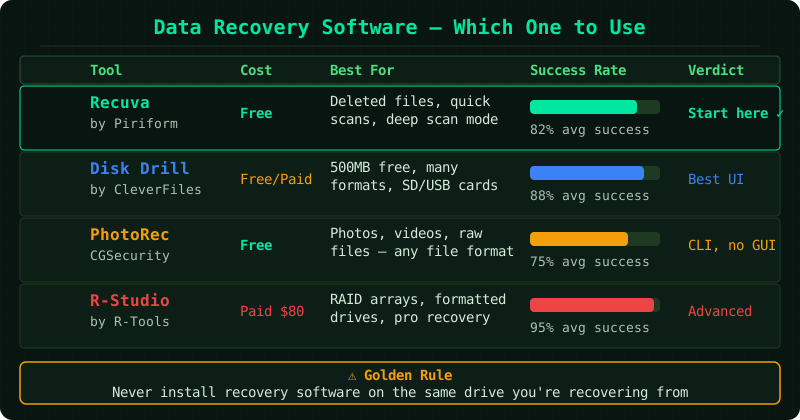
Recuva (developed by Piriform, now owned by Avast) is the most widely used free graphical recovery tool for Windows. It scans for deleted files and displays their recoverability status — green (good), orange (poor), red (overwritten).
How to use it:
- Download and install Recuva from the official Piriform website — install to your main drive, not the drive being recovered
- Launch Recuva and select the file type you are looking for, or choose “All Files”
- Select the drive or folder to scan
- Enable Deep Scan mode for formatted drives or when a standard scan finds nothing
- Review results — filter by recoverability status
- Select files and save them to a different drive
Limitations: The free version is fully functional. Deep scans on large drives can take over an hour. Performance on SSDs is weaker than on traditional hard drives due to TRIM operations that erase deleted data blocks.
TestDisk and PhotoRec — Best for corrupted file systems
Best for: Drives showing as RAW, unreadable partitions, recovering files when the file system is severely damaged
TestDisk is a free, open-source tool that repairs partition tables and recovers lost partitions — problems that Windows File Recovery and Recuva cannot address. It is bundled with a companion tool called PhotoRec, which recovers individual files by scanning for known file signatures regardless of file system condition.
Despite the name, PhotoRec recovers far more than photos — documents, archives, videos, and hundreds of other file types are supported.
When to use TestDisk instead of the others:
- Windows shows the drive as RAW and asks you to format it
- The drive is not visible in File Explorer but appears in Disk Management
chkdskreports the volume is not a recognised file system
TestDisk has a text-based menu interface. The official TestDisk documentation provides a step-by-step walkthrough.
Limitations: Steeper learning curve than Recuva. Does not recover files to the original filenames and folder structure — PhotoRec uses numbered output folders. Read-only by default, so it will not make changes to the drive unless you explicitly confirm.
Which tool to use
| Situation | Tool |
|---|---|
| Accidentally deleted files, drive is working normally | Windows File Recovery or Recuva |
| Drive was quick-formatted | Windows File Recovery (extensive) or Recuva (deep scan) |
| Drive shows as RAW or unreadable | TestDisk / PhotoRec |
| Prefer a graphical interface | Recuva |
| Comfortable with command line | Windows File Recovery |
| Need to repair partition table | TestDisk |
What no free tool can fix
Software recovery tools read what is physically present on the storage media. They cannot recover data when:
- The drive’s controller chip has failed and the drive is not detected
- The NAND flash on an SSD has been physically damaged
- A secure erase or full format (not quick format) has been run — this overwrites actual data
- TRIM has already run on an SSD after deletion (on most modern SSDs, deleted data is erased quickly)
In these cases, professional data recovery services — which directly access the storage chips — are the only remaining option.
Common Questions
Do I need to install the recovery tool on the same drive I am recovering from? No. Install the tool on a different drive. Installing software to the drive being recovered can overwrite the deleted files you are trying to find.
I ran a scan and found my files, but they open as blank or corrupted. Why? The file directory entry still existed (so the tool found the filename), but the data blocks have been partially or fully overwritten. The file cannot be restored. This is why stopping all writes immediately is the single most important step.
Can these tools recover files from a BitLocker-encrypted drive? Only if the drive is already unlocked. You must decrypt or unlock the drive with the recovery key first. The recovery tools then scan the decrypted data normally.