
When Windows locks a drive with BitLocker and asks for a recovery key, it sometimes displays aka.ms/myrecoverykey on screen. This is a Microsoft short URL — a shortcut that takes you directly to the page where your recovery key is stored.
Typing aka.ms/myrecoverykey into any browser on another device will redirect you to account.microsoft.com/devices/recoverykey, which is the official Microsoft page listing all BitLocker recovery keys saved to your account.
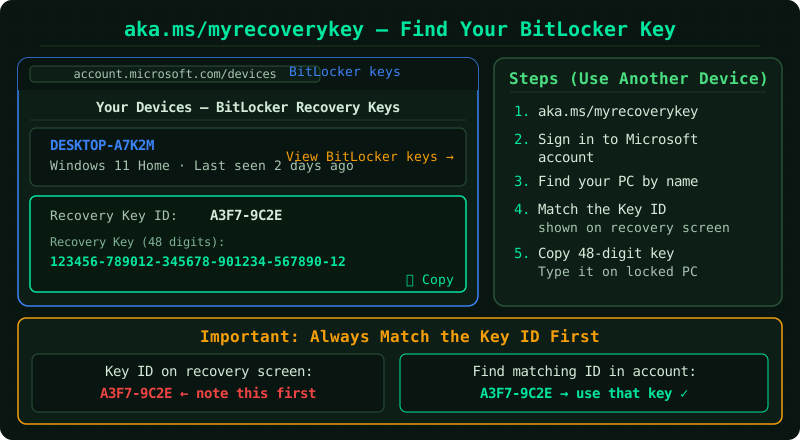
What the page shows
When you sign in to the recovery key page, you will see a list of recovery keys associated with your Microsoft account. Each entry shows:
- The device name the key was created on
- The Key ID — an 8-digit identifier
- The 48-digit recovery key itself
- The date the key was saved
The Key ID is the critical piece. The BitLocker recovery screen displays an 8-digit Key ID directly above the entry field. Only the key whose ID matches that number will unlock the drive — all others will be rejected regardless of how many times you try.
Step 1 — Note the Key ID first
Before you open any browser, write down the 8-digit Key ID displayed on the BitLocker recovery screen. This is easy to overlook when you are focused on the recovery key itself, but without it you cannot identify which key to use if multiple keys are saved to your account.
Step 2 — Open the recovery key page
On a separate device — a phone, another computer, or a tablet — open a browser and navigate to:
account.microsoft.com/devices/recoverykey
You can also type aka.ms/myrecoverykey directly into the address bar. Both URLs lead to the same page.
Step 3 — Sign in with the right account
Sign in with the Microsoft account that was signed in on the locked device at the time BitLocker was set up. This is not necessarily the account you use most often. If you have multiple Microsoft accounts, try each one.
If the device belongs to a workplace or school, the key may be stored under a work or school account rather than a personal Microsoft account. In that case, contact your IT administrator — the key will be in your organisation’s Azure Active Directory rather than the personal recovery key page.
Step 4 — Match the Key ID and unlock the drive
On the recovery key page, each key entry shows its Key ID. Compare each ID against the Key ID you wrote down from the BitLocker screen. When you find a match, copy the full 48-digit recovery key.
On the BitLocker recovery screen, enter the key exactly as shown. The field accepts the key with or without the hyphen separators. A single incorrect digit will cause rejection with no indication of which character is wrong.
If no matching key appears
If you sign into the recovery key page and no key matches the Key ID on screen, check the following according to Microsoft’s BitLocker recovery documentation:
- Other Microsoft accounts — Try every account you have ever used on that device
- USB drive — A
.bekfile may have been saved to a USB drive during setup; inserting it may allow automatic unlock - Printed copy — A key may have been printed at setup time
- IT administrator — For work or school devices, the key is stored in Active Directory or Azure AD
Why some keys are not on the page
Recovery keys only appear on the page if they were backed up to a Microsoft account. Keys backed up to a USB drive, printed, or saved to Active Directory do not appear here. Additionally, if BitLocker was set up while signed into a local Windows account rather than a Microsoft account, no automatic backup occurs and the page will be empty.
According to Microsoft’s documentation, if the recovery key cannot be found through any of these methods, the encrypted data is not recoverable without it.
Common Questions
Is aka.ms/myrecoverykey safe to use?
Yes. It is an official Microsoft short URL that redirects to account.microsoft.com, which is Microsoft’s account management portal. Do not type the URL into a search engine and click a result — type it directly into the address bar to avoid phishing sites.
Why does the page show keys for devices I no longer own? Recovery keys remain in your account until removed. Old keys from devices you have sold, replaced, or reformatted are still listed. Use the Key ID to identify which key belongs to the drive you are currently trying to unlock.
Can I add the recovery key to the page manually? No. Recovery keys are added to the page automatically when BitLocker is set up on a device signed into that Microsoft account. You cannot manually upload a key.