
Work and school computers managed by an organisation behave differently from personal devices. According to Microsoft’s BitLocker and Active Directory FAQ, when a domain-joined or Azure Active Directory-joined device enables BitLocker, the recovery key is automatically escrowed to the organisation’s directory — not to the employee’s personal Microsoft account.
If you are locked out of a work or school device, your personal Microsoft account page will not contain the key. The key is held by your organisation’s IT department.
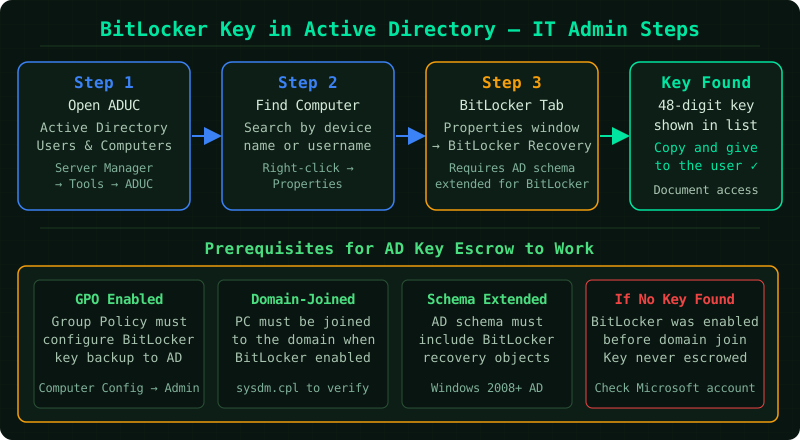
Where the key is stored on managed devices
On-premises Active Directory (AD DS): For devices joined to a traditional Windows domain, the recovery key is stored in the computer object within Active Directory Domain Services. Only users with the appropriate AD permissions — typically IT administrators — can read this value.
Azure Active Directory (Azure AD / Entra ID): For devices joined to Azure AD or enrolled in Microsoft Intune, the recovery key is stored in the Azure portal under the device record. Administrators access it through the Azure portal or the Intune admin centre. Depending on your organisation’s configuration, end users may also be able to retrieve their own key through the self-service portal.
Hybrid joined devices: Devices that are both domain-joined and Azure AD-joined may have the key stored in one or both directories depending on the policy applied during BitLocker activation.
How to retrieve the key
Step 1 — Note the Key ID from the recovery screen
The BitLocker recovery screen displays an 8-digit Key ID directly above the entry field. Write it down before doing anything else. This is the identifier your IT administrator will use to find the exact matching key — it prevents them from providing a key for a different drive or device.
Also note the device name (visible in the recovery screen header on some versions of Windows) and the device serial number if you have access to it.
Step 2 — Contact your IT administrator
Submit a support request to your IT helpdesk. Include:
- The 8-digit Key ID from the recovery screen
- The device name or model
- The serial number if available
- Your user account name
For on-premises AD environments: Your administrator opens Active Directory Users and Computers, locates the computer object, and views the BitLocker Recovery tab to find the matching key by Key ID.
For Azure AD / Intune environments: Your administrator signs into the Azure portal, navigates to Azure Active Directory > Devices, locates the device, and opens the BitLocker Keys section. The portal shows the Key ID alongside the 48-digit recovery key.
Step 3 — Self-service retrieval (if your organisation allows it)
Some organisations configure BitLocker self-service so employees can retrieve their own keys without contacting IT. To check:
- On another device, go to myaccount.microsoft.com and sign in with your work or school account (not your personal Microsoft account)
- Select Devices
- Click on the locked device
- Look for a BitLocker Keys or Recovery Keys section
If this section is present, the key is listed with its Key ID. If it is not present, your organisation has not enabled self-service and you must contact IT.
Step 4 — Enter the key
Type the 48-digit recovery key exactly as provided by your administrator or the portal. The entry field accepts the key with or without the hyphen separators. Every digit must be correct — there is no indication of which position is wrong if the key is rejected.
Why the key is not in your personal Microsoft account
This is the most common source of confusion. When a device is joined to a corporate domain or Azure AD at the time BitLocker activates, Windows sends the recovery key to the organisation’s directory rather than the signed-in user’s personal Microsoft account. The device is managed by the organisation, so the key is held by the organisation.
This is the expected and correct behaviour according to Microsoft’s documentation. It ensures that IT departments maintain control over corporate device encryption, which is a requirement for many compliance frameworks.
What IT administrators need to know
To configure automatic key escrow to Active Directory, Group Policy must have Computer Configuration > Administrative Templates > Windows Components > BitLocker Drive Encryption > Store BitLocker recovery information in Active Directory Domain Services enabled before BitLocker is activated. Keys for drives encrypted before this policy was applied are not retroactively backed up.
For Azure AD, key escrow to the Azure portal occurs automatically when the device is Azure AD-joined and BitLocker is managed through Intune or the built-in Azure AD device settings.
Common Questions
The IT department says they cannot find the key. Why? The most likely cause is that BitLocker was enabled before the key escrow policy was in place, or the device was not joined to the directory at the time of encryption. In this case, the key was never backed up to AD or Azure AD, and it exists only in any manual backups made during setup.
Can I retrieve the key myself without IT if I am an administrator? Yes. If you have AD domain admin rights or Azure AD administrator access, you can retrieve the key yourself using the methods described above for IT administrators.
The device was re-enrolled in a new Azure AD tenant. Is the old key still available? No. When a device is removed from one tenant and joined to another, the recovery keys stored in the original tenant are not migrated. If the drive is encrypted, the old key must be retrieved from the original tenant before re-enrollment, or the drive must be decrypted first.