
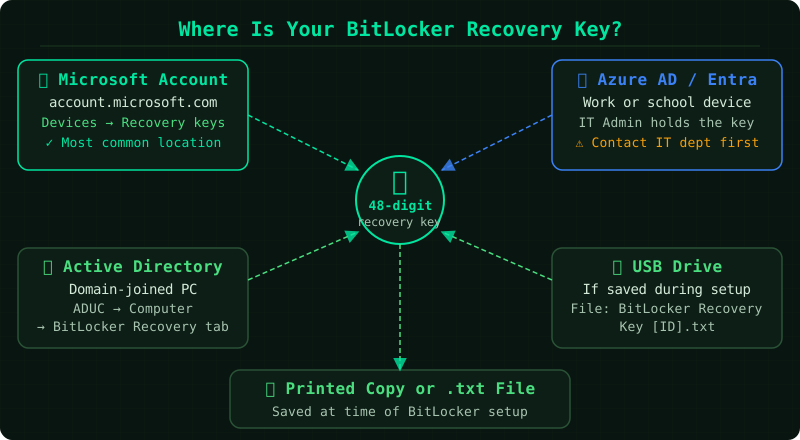
When Windows cannot unlock a BitLocker-protected drive on its own — after a firmware update, a hardware change, or a failed PIN attempt — it displays a blue recovery screen and asks for a 48-digit recovery key. Without that key, the drive stays locked. Where the key is stored depends entirely on choices made when BitLocker was first set up. According to official Microsoft documentation, there are five places to check, in order of likelihood.
What causes the BitLocker recovery screen
According to Microsoft’s BitLocker documentation, the recovery screen appears when the TPM (Trusted Platform Module) detects a change it was not expecting. Common triggers include:
- A BIOS, UEFI, or firmware update that alters the boot environment
- A change to Secure Boot settings
- Adding or replacing hardware components, including the motherboard
- A Windows update that modifies hardware measurements
- Too many incorrect PIN entries
The drive itself is not corrupted. The data is intact — BitLocker is working exactly as designed. Entering the correct recovery key resumes normal access immediately.
How to find your BitLocker recovery key
Method 1 — Your Microsoft account (most common)
If the device was set up with a Microsoft account and BitLocker was enabled at that time, the key was uploaded automatically.
- On a different device, go to account.microsoft.com/devices/recoverykey
- Sign in with the Microsoft account used on the locked device
- Locate the device in the list
- Copy the 48-digit key shown under BitLocker recovery keys
- Enter the key on the locked device’s recovery screen
If multiple keys appear, match the Key ID shown in the top-left corner of the recovery screen with the Key ID listed in your account.
Method 2 — Azure Active Directory (work or school account)
If the device is enrolled in an organisation’s Azure AD — common for employer-issued or school-issued laptops — the key is held by the IT department, not by a personal Microsoft account.
- Go to myaccount.microsoft.com
- Select Devices
- Choose your device and click View BitLocker key
- If the key does not appear, contact your IT helpdesk directly and provide the Key ID from the recovery screen
Your IT administrator can retrieve the key from Microsoft Intune or on-premises Active Directory.
Method 3 — A saved file or USB drive
During BitLocker setup, Windows offers the option to save the recovery key as a text file or write it to a USB drive.
- Text file: The filename follows the format
BitLocker Recovery Key [Key ID].txt. Search for it on other drives, cloud storage folders (OneDrive, Google Drive), or any device you use for backups. - USB drive: Plug the USB into the locked computer. The BitLocker recovery screen can read the key automatically and may unlock the drive without manual entry.
Method 4 — A printed copy
If you chose to print the key during setup, check physical files — a printed sheet stored with other important documents. There is no digital alternative if this was the only backup method used.
Method 5 — On-premises Active Directory (corporate network)
For devices joined to a corporate Windows domain, the recovery key may have been escrowed to on-premises Active Directory automatically.
- Contact your IT administrator
- Provide the Key ID from the recovery screen
- The administrator can look up the key in Active Directory Users and Computers or the BitLocker Recovery Password Viewer
How to verify the fix
After entering the 48-digit recovery key, Windows resumes the boot process normally. If the recovery screen was triggered by a one-time event — such as a firmware update — the issue will not repeat. If the underlying change is permanent (for example, a motherboard replacement), BitLocker will need to be suspended before future hardware work to prevent the recovery screen from appearing again. That process is covered in a separate guide.
Known limitations
- Key was never saved: If BitLocker was enabled without saving the recovery key to any of the locations above, Microsoft has no mechanism to recover it. According to official documentation, there is no backdoor — the encrypted data cannot be accessed without the key.
- Device belongs to an organisation: The key is controlled by the IT department and will not appear in a personal Microsoft account, even if you use a Microsoft account to sign in to Windows.
- Local account setup: Devices configured with a local Windows account instead of a Microsoft account do not upload the key automatically. Only USB, file, or print backups apply in this case.
Common Questions
Is the BitLocker recovery key the same across devices? No. Each encrypted drive has its own unique recovery key. A key from another device will not work, even if both devices are from the same manufacturer.
Where do I find the Key ID on the recovery screen? The Key ID — an 8-character identifier — appears in the upper portion of the blue BitLocker recovery screen. Use it to match the correct entry when multiple keys appear in your Microsoft account.
My key is not in my Microsoft account. What now? If the device was set up without a linked Microsoft account, or if the key was never uploaded, check the USB, file, and print options described above. If none of those backups exist, the “no recovery key” scenario applies — see our dedicated guide on that topic.
Can I recover data without the key? According to Microsoft’s official documentation, no. BitLocker uses AES encryption and is designed so that the data is inaccessible without the recovery key or the original PIN and TPM combination. Professional data recovery services cannot bypass BitLocker encryption.
Step-by-step fix
Check your Microsoft account
Go to account.microsoft.com/devices/recoverykey on another device, sign in with the Microsoft account used on the locked device, and copy the 48-digit recovery key.
Check Azure Active Directory
If the device is work or school-issued, go to myaccount.microsoft.com, select Devices, choose your device and click View BitLocker key, or contact your IT helpdesk with the Key ID.
Check a saved file or USB drive
Search for a file named 'BitLocker Recovery Key [Key ID].txt' on other drives or cloud storage, or plug in the USB drive used during setup.
Check a printed copy
Look for a printed sheet stored with important documents from when BitLocker was first set up.
Contact IT for Active Directory
If the device is on a corporate domain, provide the Key ID to your IT administrator who can retrieve it from Active Directory or Intune.