
You found a BitLocker recovery key but the screen keeps rejecting it. According to Microsoft’s BitLocker recovery documentation, this almost always means you are entering the wrong key — not that the key itself is broken or that the drive has failed.
BitLocker can protect multiple drives, and every drive has its own unique recovery key. If you have more than one key saved, each one is only valid for the specific drive it was created for. Entering the right key for the wrong drive produces exactly the same rejection message as entering a wrong key entirely.
Why the recovery key is not working
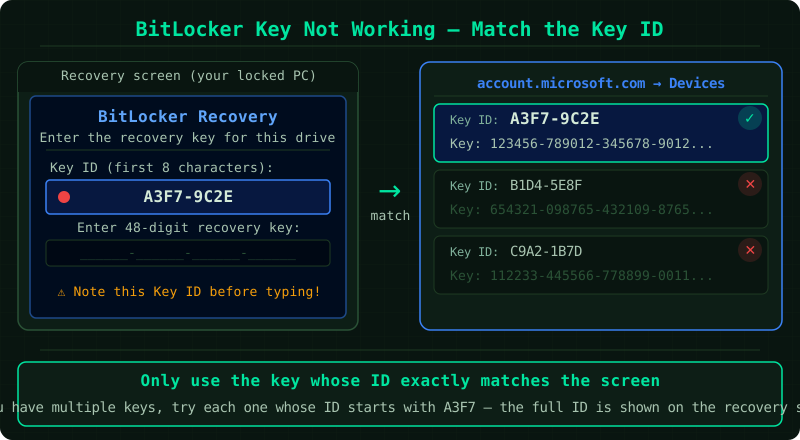
You are entering a key for the wrong drive. This is the most common cause. If you have ever set up BitLocker on more than one device or drive, multiple keys may be saved to your Microsoft account. Each key is tied to a specific drive, identified by an 8-digit Key ID.
The Key ID on screen does not match any saved key. If BitLocker was set up without a Microsoft account, or the key was saved to a USB drive that is no longer available, the account page will not contain the required key.
Transcription errors. A BitLocker recovery key is 48 digits long. A single transposed or missing digit causes rejection with no indication of which character is wrong.
The key was rotated after a hardware change. According to Microsoft’s documentation, certain system changes — such as a TPM firmware update or motherboard replacement — can cause BitLocker to generate a new recovery key, making the previously saved key invalid.
How to find the correct recovery key
Step 1 — Note the 8-digit Key ID on screen
The BitLocker recovery screen displays an 8-digit Key ID directly above the entry field. This is the identifier for the specific key that will unlock this drive. Write it down before doing anything else.
Step 2 — Match the Key ID in your Microsoft account
On a separate device, go to account.microsoft.com/devices/recoverykey and sign in with the same Microsoft account used on the locked device.
Each recovery key listed shows its Key ID alongside the 48-digit key. Compare the Key ID from the recovery screen against the list. Only the key with a matching ID will work — all others will be rejected regardless of how many times you try them.
Step 3 — Check alternative storage locations
If no Microsoft account key matches the Key ID, check these locations according to Microsoft’s documentation:
- Printed copy: A recovery key printed during BitLocker setup
- USB drive: A
.bekfile saved to a USB drive at setup time — insert the drive and the system may detect it automatically - Azure Active Directory: On a work or school device, the key may be stored in your organisation’s Azure AD or on-premises Active Directory — contact your IT administrator with the Key ID
- Command Prompt: On a separate working system with access to the drive, run
manage-bde -protectors -get C:as administrator to display stored protectors
Step 4 — Enter the key carefully
Type the 48-digit key exactly as it appears. The recovery screen accepts the key with or without the hyphen separators. If copying from a document, ensure no extra spaces were introduced. The entry is not case-sensitive, but every digit must be correct.
If no matching key exists
According to Microsoft’s BitLocker documentation, if the correct recovery key cannot be located, there is no method to bypass BitLocker and access the drive’s contents. BitLocker’s security guarantee relies entirely on the key remaining the only path to decryption.
In this situation the drive must be formatted to return it to use, which permanently destroys the encrypted data. This outcome underlines why Microsoft recommends saving the recovery key to at least two separate locations during BitLocker setup.
Known limitations
- Key rotation: If the device has undergone significant hardware changes since BitLocker was set up, the recovery key may have been rotated automatically. The old key stored in your Microsoft account will no longer work. The new key is only retrievable if it was successfully backed up to a new account entry before the lockout.
- Multiple accounts: If the device was previously signed into a different Microsoft account, the recovery key may be stored under that account rather than the current one.
- Offline accounts: BitLocker recovery keys are only backed up to Microsoft account automatically when the device is signed in with a Microsoft account. Local Windows accounts do not trigger automatic backup.
Common Questions
The Key ID on screen does not match any key in my Microsoft account. What now?
Check every other Microsoft account you have ever used on that device. Also check for a printed copy or USB .bek file from the original setup. If none are found, the data on the drive is not recoverable without the key.
Can I recover data from a BitLocker drive without the recovery key? No. According to Microsoft’s documentation, there is no technical method to access a BitLocker-encrypted drive without the correct recovery key or the original encryption password. Tools that claim otherwise are ineffective and sometimes destructive.
The key was accepted once but now it is rejected again. Why? A key that worked previously and now fails suggests the recovery key was rotated — typically after a hardware change, TPM update, or a security policy applied by an administrator. Look for a newer key entry in your Microsoft account with a more recent date.