
If a Windows update finishes and the next restart brings up the blue BitLocker recovery screen, your drive is not corrupted and your data is not lost. According to official Microsoft documentation, this is an expected response: Windows updates — particularly major feature updates and certain security patches — can modify boot components that BitLocker monitors. When those measurements change, BitLocker deliberately locks the drive and requests the recovery key as a security measure.
Entering the correct key resolves the immediate lockout. Suspending BitLocker before future updates prevents the screen from appearing again.
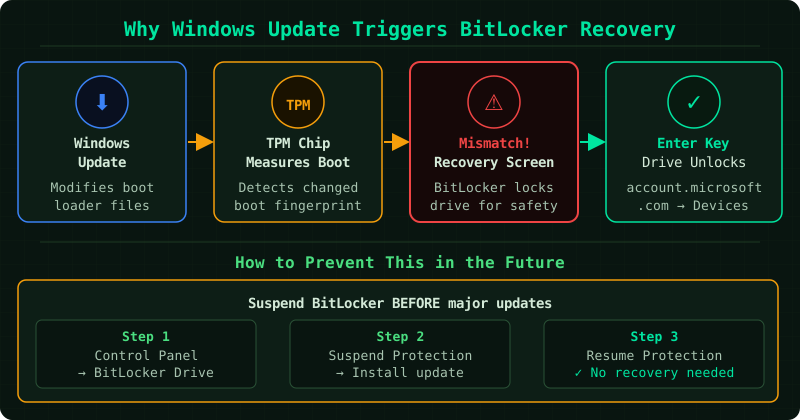
Why Windows Update triggers the BitLocker recovery screen
BitLocker works by measuring the boot environment at setup time and storing those measurements in the TPM (Trusted Platform Module). Every time the device starts, BitLocker compares the current boot state against those stored values. According to Microsoft’s BitLocker documentation, if the comparison fails — because a component has changed — BitLocker enters recovery mode.
Windows updates that commonly trigger this behaviour include:
- Major annual feature updates (Windows 11 version upgrades)
- Firmware updates delivered through Windows Update
- Security patches that modify Secure Boot or TPM-related components
Minor cumulative updates rarely trigger recovery mode. If the recovery screen appears after every update regardless of size, that points to a BitLocker configuration issue rather than normal update behaviour.
How to fix the BitLocker recovery screen after Windows Update
Method 1 — Enter your recovery key
This resolves the current lockout immediately.
- On the BitLocker recovery screen, note the Key ID shown near the top — it is an 8-character identifier
- On a separate device, go to account.microsoft.com/devices/recoverykey
- Sign in with the Microsoft account used on the locked device
- Find the entry whose Key ID matches what is shown on the recovery screen
- Copy the 48-digit recovery key and type it into the recovery screen
- Windows will resume the boot process normally
If the key does not appear in your Microsoft account, refer to the guide on finding a BitLocker recovery key that was never uploaded.
Method 2 — Suspend BitLocker before the next update
Suspending BitLocker before a major Windows update prevents the recovery screen from appearing when the system restarts. According to Microsoft, this is the recommended approach before any operation that modifies the boot environment.
- Open the Start menu, type Manage BitLocker, and press Enter
- Next to the encrypted drive, click Suspend protection
- When prompted, select how many restarts to suspend for — choose 2 to cover the update and the post-install restart
- Run the Windows update normally
- After the update completes and Windows restarts, BitLocker re-enables itself automatically — no further action is needed
Suspension is temporary. The drive remains encrypted throughout the process; BitLocker simply does not check the boot measurements during those restarts.
How to verify the fix
After entering the recovery key, Windows should start normally and the recovery screen should not reappear. If you applied Method 2 before a future update, the next restart after that update should proceed directly to the Windows sign-in screen without any recovery prompt.
Known limitations
- Recovery key not saved: Suspending BitLocker before updates does not help if the recovery key was never backed up. Back up the key first via Manage BitLocker → Back up your recovery key, then apply the suspension step for future updates.
- Not all updates trigger recovery: Small cumulative patches typically do not affect TPM measurements. The suspension step is most valuable before annual feature updates or firmware-level patches delivered through Windows Update.
- Interrupted update: If a Windows update is interrupted by a power loss or forced shutdown, the resulting change to boot state can also trigger the recovery screen. In that case, enter the recovery key and allow Windows to complete the update process.
Common Questions
Will this happen every time Windows updates? Not usually. Minor security patches rarely change the components BitLocker monitors. Large feature updates — the ones that take longer and require multiple restarts — are more likely to trigger recovery mode. Suspending BitLocker before those specific updates prevents the issue.
Does suspending BitLocker decrypt the drive? No. Suspending BitLocker is a temporary state that disables the boot-time measurement check for a set number of restarts. The drive remains fully encrypted. Once the allowed number of restarts has passed, BitLocker automatically re-enables protection without any input from you.
What if my computer shut down during the update? An interrupted update can modify boot components in a partial state, which triggers the recovery screen on the next start. Enter your recovery key to unlock the drive, and Windows will attempt to complete or roll back the update automatically.
Can I disable BitLocker entirely to avoid this? Yes, but this removes encryption from the drive entirely, leaving your data unprotected if the device is lost or stolen. Suspending BitLocker only before major updates is the approach recommended by Microsoft — it avoids the recovery screen without sacrificing the security that BitLocker provides day to day.
Step-by-step fix
Enter your recovery key
Note the Key ID on the recovery screen, go to account.microsoft.com/devices/recoverykey on another device, sign in with your Microsoft account, and enter the matching 48-digit key.
Suspend BitLocker before future updates
Open Manage BitLocker from the Start menu, click Suspend protection next to the encrypted drive, run the Windows update, then let Windows re-enable BitLocker automatically after restart.