
If the Manage BitLocker screen shows your drive as Suspended rather than On, the drive is still encrypted — but the boot-time protection that makes BitLocker effective has been temporarily disabled. According to official Microsoft documentation, suspended mode is a deliberate, controlled state designed for short-term use during system maintenance. It is not meant to persist, and restoring full protection takes less than a minute.
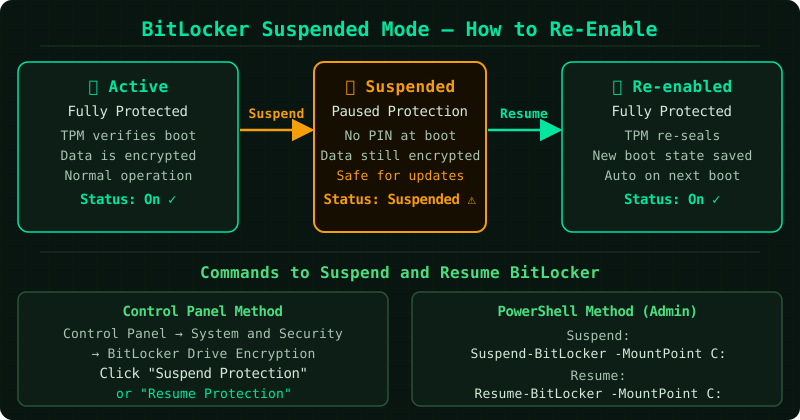
What BitLocker suspended mode means
According to Microsoft’s BitLocker operations documentation, suspending BitLocker keeps the drive encrypted but replaces the normal TPM-protected key with a clear key — a decryption key stored openly on the drive itself. This allows the system to boot without performing TPM measurements, which prevents the recovery screen from appearing during operations that modify the boot environment.
The practical implication: the data is still encrypted, but anyone with physical access to the drive can read it without a PIN, password, or recovery key. The protection is not gone, but it is significantly weakened.
Common reasons BitLocker enters suspended mode:
- It was manually suspended before a Windows update or firmware change and the automatic re-enable did not trigger
- Windows automatically suspended it during a major feature update installation
- A BIOS or driver update was applied while BitLocker was suspended and the system was not restarted enough times to trigger the automatic resume
- An IT administrator suspended it remotely for maintenance
How to re-enable BitLocker from suspended mode
Method 1 — Manage BitLocker (recommended)
This is the fastest and most straightforward approach.
- Open the Start menu, type Manage BitLocker, and press Enter
- Locate the encrypted drive — it will show Suspended next to it
- Click Resume protection
- Windows re-records the current TPM measurements as the new trusted baseline and restores full boot-time protection
- The status updates to BitLocker On
No restart is required. The change takes effect immediately.
Method 2 — Command Prompt
For users who prefer the command line or need to script the operation across multiple drives.
Open Command Prompt as administrator and run:
manage-bde -protectors -enable C:Replace C: with the drive letter shown as suspended. The command completes in seconds and outputs a confirmation message.
Method 3 — PowerShell
Open PowerShell as administrator and run:
Resume-BitLocker -MountPoint "C:"Replace "C:" with the correct drive letter. PowerShell returns no output on success — run the status check below to confirm.
How to verify the fix
Visually: Open Manage BitLocker and confirm the drive shows BitLocker On with a closed padlock icon. The Resume protection link should no longer appear.
Command line: Open Command Prompt as administrator and run:
manage-bde -status C:Look for the following line in the output:
Protection Status: Protection OnIf it reads Protection Off, the drive is still suspended — repeat the resume step.
What happens if you leave BitLocker suspended
According to Microsoft’s documentation, a drive in suspended mode remains encrypted, but the security guarantee is reduced in a specific way: the clear key stored on the drive means physical access is sufficient to read the data. The normal requirement — TPM validation plus PIN or password — is bypassed.
The practical risk depends on the context:
- Device stays in a secure location: The immediate risk is low. The data is still encrypted at rest and cannot be read by remote attackers.
- Device is portable or shared: Suspended mode on a laptop that could be lost or stolen is a meaningful exposure. Full protection should be restored as soon as the maintenance operation is complete.
- TPM checks are off: Changes to the boot environment — such as another firmware update — will not trigger the recovery screen while BitLocker is suspended. This means the tamper-detection that BitLocker provides is inactive.
Microsoft’s guidance is clear: suspended mode is a temporary operational state, not a permanent configuration. Restore protection as soon as the reason for suspension no longer applies.
Known limitations
- Repeated suspension after resume: If BitLocker shows as suspended again after the next restart, a Group Policy setting or a system management tool may be overriding the local configuration. On corporate devices, contact your IT administrator — the suspension may be applied remotely by design.
- TPM not ready: If the resume operation fails with an error about the TPM, open tpm.msc from the Start menu to check the TPM status. A TPM that shows as not ready or not owned may require initialisation before BitLocker can resume normally.
- No Resume protection option visible: If the Manage BitLocker screen does not show a suspended drive and there is no Resume protection link, the drive is already fully protected. No action is needed.
Common Questions
Is my data safe while BitLocker is suspended? The drive remains encrypted, so remote access or someone reading the drive from another operating system over a network cannot access the data directly. However, because the clear key is stored on the drive, someone with physical possession of the device can unlock it without any credentials. For devices that stay in a controlled location, the short-term risk is low. For laptops or portable devices, restore protection as soon as possible.
Does every Windows update leave BitLocker suspended? No. Minor cumulative updates typically do not affect TPM measurements and do not require BitLocker to be suspended at all. When suspension is used before a major feature update, Windows usually re-enables protection automatically after the required restarts complete. If the Resume protection option is still showing after an update, click it to complete the process manually.
The Resume protection link is not there — is BitLocker off? Not necessarily. If the drive shows BitLocker On without a Resume protection option, protection is fully active and nothing needs to be done. If the drive does not appear in Manage BitLocker at all, BitLocker may not be enabled on that drive — which is a separate question from suspended mode.
Can I suspend BitLocker from the command line?
Yes. Run manage-bde -protectors -disable C: as administrator to suspend, and manage-bde -protectors -enable C: to resume. This is useful for scripting maintenance windows on multiple machines.
Step-by-step fix
Open Manage BitLocker
Type Manage BitLocker in the Start menu and press Enter. Look for the Suspended status next to the encrypted drive.
Click Resume protection
Click the Resume protection link next to the suspended drive. Windows will re-record the current TPM measurements and restore full BitLocker coverage.
Verify the status
Confirm the drive now shows BitLocker On in the Manage BitLocker screen, or run manage-bde -status C: in an administrator Command Prompt to verify Protection Status: Protection On.