
The “Preparing BitLocker Recovery” message appears briefly at startup before Windows transitions to the BitLocker recovery key entry screen. It is not an error in itself — it is a notification that BitLocker has detected a change it cannot verify and is preparing to ask for the recovery key.
The message typically displays for a few seconds, then the screen changes to the standard BitLocker recovery screen with the Key ID and the 48-digit entry field.
What triggers this screen
According to Microsoft’s BitLocker recovery documentation, BitLocker enters recovery mode when something changes in the system’s startup environment that the TPM (Trusted Platform Module) cannot verify. Common causes include:
- A Windows Update that modified boot files — particularly updates to the bootloader or Secure Boot configuration
- A BIOS or UEFI firmware update that altered the TPM measurements
- A hardware change such as adding, removing, or replacing RAM, a storage drive, or a graphics card
- Secure Boot settings changed in BIOS/UEFI
- Startup Repair was run by Windows automatically
- The drive was moved to a different computer
None of these indicate that the drive has failed or that data has been lost. BitLocker is working as designed — any unexplained change to the startup environment triggers a request for the recovery key as a security measure.
What to do when you see this screen
The “Preparing BitLocker Recovery” message requires no action. Wait for it to complete. Within a few seconds it will transition to the BitLocker recovery screen showing:
- An 8-digit Key ID — this identifies which recovery key is needed
- A 48-digit entry field — where you type or paste the recovery key
Note the Key ID before doing anything else.
How to find the recovery key
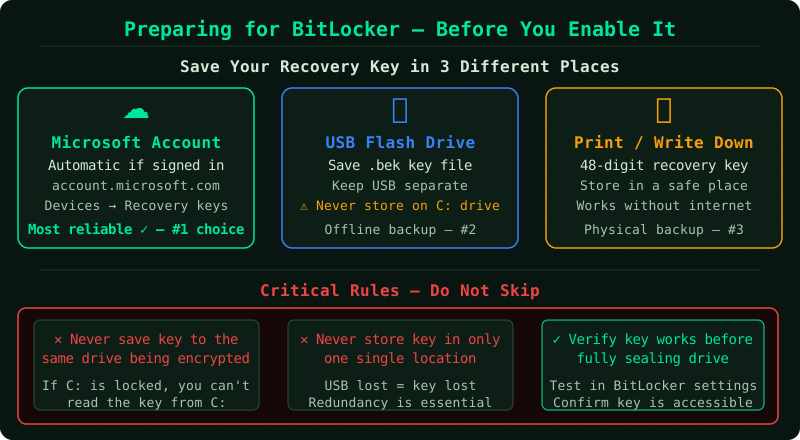
The recovery key is stored in whichever location was chosen when BitLocker was set up:
Microsoft account (most common): On another device, go to account.microsoft.com/devices/recoverykey (also reachable via aka.ms/myrecoverykey) and sign in with the Microsoft account used on the locked device. Match the Key ID to find the correct key.
Azure Active Directory: On a work or school device, contact your IT administrator. The key is stored in the organisation’s directory, not in a personal Microsoft account.
USB drive: If a .bek file was saved to a USB drive at setup, insert the drive — Windows may detect and use the key automatically.
Printed copy: A key printed at setup time shows the Key ID and the 48-digit key.
After entering the recovery key
Once the correct key is entered and the drive unlocks, Windows will boot normally. Depending on the cause of the recovery trigger, BitLocker may or may not require the recovery key again on the next restart.
If a Windows Update caused the recovery trigger, Windows typically re-establishes trust with the TPM after the first successful boot past recovery, and subsequent restarts will not require the key again.
If the cause was a permanent hardware change — such as a motherboard replacement — BitLocker may need to be suspended and re-enabled to update the TPM measurements. This is done from an administrator Command Prompt:
manage-bde -protectors -disable C:Then after rebooting normally:
manage-bde -protectors -enable C:If the screen appears repeatedly
If BitLocker enters recovery mode on every restart, the underlying cause has not been resolved. According to Microsoft’s documentation, this usually means:
- A pending Windows Update continues to modify boot files on each startup
- A hardware change has not been reconciled with the current TPM state
- Secure Boot settings remain in a changed state
In this case, disabling and re-enabling BitLocker protection (as shown above) forces BitLocker to re-seal to the current system state, which resolves repeated recovery prompts caused by permanent configuration changes.
Common Questions
Is this screen a sign that the drive is failing? No. The “Preparing BitLocker Recovery” message is a security check, not a drive failure indicator. It means BitLocker detected a change in the startup environment — the drive itself is fine.
Why did this appear after a Windows Update? Windows Updates sometimes modify boot-related files that BitLocker monitors. This is a known and expected behaviour documented by Microsoft. After entering the recovery key once, subsequent restarts after the same update typically do not trigger recovery again.
Can I stop this from happening in the future? You can suspend BitLocker protection before applying updates that are known to trigger recovery. In Settings, go to System > Storage > BitLocker and select Suspend Protection before the update, then resume it afterward. This is only necessary if recovery prompts are becoming disruptive.