
The short answer is no. According to Microsoft’s official BitLocker documentation, there is no supported method — and no effective unsupported method — to access a BitLocker-encrypted drive without the correct recovery key or the original encryption password. Any tool that claims otherwise is either ineffective or destructive.
This article explains why bypassing BitLocker is not possible, what you can still try to locate a valid key, and what your options are if no key exists.
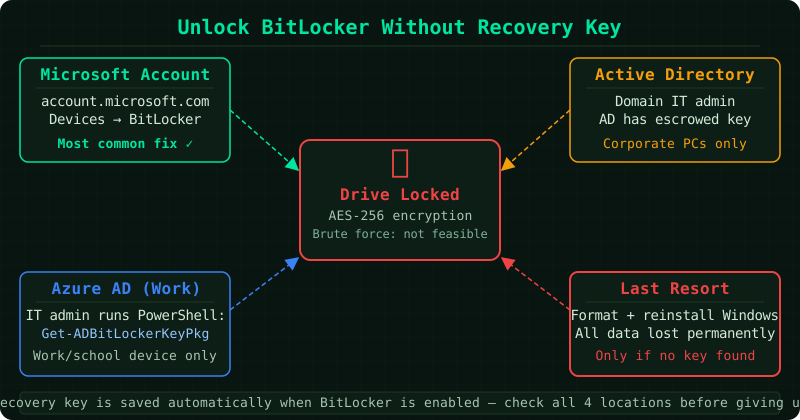
Why BitLocker cannot be bypassed
BitLocker uses AES-256 or AES-128 encryption. The encrypted data on the drive is mathematically unreadable without the Volume Master Key, which is itself protected by the recovery key or the TPM plus PIN. There is no backdoor built into BitLocker, and Microsoft does not hold a copy of your recovery key.
Tools that claim to “crack” or “bypass” BitLocker typically fall into two categories:
- Brute-force tools — these are computationally infeasible against AES-256. A 48-digit recovery key has more possible combinations than current computing power can exhaust within any practical timeframe.
- Cold boot or memory-capture attacks — these require physical access to the device while it is running and the encryption keys are loaded in RAM. If the device is already locked at the BitLocker recovery screen, these attacks do not apply.
What you can actually try
Before concluding the data is unrecoverable, exhaust every key location. The recovery key exists somewhere unless it was never backed up.
Check your Microsoft account
Go to account.microsoft.com/devices/recoverykey on another device. Sign in with the Microsoft account that was active on the locked device at the time BitLocker was set up. Match the 8-digit Key ID shown on the recovery screen to the corresponding key in the list.
If the device was set up with a work or school account, check that account’s recovery key page instead.
Check every Microsoft account you have used
Recovery keys are stored under the account that was signed in when BitLocker was enabled, not necessarily the account currently associated with the device. Try every Microsoft account email address you have ever used — personal, work, school, or older accounts.
Look for a printed copy or USB file
During BitLocker setup, Windows offers three backup options: Microsoft account, USB drive, and printed copy. If a USB drive was chosen, the key was saved as a .bek file. Insert the USB drive into the locked computer — Windows may detect the key file automatically and unlock the drive without requiring you to type the key.
If a printout was made, it shows the 48-digit key and the Key ID. The printout is the only backup some users made.
Check Azure Active Directory or on-premises Active Directory
If the device belongs to a workplace or school that uses Azure Active Directory or on-premises Active Directory, the recovery key may have been escrowed automatically to the organisation’s directory. Contact your IT administrator and provide the Key ID from the recovery screen. Administrators can retrieve it from the Azure portal or from Active Directory Users and Computers.
Try the encryption password
If BitLocker was set up in password mode rather than TPM mode, the drive can also be unlocked with the original encryption password. On the recovery screen, pressing Esc may reveal an option to enter the password instead of the recovery key.
If no key can be found
According to Microsoft’s BitLocker documentation, if the correct recovery key cannot be located, the encrypted data on the drive is not recoverable. This is a deliberate property of how BitLocker works — the security guarantee depends on the key being the only path to decryption.
The only remaining option is to format the drive to return it to use, which permanently and irreversibly destroys all encrypted data.
Preventing this situation on other drives
Microsoft recommends backing up the BitLocker recovery key to at least two locations at setup time. To check or update the backup for a drive that is currently accessible, open an administrator Command Prompt and run:
manage-bde -protectors -get C:This displays the Key ID and the current protectors. To add a Microsoft account backup:
manage-bde -protectors -adbackup C: -id {key-ID-here}Storing the key in your Microsoft account means it is available from any browser if you are ever locked out again.
Common Questions
Can a data recovery service unlock a BitLocker drive without the key? No. Professional data recovery services can repair physically damaged drives, recover data from failing media, and reconstruct file systems — but they cannot bypass AES encryption. Any service claiming otherwise is misrepresenting their capabilities.
Will removing the drive and putting it in another computer help? No. BitLocker encryption travels with the drive. Connecting the drive to another machine still requires the correct recovery key to decrypt it.
Is there a master key or government backdoor? No. Microsoft’s documentation confirms there is no master key. BitLocker was designed so that not even Microsoft can recover data without the recovery key.