
Error code 0xC004F074 appears with the message: “The Software Licensing Service reported that the computer could not be activated. No Key Management Service (KMS) could be contacted.”
This is a KMS connectivity error. Windows attempted to reach a KMS server for volume licence activation — either through automatic DNS discovery or a manually configured address — and could not establish contact with any available server.
According to Microsoft’s documentation, this error is specific to devices configured for KMS or volume activation. It does not typically appear on personal home devices using retail product keys.
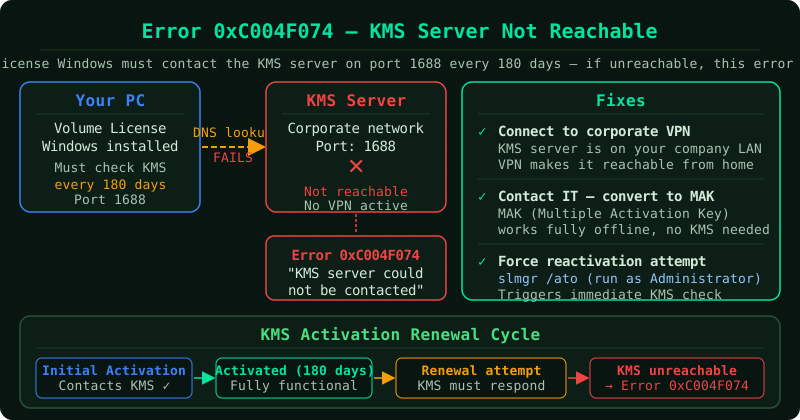
Why 0xC004F074 occurs
Windows volume licences activated via KMS require periodic contact with the KMS server. The device renews its activation every 180 days by default. If the renewal attempt fails because the KMS server is unreachable, Windows enters a grace period. When the grace period expires without a successful renewal, 0xC004F074 appears and Windows shows as unactivated.
Common reasons the KMS server cannot be contacted:
- The device is off the corporate network and not connected via VPN
- The KMS server is offline for maintenance or due to a failure
- TCP port 1688 is blocked by a firewall between the device and the KMS server
- The DNS SRV record for the KMS server has expired or been removed — Windows cannot discover the server’s address automatically
- The KMS server does not have enough activations — a KMS server requires a minimum number of activation requests before it begins issuing licences (25 for Windows clients, 5 for servers)
Step 1 — Connect to VPN (remote workers)
If you are working away from the office, this is the most common cause. KMS servers are typically inside the corporate network and not accessible from the public internet.
Connect to your organisation’s VPN, then open an administrator Command Prompt and run:
slmgr /atoThis triggers an immediate activation attempt. If the VPN connection reaches the KMS server, activation should complete within a few seconds.
Step 2 — Check DNS discovery
On the corporate network or VPN, verify that Windows can find the KMS server through DNS:
nslookup -type=srv _vlmcs._tcpA successful response shows the KMS server hostname and port (usually 1688). If the query returns no records or an error, the DNS SRV record for the KMS service is missing or incorrect. An IT administrator needs to add or repair it.
Step 3 — Test port connectivity
Even if DNS discovery succeeds, a firewall may block the actual connection:
Test-NetConnection -ComputerName kms-server-name -Port 1688Run this in an administrator PowerShell window, replacing kms-server-name with the hostname returned by the DNS query. A TcpTestSucceeded : True result confirms the port is reachable. A False result indicates a firewall block.
Step 4 — Set the KMS server address manually
If DNS auto-discovery is not working and the server address is known, configure it directly:
slmgr /skms kms-server-name:1688
slmgr /ato
Replace kms-server-name with the actual hostname or IP address of the KMS server. Run slmgr /ato immediately after to attempt activation with the specified server.
Step 5 — Check the KMS server activation count (IT administrators)
A KMS server requires a minimum number of unique activation requests before it issues licences:
- Windows clients: 25 requests
- Windows Server: 5 requests
- Microsoft Office: 5 requests
If the count has not been reached — for example, in a new or small deployment — the KMS server will not issue licences and clients receive 0xC004F074. The fix is to ensure enough devices have requested activation against the server to cross the threshold.
Verifying activation after the fix
slmgr /dliThis displays the current licence status. “Licence Status: Licensed” confirms activation completed. The output also shows the remaining time before the next renewal is required.
Common Questions
My device was activated last month. Why is it showing this error now?
KMS activations expire after 180 days if not renewed. If your device was off the corporate network and not connected via VPN during the renewal window, the activation lapsed. Connecting to VPN and running slmgr /ato will renew it.
Is there a way to keep the device activated when working remotely without VPN? An IT administrator can switch the device from KMS to MAK (Multiple Activation Key) activation, which activates against Microsoft’s servers rather than a local KMS server and does not require VPN. This is typically done for permanently remote devices.
The error appeared after we moved offices. What changed? A network topology change — such as a new firewall configuration, a different subnet, or the KMS server moving to a different IP address — can break KMS connectivity. Verify that the KMS server’s DNS SRV record reflects its new address and that port 1688 is open between the new network segment and the server.