
Connecting a router to a modem is a single Ethernet cable connection — but the order in which you power the devices on matters. According to NETGEAR’s home networking documentation, most connection failures occur because the modem was powered on after the router, causing the modem to fail to assign the router an IP address.
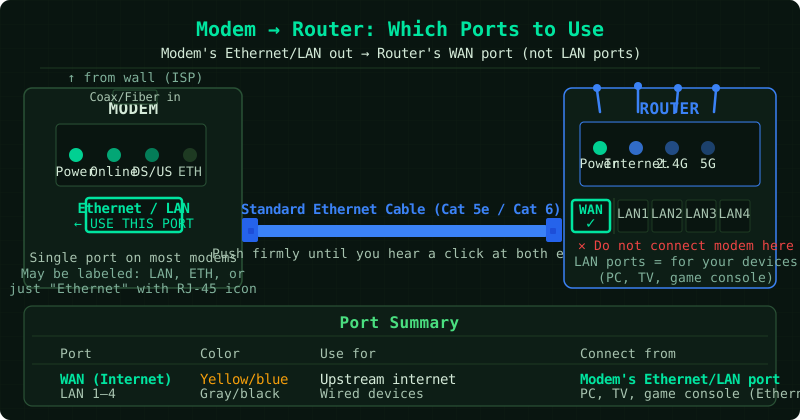
Understanding the modem-router connection
Before connecting, it helps to understand what each device does:
- Modem — translates your ISP’s signal (coaxial cable, fiber, DSL phone line) into a standard Ethernet signal your router can use. It connects to your ISP on one side and to your router on the other.
- Router — takes the internet connection from the modem and shares it wirelessly (WiFi) and via cables (Ethernet) to all devices in your home. It also manages your local network (IP addresses, security, traffic).
The connection between them is always a single standard Ethernet cable.
How to connect a router to a modem
Step 1 — Power off both devices
Before connecting any cables:
- Unplug the modem from its power outlet — or press its power button if it has one
- Leave the router unpowered for now
Why this matters: modems remember the MAC address of the last device connected to them. If you swap from an old router (or connect a new one) without restarting the modem, the modem may refuse to assign the new router an IP address.
Step 2 — Identify the correct ports
On the modem, look for:
- A single Ethernet/LAN port (usually labelled
ETH,LAN, orEthernet) — this is where the router connects - The coaxial, fiber, or phone cable input (from your wall) — do not use this port
On the router, look for:
- The WAN port — labelled
WAN,Internet, orINTERNET. It is usually:- A different color from the other ports (often blue, yellow, or clearly separated)
- Located separately or at one end of the port row
- Do not plug into one of the four LAN ports — the connection will not work
Step 3 — Connect the Ethernet cable
- Take a standard Cat 5e, Cat 6, or Cat 6a Ethernet cable — the cable that comes with most routers works fine
- Plug one end into the modem’s Ethernet port — push firmly until you hear a click
- Plug the other end into the router’s WAN port — push firmly until you hear a click
A loose connection is the most common cause of failure. Pull gently on each connector after inserting — it should not come out without pressing the release tab.
Step 4 — Power on the modem first
- Plug the modem back into power (or press its power button)
- Wait 60 seconds — watch the modem’s status LEDs stabilise. The Online or Internet LED should become solid
- If the modem has a connection indicator, confirm it shows a stable connection to your ISP before proceeding
Step 5 — Power on the router
- Plug the router into power (or press its power button)
- Wait 60–90 seconds for it to fully boot
- Watch the router’s WAN or Internet LED:
- Solid green — router received an IP address from the modem, connection successful
- Blinking — still negotiating
- Off or amber/red — connection issue (see FAQ below)
Step 6 — Test the connection
- Connect a device to the router’s WiFi (network name and default password are on the router label) or via Ethernet to a LAN port
- Open a browser and load any page
- Alternatively, open Command Prompt and run
ping 8.8.8.8— consistent replies confirm internet access
How to verify the connection
In the router admin panel (192.168.1.1 or 192.168.0.1):
- Log in with the admin credentials (on the router label)
- Go to WAN Status, Internet Status, or Basic Settings
- The WAN IP Address field should show a valid IP address (not
0.0.0.0) - A valid WAN IP confirms the modem successfully assigned an address to the router
Frequently asked questions
The router’s WAN LED is red or off after connecting. The modem likely did not release its old IP lease. Restart the modem: unplug it, wait 30 seconds, plug it back in. Wait 60 seconds, then check the router’s WAN LED again. If still red, try a different Ethernet cable — cable faults cause this exact symptom.
The modem has two Ethernet ports — which do I use?
Some modems have two ports: one labelled LAN (for the router) and one labelled DATA or PHONE (for VoIP). Use the LAN or Ethernet port. If unlabelled, try each one.
Can I connect two routers to one modem? A modem typically assigns a single IP address — meaning only one device can connect directly. To use two routers, configure the second router in access point mode or connect a network switch between the modem and routers.
The router works on one Ethernet cable but not another. A faulty Ethernet cable is the most common hardware problem in home networking. Replace the cable. Even new cables can have manufacturing defects. Use a cable rated Cat 5e or higher.