
When an email is stuck in the Outlook Outbox, it means Outlook has accepted the message for sending but has not transmitted it to the mail server. The message sits in the Outbox folder, sometimes showing as italic (which indicates Outlook is actively attempting to send it), and no subsequent emails can be sent until the queue clears.
According to Microsoft’s Outlook documentation, emails get stuck in the Outbox for three primary reasons: Outlook is in offline mode, the message itself has a problem (typically an oversized attachment), or a third-party add-in is interfering with the send process.
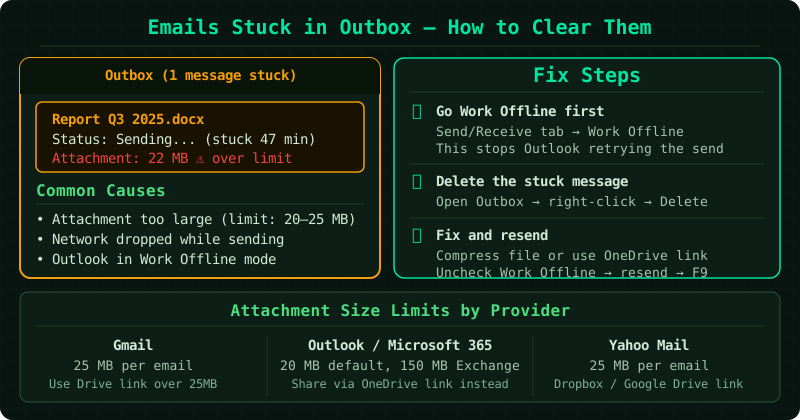
Why emails get stuck
Offline mode is active. This is the most common cause. Outlook’s Work Offline mode suspends all sending and receiving. It can be enabled accidentally by clicking the button on the Send/Receive tab, or it may have activated automatically when Outlook could not reach the server during a previous session.
The message is too large. Microsoft 365 and most email providers impose a maximum message size, typically 25 MB including attachments. Messages that exceed this limit are rejected by the server and remain in the Outbox. Outlook does not always display a clear error when this happens.
An add-in is intercepting the send. Security software, CRM plugins, and email management add-ins hook into Outlook’s send process. A faulty or outdated add-in can prevent the send request from reaching the mail server.
A corrupted OST file. The local Outlook data file (OST) can become corrupted, particularly after an unexpected shutdown. A corrupted OST may prevent Outlook from syncing new sends to the server.
Step 1 — Disable Work Offline mode
On the Send/Receive tab, check the Work Offline button. If it appears pressed or highlighted, click it once to disable it.
After disabling it, press F9 or click Send/Receive All Folders to force Outlook to attempt delivery immediately.
Step 2 — Move the stuck email to Drafts
A message shown in italics in the Outbox is currently being processed by Outlook. Do not double-click it — opening it while Outlook is sending can lock it in place.
To move it safely:
- Right-click the message in the Outbox
- Select Move > Other Folder
- Choose Drafts
Alternatively, drag the message from the Outbox to the Drafts folder in the folder panel on the left.
Once in Drafts, the message is no longer queued for sending. You can open it, edit it, and click Send again when ready.
Step 3 — Remove large attachments
With the message open in Drafts, check the total size of any attachments. The combined size of all attachments must stay under your provider’s limit:
- Microsoft 365: 25 MB per message
- Outlook.com: 20 MB per message
- Gmail accounts connected to Outlook: 25 MB
If the attachment exceeds these limits:
- Remove it from the message
- Save the file to OneDrive and use Insert > Link to share it, or upload to another file sharing service
- Paste the sharing link into the message body
- Click Send
This approach also benefits the recipient — large attachments slow down delivery and may be blocked by their mail server.
Step 4 — Restart Outlook in Safe Mode
If the email is not oversized and offline mode is disabled but the message still will not send, restart Outlook with add-ins disabled:
- Close Outlook
- Hold Ctrl and click the Outlook icon in the taskbar or Start menu
- When prompted, confirm you want to start in Safe Mode
In Safe Mode, attempt to send the message again. If it sends successfully, an add-in is the cause.
To identify the add-in:
- Restart Outlook normally
- Go to File > Options > Add-ins
- At the bottom, set Manage to COM Add-ins and click Go
- Uncheck add-ins one at a time, restarting Outlook and testing after each removal
If the Outbox is empty but emails are still not arriving
If the Outbox appears empty but recipients are not receiving your emails, the issue is likely upstream from Outlook — the mail server may be rejecting messages silently. Check your Sent Items folder: if the message appears there, it was transmitted from Outlook and the problem is with delivery on the server side.
Common Questions
The stuck email shows in italics and I cannot select it. Italics means Outlook is actively trying to send it. Switch to offline mode temporarily (Send/Receive > Work Offline), then try moving the message. Switching offline stops the send attempt, which releases the lock on the message.
I deleted the stuck email but a new one gets stuck immediately. The issue is with your email account settings or server connection, not the individual message. Run the Microsoft Support and Recovery Assistant (SaRA) to diagnose the account configuration.
The Outbox gets stuck only when sending to certain recipients. The recipient’s mail server may be blocking your messages. This could be due to a spam filter, a size limit at their end, or a policy blocking your domain. Try sending from a webmail client to rule out an Outlook-specific issue.