
When Outlook calendar is not syncing, meetings created or accepted on one device do not appear on others, shared calendar updates from colleagues are missing, or calendar events from mobile are absent on the desktop. The calendar appears frozen at a point in the past.
According to Microsoft’s calendar troubleshooting documentation, calendar sync relies on the same Exchange or Microsoft 365 connection that handles email. A calendar sync failure is therefore often a symptom of a broader account sync issue — but calendars can also fail independently due to permission problems, data file configuration, or a corrupted local calendar cache.
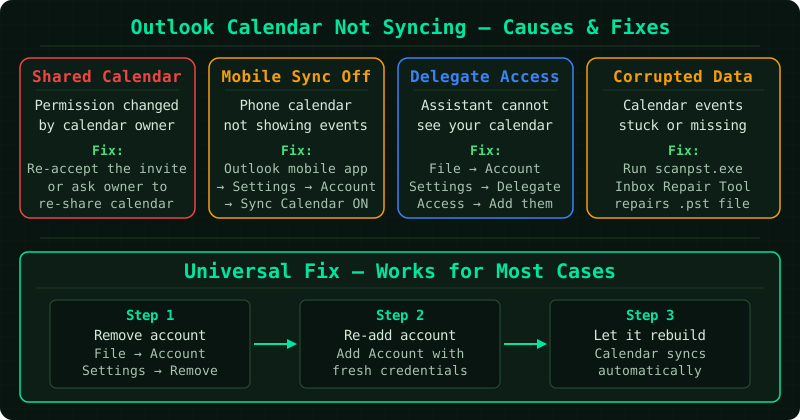
Why Outlook calendar stops syncing
Wrong default data file. If Outlook is configured to save new items to a local PST file rather than the Exchange mailbox, calendar events created on the desktop stay local and never reach the server or other devices.
Shared calendar permission change. If a colleague changed your access level to a shared calendar — or if the original owner’s account was modified — Outlook may lose the ability to receive updates for that calendar.
Corrupted local calendar cache. The calendar data stored in the OST file can become corrupted, causing Outlook to display stale data even though the server has current information.
Internet calendar (ICS) subscription error. Calendars subscribed via ICS URL (such as a Google Calendar or a team schedule) require Outlook to periodically fetch the ICS file. If the URL changes or the remote server is temporarily unavailable, the subscription stops updating.
Step 1 — Force a Send/Receive
Calendar data syncs through the same connection as email. Press F9 or click Send/Receive All Folders on the Send/Receive tab to force an immediate sync attempt.
If calendar data appears after this, the issue was simply a delayed sync. Outlook’s automatic sync interval may be set too long — check under Send/Receive Groups > Define Send/Receive Groups and set the interval to 5 minutes if it is currently longer.
Step 2 — Verify the default data file
New calendar events are saved to whichever data file is set as the default in Outlook.
- Go to File > Account Settings > Account Settings
- Click the Data Files tab
- Look for the file marked with a checkmark — this is the default
If the default is a local PST file (shown as a file path on your local drive) rather than your Exchange or Microsoft 365 account (shown as your email address), new events are being saved locally and will not sync.
To fix this: select your Exchange or Microsoft 365 account file and click Set as Default.
Step 3 — Remove and re-subscribe to shared calendars
For shared calendars (calendars owned by another person or a resource):
- In the navigation pane, right-click the calendar under Other Calendars or Shared Calendars
- Select Delete Calendar — this removes the local subscription but does not delete the calendar from the server
- To re-add it: click Home > Open Calendar > Open Shared Calendar
- Type the owner’s name or email address and click OK
Outlook will fetch a fresh copy of the calendar from the server.
For ICS internet calendars:
- Go to File > Account Settings > Internet Calendars
- Select the affected subscription and click Remove
- Re-add it using the original ICS URL
Step 4 — Clear the Outlook calendar cache
If the calendar displays events that no longer exist on the server, or is missing events that do exist, the local cache is out of sync with the server.
- Close Outlook
- Press Win+R, type
%localappdata%\Microsoft\Outlookand press Enter - Find the OST file associated with your account (it will include your email address in the filename)
- Rename it by adding
.oldto the end of the filename (for example:yourname.ost.old) - Restart Outlook
Outlook will create a new OST file and perform a full sync from the server, including all calendar data. Depending on mailbox size, this may take several minutes.
Outlook calendar not syncing with Google Calendar
If you use the Outlook.com Google Calendar sync or a third-party sync tool:
- Open the sync tool’s settings and verify the Google account credentials are current — a Google password change or permission revocation stops the sync
- Re-authorize the sync tool with your Google account
- If you are using Outlook on desktop to subscribe to a Google Calendar ICS feed, ensure the ICS URL has not changed — Google occasionally rotates these URLs
Common Questions
Calendar syncs on mobile but not on the desktop Outlook app. The Exchange connection on the desktop client has an issue specific to that machine. This usually means a corrupted OST file. Follow Step 4 to clear the cache and rebuild the local data file.
New meetings appear in calendar but do not show in Teams or Outlook mobile. The meeting was saved to a local PST rather than the Exchange mailbox. Check Step 2 to verify the default data file. Meetings must be saved to the Exchange account to appear across all devices.
A shared calendar shows one week behind — events are delayed, not missing. This is a cache delay. Right-click the shared calendar in the navigation pane, select Properties, and click Clear Offline Items. Outlook will re-download all calendar data for that calendar from the server.