
Error 0x800CCC0E appears in Outlook with the message: “The connection to the server failed. Account: [your account], Server: [server name], Protocol: SMTP, Port: [port], Secure(SSL): No/Yes, Socket Error: 10060, Error Number: 0x800CCC0E.”
This error means Outlook attempted to connect to the outgoing mail server (SMTP) and the connection failed before authentication could complete. It is a connection-level failure, not an authentication failure — the server did not respond at all, or the response was rejected by Outlook.
According to Microsoft’s documentation on Outlook error codes, 0x800CCC0E is produced specifically by the SMTP subsystem when a TCP connection to the outgoing server cannot be established or is interrupted before the exchange completes.
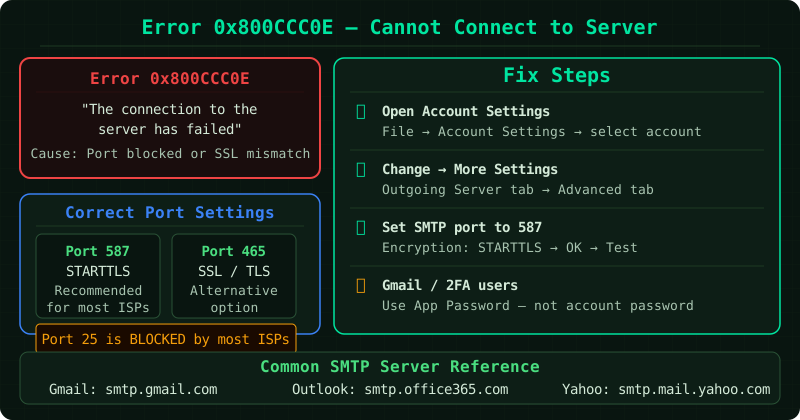
What causes 0x800CCC0E
Wrong SMTP port. Port 25 — the traditional SMTP port — is blocked by most ISPs for outbound email from residential and business connections. If Outlook is configured to use port 25, connections will time out, producing 0x800CCC0E. The correct ports are 587 (STARTTLS) or 465 (SSL/TLS).
SMTP authentication not enabled. Modern mail servers require Outlook to authenticate before accepting outgoing mail. If the authentication setting is disabled in Outlook’s account configuration, the server closes the connection immediately.
Antivirus email scanning interference. Antivirus software that inspects email traffic can intercept and terminate the SMTP connection, particularly when the connection uses encryption (TLS/SSL). The antivirus may misinterpret the encrypted handshake as suspicious.
Password change not updated in Outlook. If your email password has been changed — through a Microsoft 365 admin portal, your email provider, or Active Directory — Outlook continues using the old credentials. The server rejects authentication, but the error presented to the user can appear as a connection failure rather than an authentication error.
Firewall blocking the SMTP port. Windows Firewall, a router firewall, or a corporate network firewall may be blocking outbound connections on port 587 or 465. This is more common on managed corporate networks.
Step 1 — Verify SMTP server name and port
- Go to File > Account Settings > Account Settings
- Select your email account and click Change
- Click More Settings
- Open the Advanced tab
- Check the Outgoing server (SMTP) port number
The correct values depend on your email provider:
| Provider | SMTP Server | Port | Encryption |
|---|---|---|---|
| Microsoft 365 / Outlook.com | smtp.office365.com | 587 | STARTTLS |
| Gmail | smtp.gmail.com | 587 | STARTTLS |
| Yahoo Mail | smtp.mail.yahoo.com | 587 | STARTTLS |
| iCloud | smtp.mail.me.com | 587 | STARTTLS |
If port 25 is listed, change it to 587 and set encryption to STARTTLS.
Step 2 — Enable SMTP authentication
In the More Settings dialog:
- Click the Outgoing Server tab
- Check My outgoing server (SMTP) requires authentication
- Select Use same settings as my incoming mail server
Click OK and test by sending an email. SMTP authentication is required by all major email providers and must be enabled in Outlook’s account settings.
Step 3 — Check antivirus email scanning
Common antivirus programs — including Norton, McAfee, AVG, and Avast — include an email scanning feature that monitors outgoing SMTP traffic. This feature can intercept TLS-encrypted SMTP connections and cause 0x800CCC0E.
To test whether antivirus is the cause:
- Open your antivirus settings
- Locate the email protection or email scanning module
- Temporarily disable only the email scanning component (not the entire antivirus)
- Attempt to send an email from Outlook
If the email sends successfully, the antivirus email scanning is the cause. Configure it to exclude Outlook.exe from email scanning, or disable the email scanning module permanently — modern mail servers use TLS encryption that makes client-side email scanning redundant.
Step 4 — Re-enter your email credentials
- Go to File > Account Settings > Account Settings
- Select your account and click Change
- In the Password field, clear the existing entry and type your current password
- Tick Remember password
- Click Next and then Finish
If you are using Microsoft 365 with multi-factor authentication (MFA) enabled, Outlook may require an app password rather than your regular account password. Generate an app password from your Microsoft account security settings and use it in place of your regular password in Outlook.
Checking your network and firewall
If all account settings are correct and the error persists:
-
Test whether the SMTP port is accessible: open Command Prompt and run:
telnet smtp.office365.com 587If the connection times out with no response, the port is blocked at the firewall or ISP level.
-
Contact your network administrator or ISP to confirm outbound access to port 587.
Common Questions
Error 0x800CCC0E appears only on one computer but not another. The account settings on the affected computer are likely different. Compare the SMTP server, port, and authentication settings between the working and non-working machines. Also check whether the affected machine has antivirus email scanning enabled.
I use Microsoft 365 and the SMTP settings look correct but the error persists. Ensure your Microsoft 365 account has SMTP AUTH enabled. In the Microsoft 365 Admin Center, go to Users > Active Users, select the user, click Mail, then Manage email apps, and confirm Authenticated SMTP is checked. This setting can be disabled by an admin.
The error started after I changed my Microsoft password. Outlook cached the old password. Follow Step 4 to re-enter the new password. If you use Windows Hello or a PIN to sign into Windows, also update the saved credentials in Windows Credential Manager: search for Credential Manager in the Start menu, find entries for your email account, and update the password there.