
When Outlook is not receiving emails but can still send, the problem is isolated to the incoming mail path. This distinction matters because sending and receiving use different server connections and different ports: SMTP for outgoing, and either IMAP or Exchange for incoming.
According to Microsoft’s Outlook troubleshooting documentation, the most common causes of one-way email failure — sending works, receiving does not — are a redirecting rule, a full or near-full mailbox, a connection problem with the incoming mail server, or an Outlook profile issue.
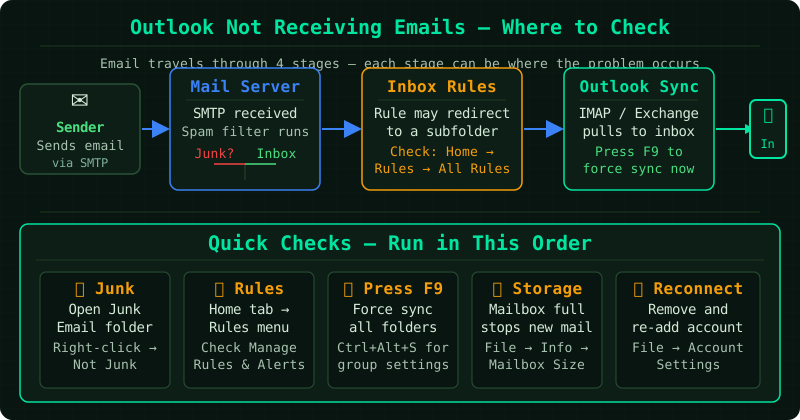
Why incoming mail stops while sending continues
An Outlook rule is redirecting or deleting incoming messages. Rules that run on incoming messages can move mail to other folders, forward it elsewhere, or delete it before it reaches the inbox. A rule created accidentally or inherited from a previous profile can silently intercept every incoming message.
Mailbox is full. Microsoft 365 and Exchange mailboxes have a size quota. When the mailbox reaches its limit, incoming messages are rejected by the server. Outlook continues to accept outgoing messages (which are stored in Sent Items on the server) until the limit is reached from the outgoing side too.
Incoming mail server connection issue. IMAP and Exchange require a persistent connection. A misconfigured incoming server port, an expired certificate, or a temporary server outage can stop new mail from downloading while leaving the outgoing SMTP path unaffected.
Outlook profile corruption. The Outlook profile stores account configuration. A partially corrupted profile can result in asymmetric behavior — one direction of mail flow working while the other fails.
Step 1 — Check Junk Email and all other folders
Before investigating server or configuration issues, confirm the messages are not being delivered to another folder:
- Click the Junk Email folder — check for any legitimate messages and mark them as Not Junk
- In the navigation pane, expand All Mail or check every folder visible under your account
- Look for any folders with unread counts that should not have activity
If you find messages in unexpected folders, an Outlook rule is likely the cause. Proceed to Step 3.
Step 2 — Run Send/Receive and note errors
Press F9 or click Send/Receive All Folders. If the incoming server cannot be reached, Outlook will display an error in the Send/Receive Progress dialog.
Common incoming mail errors:
| Code | Meaning |
|---|---|
| 0x80042108 | Cannot connect to incoming mail server |
| 0x800CCC90 | Incoming server rejected the login credentials |
| 0x800CCC92 | Password rejected by the incoming server |
| 0x800CCC0F | Connection to server was interrupted |
If one of these errors appears, the issue is with the incoming server connection or credentials. Verify your IMAP or Exchange settings under File > Account Settings > Account Settings > Change > More Settings > Advanced.
For Microsoft 365 accounts:
- Incoming server: outlook.office365.com
- Port: 993 (IMAP) or use Exchange (no manual port needed)
- Encryption: SSL/TLS
Step 3 — Check and disable Outlook rules
- Click Home > Rules > Manage Rules and Alerts
- Review all rules in the list
- Look for rules that apply to incoming messages — particularly rules that move, delete, forward, or redirect messages
- Uncheck a rule to disable it temporarily, then test whether incoming mail resumes
If mail starts arriving after disabling a rule, that rule is the cause. Edit the rule to correct it or delete it entirely.
Also check server-side rules in Outlook Web Access (OWA):
- Sign in to your account at outlook.office.com
- Go to Settings > Mail > Rules
- Check for rules that may have been created in OWA — these run on the server before the message reaches Outlook
Step 4 — Run Microsoft Support and Recovery Assistant
The Microsoft Support and Recovery Assistant (SaRA) is Microsoft’s official diagnostic tool for Outlook issues. It tests the incoming mail server connection, verifies account settings, and repairs common configuration problems automatically.
- Download SaRA from Microsoft’s support website
- Run the installer and select Outlook
- Choose I can send but not receive email
- Follow the prompts — SaRA will test your account and report findings
If SaRA identifies a problem with the Outlook profile, it can recreate the profile automatically.
Checking mailbox size
If your mailbox is near its quota, incoming messages will be rejected:
- In Outlook, right-click your mailbox name (your email address) at the top of the folder list
- Select Data File Properties
- Click Folder Size to see current usage
Alternatively, sign in to outlook.office.com, go to Settings > General > Storage to see your current usage and quota.
To free space: empty the Deleted Items folder, delete large attachments from old messages, and archive older messages to a local PST file.
Common Questions
Incoming mail works in Outlook Web Access but not in the desktop app. This confirms the account and server are receiving mail. The issue is specific to the desktop Outlook client — either a profile problem or an incoming server setting. Run SaRA to diagnose the desktop client.
New mail stopped arriving suddenly with no error message. Check for a recently created or modified Outlook rule, and check your mailbox size. Both can cause a sudden stop in incoming mail with no visible error.
I can receive mail from some senders but not others. Check your Blocked Senders list under Home > Junk > Junk Email Options > Blocked Senders. Also check OWA rules that may filter by sender domain. If the issue is with a specific domain, the sender’s mail server may be on a spam block list.