
Outlook not sending email is one of the most common issues reported across Microsoft 365, Outlook 2019, 2021, and Outlook.com. The message is written, you click Send, and it sits in the Outbox — or disappears with no confirmation that it was delivered.
According to Microsoft’s Outlook troubleshooting documentation, the failure to send email falls into a small number of categories: the client is offline, the outgoing mail server settings are wrong, the message itself is blocking the queue, or a local data file is corrupted.
Step 1 — Check Work Offline mode
Outlook has a Work Offline mode designed for use without an internet connection. If this mode is active, no emails will be sent or received regardless of your connection status.
On the Send/Receive tab in the Outlook ribbon, look at the Work Offline button. If it appears highlighted or pressed, click it once to deactivate it.
The status bar at the bottom of the Outlook window also shows Working Offline when this mode is on. Once you disable it, the status bar should return to Connected or show your account status.
After disabling Work Offline, Outlook will attempt to send any queued messages automatically.
Step 2 — Run a manual Send/Receive
After confirming Work Offline is disabled, force Outlook to attempt delivery:
- Press F9, or
- Click Send/Receive All Folders on the Send/Receive tab
Outlook will attempt to send all messages in the Outbox and download new mail. If a specific error occurs during this attempt, Outlook displays an error code and message in the Send/Receive Progress dialog. Note this code — it identifies the precise reason delivery failed.
Common error codes during Send/Receive:
| Code | Meaning |
|---|---|
| 0x800CCC0E | Cannot connect to outgoing mail server |
| 0x800CCC13 | Cannot connect to the server |
| 0x80042108 | Cannot connect to your incoming mail server |
Step 3 — Clear a stuck message from the Outbox
A single stuck message in the Outbox can block all subsequent messages from sending. This happens when a message is too large, has a corrupted attachment, or was partially transmitted.
To clear it:
- Open the Outbox folder
- Do not double-click the message — opening it while Outlook is trying to send it can lock it in place
- Instead, drag the message to the Drafts folder
- Once it is in Drafts, open it
- If it has a large attachment, remove the attachment and save the file separately
- Click Send again
If the message cannot be moved by dragging, restart Outlook in safe mode: hold Ctrl while clicking the Outlook icon. In safe mode, add-ins are disabled, which sometimes releases a locked Outbox message.
Step 4 — Verify SMTP settings
If the previous steps did not resolve the issue, the outgoing mail server configuration may be incorrect. This is particularly common after a password change, account migration, or when using a third-party email provider.
- Go to File > Account Settings > Account Settings
- Select your email account and click Change
- Click More Settings
- On the Outgoing Server tab: confirm My outgoing server (SMTP) requires authentication is checked, and Use same settings as my incoming mail server is selected
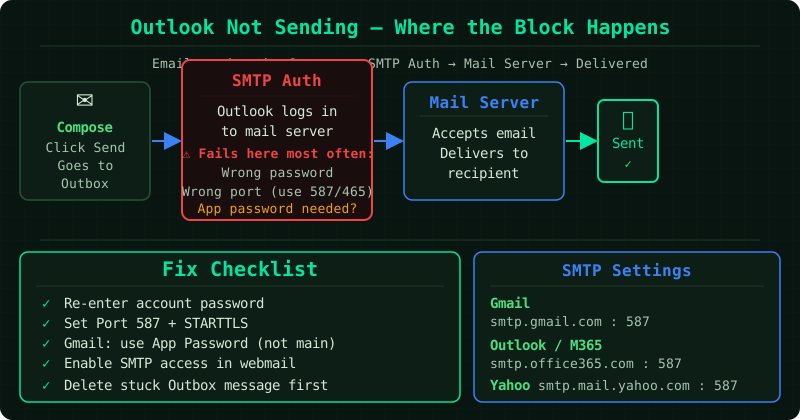
- On the Advanced tab: set the SMTP port to 587 with STARTTLS, or 465 with SSL/TLS
Port 25 is blocked by most internet service providers for outbound email from personal connections. If port 25 is set, change it to 587.
For Microsoft 365 and Outlook.com accounts, the SMTP server is smtp.office365.com (port 587) or smtp-mail.outlook.com (port 587).
If the issue persists
If these steps do not resolve the problem:
- Run Microsoft Support and Recovery Assistant (SaRA): Download it from Microsoft’s support site. It diagnoses common Outlook send/receive issues automatically and applies fixes where possible.
- Repair your Outlook profile: Go to Control Panel > Mail > Show Profiles, select your profile, and click Properties > Email Accounts. Remove and re-add your account.
- Recreate the Outlook data file: If your OST file is corrupted, Outlook may fail to send. Close Outlook, locate the OST file (typically in
%localappdata%\Microsoft\Outlook\), rename it with a.oldextension, and restart Outlook. Outlook will create a new OST and resync.
Common Questions
Outlook shows the email as sent but the recipient never received it. Check your Sent Items folder to confirm the message appears there. If it does, the issue is delivery — contact your email administrator or check your domain’s spam reputation. If it is not in Sent Items, the message was never transmitted.
The email sends from Outlook Web Access but not from the desktop app. This confirms the account and server are working. The issue is specific to the desktop client. Start with an Outlook profile repair or check if a third-party add-in is interfering.
Outlook says “The server rejected the recipient’s email address.” This is a delivery error from the recipient’s server, not an Outlook configuration problem. Verify the recipient’s email address is typed correctly. If it is correct, the recipient’s server may be blocking your domain or the address may no longer exist.