
Outlook not syncing means the desktop or mobile application is not reflecting the current state of your mailbox. New emails do not arrive, sent messages do not appear in Sent Items, or folder counts remain stale even when the server has new data.
According to Microsoft’s sync troubleshooting documentation, sync failures in Outlook are caused by a handful of well-defined issues: the client is offline, the local data file is corrupted, the sync schedule is misconfigured, or the connection to the Exchange or Microsoft 365 server is being interrupted.
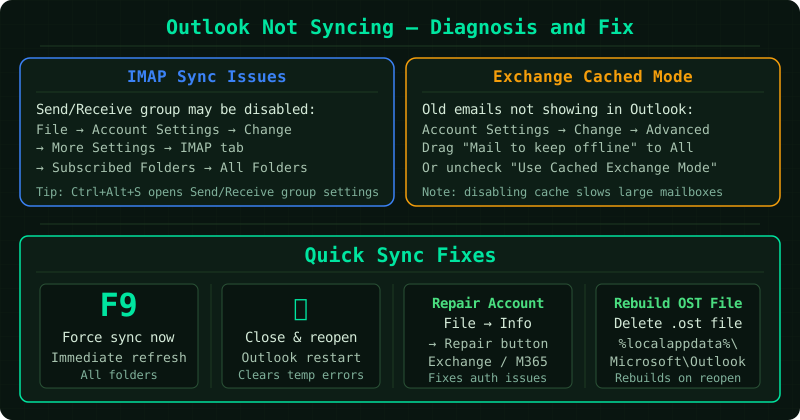
What sync means in Outlook
Outlook stores a local copy of your mailbox in an Offline Storage Table (OST) file. When sync is working, changes on the server — new mail, deletions, flag changes — are reflected in the OST file, and vice versa. When sync fails, the local and server states diverge.
This is different from Outlook failing to open or failing to connect entirely. A sync issue means the connection exists but data is not being exchanged correctly.
Step 1 — Run a manual Send/Receive
The first step is always to force a sync attempt:
- Press F9, or
- Click Send/Receive All Folders on the Send/Receive tab, or
- Press Ctrl + M
Outlook will attempt to synchronize all folders with the server. Watch the progress dialog at the bottom of the window. If sync fails, an error code and description will appear — this is the most direct indicator of the underlying problem.
If sync completes with no errors but the mailbox still looks out of date, the issue is with Outlook’s folder view rather than the sync itself. Try pressing F5 to refresh the current folder.
Step 2 — Check sync settings
Outlook allows you to configure which folders sync and how frequently.
For Microsoft 365 / Exchange accounts:
- Go to File > Account Settings > Account Settings
- Select your account and click Change
- Click More Settings > Advanced
- Under Cached Exchange Mode, ensure Use Cached Exchange Mode is enabled
- Check the Mail to keep offline slider — if set to a short period (e.g., 1 month), older messages will not be downloaded
For Send/Receive interval:
- On the Send/Receive tab, click Send/Receive Groups > Define Send/Receive Groups
- Select your group and confirm Schedule an automatic send/receive every is set to a reasonable interval (5–10 minutes is typical)
Step 3 — Repair the local data file
A corrupted OST file can cause Outlook to appear stuck on outdated data even when the server connection is healthy.
To repair it:
- Close Outlook completely
- Open Control Panel > Mail (search for “Mail” in the Control Panel search box)
- Click Data Files, select the file associated with your account, and click Open File Location
- Note the file path, then close the Mail dialog
- Navigate to the Microsoft Office installation folder — typically
C:\Program Files\Microsoft Office\root\Office16\— and run SCANPST.EXE - In SCANPST, click Browse and open the OST file from the path you noted
- Click Start and follow the prompts to repair the file
After the repair, reopen Outlook and run Send/Receive.
Step 4 — Remove and re-add the account
If the OST repair does not resolve the sync issue, recreating the account forces a fresh sync from the server:
- Go to File > Account Settings > Account Settings
- Select your account and click Remove — this removes the account from Outlook but does not delete any data from the server
- Close the Account Settings dialog
- Click File > Add Account and add the account again using the same email address and credentials
Outlook will create a new OST file and perform a complete sync. Depending on mailbox size, this may take several minutes to hours.
Outlook mobile not syncing
For the Outlook mobile app (iOS or Android):
- Open the app and tap your account avatar in the top left
- Tap Settings (gear icon) > select your account
- Scroll down and tap Reset Account
This clears the local cache and forces a full resync from the server. If this does not resolve it, remove the account from the app and add it again.
Common Questions
Outlook syncs on my phone but not on the desktop. This confirms the account and server are functioning. The issue is specific to the desktop client — the local OST file or account configuration on that machine. Run SCANPST on the OST file or recreate the account.
Only certain folders are not syncing. Shared mailboxes and public folders sometimes have separate sync settings. In Outlook, right-click the folder, select Properties, and check the Synchronization tab. If it shows errors or outdated counts, click Clear offline items to force a resync of that folder only.
Sync was working and stopped after a Windows Update. A Windows Update can reset certain security policies that affect the Exchange connection. Check if Work Offline mode was enabled automatically, and verify the account settings under File > Account Settings have not changed.