
When Outlook send and receive is not working, no email can be sent or received — the mailbox is completely disconnected from the server. This is different from a one-directional failure (sending works but not receiving, or vice versa). A complete send and receive failure means the connection between Outlook and the mail server has broken down.
According to Microsoft’s Outlook troubleshooting documentation, a complete send and receive failure is usually caused by one of three things: Outlook is in offline mode, the connection to the mail server is blocked or unavailable, or the Outlook profile has become corrupted.
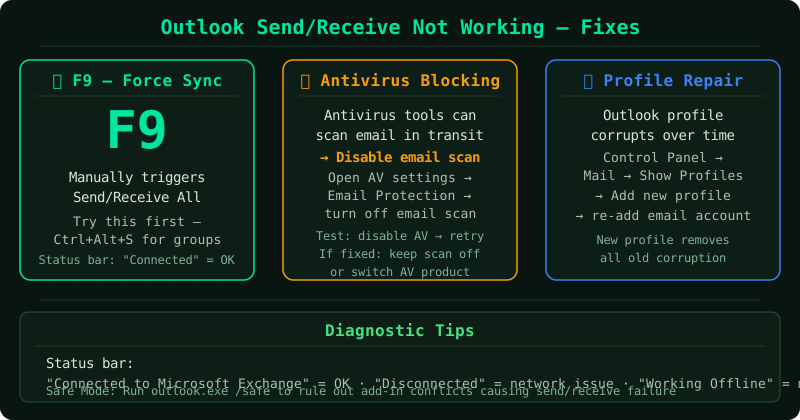
Understanding the Send/Receive function
In Outlook, Send/Receive is the process that synchronizes the local mailbox with the mail server. It sends queued outgoing messages via SMTP, and downloads new incoming messages via IMAP or Exchange ActiveSync.
When Send/Receive fails, Outlook displays errors in the Send/Receive Progress dialog. These errors are the primary diagnostic tool — reading them correctly identifies the cause and the appropriate fix.
Step 1 — Disable Work Offline and verify your connection
The first check is always whether Outlook is in Work Offline mode:
- Click the Send/Receive tab
- If Work Offline appears highlighted or pressed, click it once to disable it
- The status bar at the bottom of the Outlook window should change from Working Offline to Connected or your account name
After disabling offline mode, press F9 to run Send/Receive manually.
Also confirm your internet connection is active by opening a browser and loading a page. If the internet is down, Outlook cannot connect to the mail server regardless of its settings.
Step 2 — Read the error code
Outlook’s Send/Receive dialog provides specific error codes for every type of failure. To see them:
- On the Send/Receive tab, click Show Progress
- After the sync attempt completes (or fails), click Details
- Read the log entries — errors are shown with their code and description
Common error codes and what they mean:
| Error Code | Cause | Fix |
|---|---|---|
| 0x800CCC0E | SMTP server unreachable | Check SMTP port and settings |
| 0x80042108 | IMAP/incoming server unreachable | Check incoming server settings |
| 0x800CCC90 | Username or password rejected | Re-enter credentials |
| 0x800CCC0F | Connection dropped during sync | Check firewall and antivirus |
| 0x8004010F | Outlook data file cannot be found | Repair or recreate the profile |
Each error code points to a specific layer of the problem — server settings, credentials, network, or local data file. Fixing the right layer avoids trial and error.
Step 3 — Repair the Outlook profile
If the error code suggests a profile or data file problem (particularly 0x8004010F or errors referencing a missing data file), repairing the profile is the most effective fix:
- Close Outlook
- Open Control Panel
- Search for Mail and open the Mail Setup dialog
- Click Show Profiles
- Select your current profile and click Properties > Email Accounts
- In the Account Settings dialog, select your account and click Remove
- Click New and add the account again with the same email address and password
Outlook will create a new OST data file and perform a full sync from the server. This process effectively rebuilds the Outlook installation for your account without affecting your data on the server.
Step 4 — Run Microsoft Support and Recovery Assistant
For problems that do not resolve with manual steps, Microsoft’s Support and Recovery Assistant (SaRA) provides an automated diagnosis:
- Download SaRA from Microsoft’s support site
- Run the installer and select Outlook
- Select I can’t send or receive email
- SaRA will test your Outlook profile, account settings, connection to the mail server, and local data files
SaRA can automatically repair corrupted profiles, update incorrect server settings, and clear send/receive errors that resist manual fixes.
Additional checks
Check if the issue is account-specific. If you have multiple email accounts in Outlook, check whether all accounts fail or only one. If only one account fails, the issue is with that account’s settings rather than Outlook itself.
Test Outlook Web Access. Sign in to your email via browser (for Microsoft 365: outlook.office.com). If web access works, the account is functional and the issue is specific to the desktop Outlook client. If web access also fails, the account or server has a broader problem.
Check firewall rules. Windows Firewall or a third-party firewall may be blocking Outlook’s outbound connections. Check that Outlook.exe is allowed through the firewall for both private and public networks.
Common Questions
Send/Receive worked yesterday but stopped today with no obvious change. Check whether a Windows Update ran overnight — updates can reset certain security policies that affect Outlook’s server connection. Also check if your email password has been changed by an administrator.
Outlook shows Connected in the status bar but Send/Receive still fails. “Connected” in the status bar indicates a network connection is present, but it does not confirm the mail server is responding correctly. Run Send/Receive and check the error details — the server may be available but rejecting Outlook’s authentication.
The Send/Receive button is grayed out. This happens when Outlook is still processing a previous Send/Receive request or when it is in a disconnected state. Wait 30 seconds, then try again. If it remains grayed out, close and restart Outlook.