
Computer lagging on Windows 11 describes a pattern of brief freezes, stutters, delayed responses to mouse and keyboard input, or sustained sluggishness that interrupts normal use. Unlike a gradual overall slowdown, lag is episodic — the computer performs acceptably and then becomes briefly unresponsive before recovering. According to Microsoft’s official performance documentation, lag episodes are caused by resource saturation: one component — CPU, RAM, disk, or GPU — reaches 100% capacity and forces other operations to wait until it becomes available again.
What causes a computer to lag on Windows 11
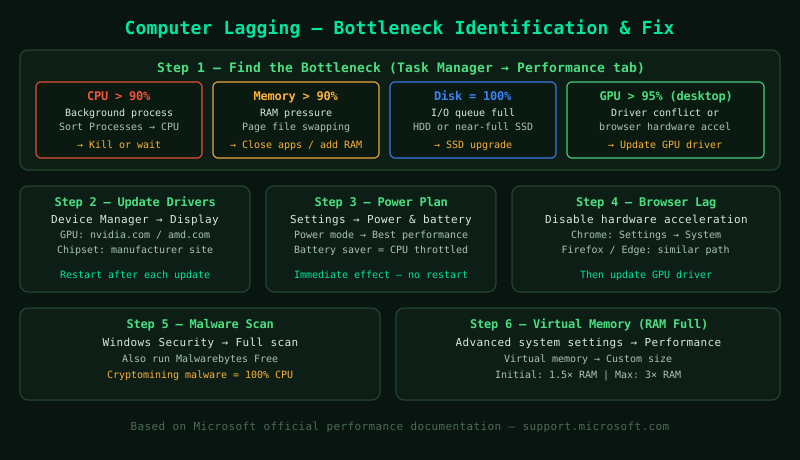
CPU saturation — A background process consuming sustained high CPU leaves insufficient processing capacity for foreground applications. The result is brief lag whenever the foreground app needs CPU cycles that are already committed to the background process. Common background causes: antivirus scans, Windows Update installation, and cryptocurrency mining malware.
RAM pressure — When all installed RAM is in use, Windows writes excess data to the page file on the storage drive. Because drive access is many times slower than RAM access, page file activity causes the characteristic 1–5 second freeze-and-recover lag pattern. On computers with 4 GB RAM, RAM pressure is frequent under normal multitasking conditions.
Disk I/O saturation — A spinning hard drive or a nearly full SSD that cannot keep up with read and write requests causes lag whenever an application or Windows needs to access storage. HDDs are especially prone to this because they can only read from one location at a time, and multiple processes queuing disk requests results in each waiting for the others.
Outdated GPU or chipset drivers — Drivers are the software that allows Windows to communicate with hardware components. Outdated GPU drivers cause visual stutter and lag during rendering. Outdated chipset drivers cause system-wide instability because the chipset manages data routing between the CPU, RAM, and storage — errors in this routing cause unpredictable lag.
Power plan throttling — On battery power, Windows throttles the CPU to reduce power consumption. On a laptop running on Power saver mode, the CPU may run at 30–50% of its maximum frequency, causing lag during any CPU-intensive task.
How to fix computer lagging on Windows 11
Start with step 1 to identify the specific bottleneck before applying other fixes. The correct fix depends on which resource is saturated.
How to verify the fix
After applying fixes, recreate the scenario that previously caused lag. Open Task Manager > Performance tab and observe all four graphs — CPU, Memory, Disk, and GPU — during the previously problematic activity. Sustained usage above 90% on any single resource indicates it is still the bottleneck. If no single resource consistently reaches 90%, the lag should be resolved or significantly reduced.
Known limitations
Lagging caused by insufficient RAM or an HDD has a software ceiling — while page file adjustments and startup program reduction reduce RAM pressure, adding physical RAM is the permanent solution for memory-related lag. Similarly, no driver or settings change makes an HDD perform like an SSD for random access patterns. On hardware that meets Windows 11’s minimum specifications but not its recommended specifications (i.e., exactly 4 GB RAM, minimum CPU), some lag is expected during multitasking and cannot be fully eliminated without hardware upgrades.
Step-by-step fix
Identify the bottleneck in Task Manager
Press Ctrl+Shift+Esc to open Task Manager and click the Performance tab. Observe CPU, Memory, Disk, and GPU graphs during a lag episode. Reproduce the lag — open a program, switch windows, or play the game where lag occurs — and watch which graph spikes to 90–100%. CPU at 100%: a specific process is consuming the processor. Click the Processes tab and sort by CPU to find it. Memory at 100%: Windows is swapping data between RAM and the page file on disk. This indicates insufficient RAM for the workload. Disk at 100%: the storage drive cannot keep up with read/write requests — common with HDDs and page file swapping. GPU at 100% (in games or video): the graphics card is the bottleneck, which is normal in games but should not affect the Windows desktop.
Update GPU and chipset drivers
Outdated or corrupted GPU drivers are a common cause of stutter, screen tearing, and system-wide lag in Windows 11. Right-click the Start button and select Device Manager. Expand Display adapters, right-click your GPU, and select Update driver > Search automatically for drivers. Also visit the GPU manufacturer's website directly: NVIDIA drivers at nvidia.com/drivers, AMD drivers at amd.com/support, Intel Arc drivers at intel.com/content/www/us/en/download-center. For chipset drivers, visit your laptop or motherboard manufacturer's support page and install the latest chipset package — chipset drivers manage communication between CPU, RAM, and storage, and outdated chipset drivers cause general system instability and lag. After installing drivers, restart the computer.
Set the power plan to Balanced or High Performance
A laptop running on battery or set to Power saver throttles the CPU to reduce power consumption — this is the intended behaviour, but it causes the system to feel sluggish. Right-click the battery icon in the taskbar and select Power and sleep settings, then Additional power settings. If Power saver is active, switch to Balanced. For desktop computers or plugged-in laptops where performance is the priority, select High performance. In Windows 11, the power mode slider is in Settings > System > Power & battery > Power mode. Set it to Best performance when the computer is plugged in. This change takes effect immediately and is one of the fastest ways to improve responsiveness, especially on laptops.
Disable hardware acceleration in browsers if lag is browser-specific
If lagging occurs primarily in a web browser — video stutters, scrolling is choppy, or the browser freezes briefly — the browser's hardware acceleration may be conflicting with the GPU driver. In Chrome: Settings > System > Use hardware acceleration when available (toggle off, relaunch). In Firefox: Settings > General > Performance > Use recommended performance settings (uncheck) > Use hardware acceleration when available (uncheck). In Edge: Settings > System and performance > Use hardware acceleration when available (toggle off, restart). After disabling hardware acceleration, test whether browser lag improves. If it does, the issue is a GPU driver conflict — update the GPU driver and then re-enable hardware acceleration.
Run a malware scan
Malware — particularly cryptomining software — runs at maximum CPU or GPU usage in the background, causing system-wide lag. Open Windows Security (search in Start) > Virus & threat protection > Quick scan. Also run a full scan: Windows Security > Virus & threat protection > Scan options > Full scan. If Windows Security is your active antivirus, this is sufficient. Additionally, download and run Malwarebytes Free (one-time scan, no subscription required) to catch adware and potentially unwanted programs that Windows Security may not flag. If malware is found and removed, restart the computer and check whether lag has resolved.
Increase virtual memory if RAM is consistently at 100%
If Task Manager shows Memory consistently at 90–100% during lag, Windows is using the page file as overflow RAM. Increasing the page file size gives Windows more virtual memory space and can reduce the severity of lag caused by RAM pressure, though it is slower than actual RAM. Right-click Start > System > Advanced system settings > Advanced tab > Performance > Settings > Advanced tab > Virtual memory > Change. Uncheck Automatically manage paging file size for all drives. Select the C: drive, choose Custom size, and set Initial size to 1.5× your installed RAM in MB (e.g., 8 GB RAM = 12288 MB), and Maximum size to 3× RAM (e.g., 24576 MB for 8 GB). Click Set, then OK, and restart. The permanent fix for RAM pressure is installing additional RAM if the laptop has empty slots.