
Laptop slow on startup means the computer takes significantly longer than expected to reach a usable desktop after pressing the power button — either the boot sequence itself is slow, the login screen takes a long time to appear, or the desktop appears but remains unresponsive for minutes while background processes finish loading. According to Microsoft’s official startup management documentation, startup program accumulation is the most common correctable cause of slow Windows 11 startup, while hardware — specifically the type of storage drive — determines the absolute minimum startup time achievable with any software configuration.
What causes a laptop to start slowly
Startup program accumulation — Software installers frequently add a startup entry without making it obvious. After a year of normal software installation, it is common to find 10–20 programs set to launch automatically. Each program claims disk access at the moment the desktop loads, creating a bottleneck where multiple programs compete for the same physical disk resource simultaneously.
Spinning hard drive (HDD) — An HDD reads startup files by physically moving read heads across spinning magnetic platters. The random read speed is 0.5–1.5 MB/s for typical startup file patterns. An SSD reads the same files at 500–3500 MB/s using electronic memory cells with no moving parts. This speed difference is the primary reason HDD-based computers can take 3–5 minutes to boot even after software optimisation.
Fast Startup disabled — Fast Startup reduces boot time by saving the Windows kernel state on shutdown and reloading it on the next boot, bypassing the kernel initialisation phase. When Fast Startup is disabled — which some users do intentionally or which Windows Update occasionally resets — boot time increases by 30–70%.
Corrupted system files — Corrupted Windows system files force the boot process to spend extra time on error recovery and repair checks, adding significant time to startup in some cases.
How to fix a slow startup
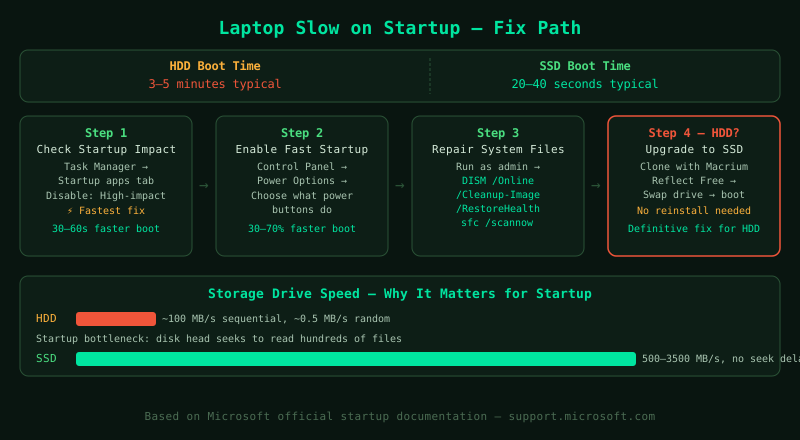
Work through the steps in order. Step 1 (disabling startup apps) and step 2 (enabling Fast Startup) typically provide immediate improvement. Step 5 (SSD upgrade) is necessary if the storage drive is an HDD and startup time is still above 90 seconds after the software fixes.
How to verify the fix
After completing each step, restart the computer and time the startup from pressing the power button to the moment you can click an application icon and have it respond. A healthy Windows 11 startup on an SSD should be 20–40 seconds. On an HDD with startup programs disabled, expect 60–90 seconds. Open Task Manager > Performance > Disk immediately after login to confirm disk usage drops below 50% within 2 minutes of reaching the desktop.
Known limitations
Software optimisations cannot make an HDD boot as fast as an SSD — the physical read speed of the drive determines the minimum boot time, and no software setting changes that. On a computer with 4 GB RAM, even after startup programs are disabled, Windows 11’s own memory requirements may cause swapping to the page file during boot, adding to startup time. The most reliable long-term fix for startup that remains slow after software optimisation is an SSD upgrade, which also improves application launch times and general responsiveness throughout the session.
Step-by-step fix
Check startup program impact in Task Manager
Open Task Manager (Ctrl+Shift+Esc) and click the Startup apps tab. The Startup impact column (High, Medium, Low) shows which programs most affect boot time. Sort by Startup impact to see the worst offenders. High-impact startup programs are the primary cause of slow post-login load times on Windows 11. Right-click each program you do not need at login and select Disable. Safe to disable: Spotify, Discord, Steam, Teams (if you do not use it for work calls), Zoom, Adobe Creative Cloud, OneDrive (if you do not need automatic sync at login). Do not disable: Windows Security (or your antivirus), audio drivers, or GPU-related software. After disabling, restart and measure the improvement before proceeding to further steps.
Enable Windows Fast Startup
Open Control Panel > Hardware and Sound > Power Options > Choose what the power buttons do. Click 'Change settings that are currently unavailable' (requires administrator permission). Under Shutdown settings, check Turn on fast startup and click Save changes. Fast Startup works by saving a snapshot of the Windows kernel and drivers to the hibernation file on shutdown, so the next boot loads that snapshot instead of initialising the kernel from scratch. This reduces boot time by 30–70% on most systems. Note: Fast Startup is already enabled by default on most Windows 11 installations — check the Power Options screen to confirm whether it was previously disabled. If it was already enabled, proceed to the next step.
Identify whether the storage drive is the bottleneck
Open Task Manager (Ctrl+Shift+Esc) during the slow startup period — press Ctrl+Shift+Esc immediately after logging in and observe the Disk column under the Performance tab. If the disk shows 95–100% usage for a sustained period after login, the storage drive is the primary bottleneck. Click on the Disk graph in the Performance tab and look at the Read speed and Write speed. SSDs typically read at 500–3500 MB/s. HDDs typically read at 80–160 MB/s. If the computer has an HDD, the drive's mechanical speed is the ceiling — no software optimisation can overcome this fundamental limit. An SSD upgrade (see step 5) is the definitive fix for HDD-based slow startup.
Repair corrupted system files with SFC and DISM
Corrupted system files can slow Windows startup by forcing the boot process to recover from errors. Open Command Prompt as administrator (search for cmd, right-click, Run as administrator). Run: DISM /Online /Cleanup-Image /RestoreHealth and wait for it to complete (5–15 minutes). Then run: sfc /scannow and wait for it to complete. Restart after both commands finish. SFC (System File Checker) scans and repairs corrupted Windows system files. DISM (Deployment Image Servicing and Management) repairs the Windows component store that SFC uses as its source. Running DISM before SFC ensures SFC has a clean source to repair from. If SFC reports 'Windows Resource Protection found corrupt files and successfully repaired them,' corrupted files were contributing to slow startup.
Upgrade from HDD to SSD if startup is still slow
If the computer is still on a spinning hard drive (HDD) and startup is still slow after the above steps, an SSD upgrade is the definitive solution. A 2.5-inch SATA SSD is compatible with most laptops that have a spinning drive bay. The process: back up all data, clone the existing drive to the SSD using free software such as Macrium Reflect Free, physically swap the drives, and boot from the SSD. After the upgrade, Windows startup time typically drops from 2–5 minutes to 20–40 seconds on the same hardware. An SSD's random read speed (the bottleneck for startup) is 10–50 times faster than an HDD, which directly translates to faster boot times, faster application launches, and more responsive file operations.