
PC slow after a Windows update describes a specific pattern: the computer performs normally before an update, slows down immediately after the update and restart, and either gradually returns to normal speed or remains slow. According to Microsoft’s official Windows Update documentation, the post-update period involves several mandatory background processes that run with high priority and temporarily dominate CPU and disk resources before completing and releasing those resources.
What causes a PC to slow down after a Windows update
Post-update background processing — After a Windows update installs and the computer restarts, Windows runs TrustedInstaller (component store cleanup), SearchIndexer (search database rebuild), SysMain (memory map update), and Delivery Optimization (distributing update files to other devices on the network). These tasks have high disk and CPU priority and run for 30–120 minutes, making the system noticeably sluggish during this window.
Driver replacement — Windows updates can replace installed hardware drivers with versions bundled in the update package. If the bundled driver is older than the driver previously installed, or if it has a compatibility issue with specific hardware, performance degradation or device instability can result.
Power management changes — Some Windows updates modify power plan settings or introduce new power management features that change CPU frequency scaling behaviour, potentially causing the CPU to throttle more aggressively than it did before the update.
Corrupted update installation — If the update download or installation was interrupted (power loss, forced restart, network drop during update), the resulting partial installation can leave system components in an inconsistent state, causing ongoing instability rather than the temporary post-update background processing pattern.
How to fix a slow PC after a Windows update
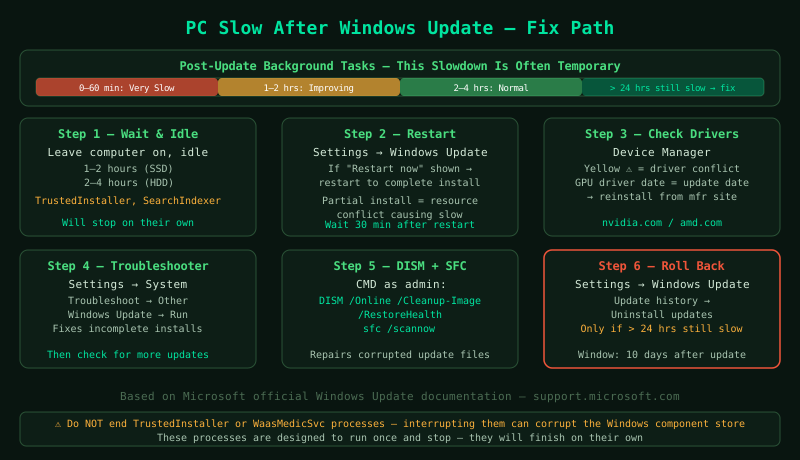
Start with step 1 — most post-update slowdowns are temporary and resolve without intervention. If performance has not improved after 24 hours, proceed through the remaining steps.
How to verify the fix
After applying fixes, open Task Manager > Performance and observe CPU and Disk at idle. If no Windows Update processes (TrustedInstaller, TiWorker, SearchIndexer, WaasMedicSvc) appear in the top 10 CPU or Disk consumers, the post-update background tasks have completed. Test the performance of the tasks that were slow before — application launch times, web browsing, file operations — and compare with the pre-update experience.
Known limitations
Some Windows updates permanently change system behaviour in ways that affect performance on specific hardware configurations. When this happens, rolling back the update or using System Restore is the only way to restore the previous performance level, as the change is not caused by temporary background processing but by a deliberate change to Windows configuration or the hardware driver stack. Microsoft typically releases follow-up updates that address driver compatibility issues reported after major updates — checking Windows Update for available updates after the problematic update sometimes applies a compatibility fix automatically.
Step-by-step fix
Wait for post-update background tasks to complete
After installing a Windows update and restarting, Windows runs a series of background tasks that are mandatory and time-limited: component store cleanup (TrustedInstaller and TiWorker.exe), search index rebuilding (SearchIndexer.exe), SysMain memory mapping, and Delivery Optimization file sharing (svchost.exe processes). These processes consume sustained disk and CPU resources for 30–120 minutes after the restart. Open Task Manager (Ctrl+Shift+Esc) and watch the CPU and Disk columns — if TrustedInstaller, TiWorker, or SearchIndexer are the high-usage processes, they are running normal post-update tasks and will stop on their own. Leave the computer on and idle (screen can be locked) for 1–2 hours and then recheck whether performance has improved. Do not shut down or restart during this period, as interrupting post-update tasks can leave the system in an inconsistent state.
Restart the computer if it has not been restarted since the update
Some Windows updates require a full restart to complete installation. If the update was installed but the restart was postponed, Windows continues running the old kernel while new components are partially installed — this creates resource conflicts that cause slowness. Open Settings > Windows Update. If a restart is pending, the button shows Restart now. Click it and allow the computer to complete the update cycle. After the restart, wait 30 minutes for post-update background tasks to settle before testing performance. Multiple pending restarts (visible in Settings > Windows Update > Update history) compound this issue — each pending update adds to the background workload.
Check for driver conflicts introduced by the update
Windows updates occasionally replace or update hardware drivers, which can cause driver conflicts — particularly with GPU, network, and audio drivers. Open Device Manager (right-click Start > Device Manager) and look for any device with a yellow warning triangle icon. A yellow triangle indicates a device that is not functioning correctly, which could be causing system instability and slowness. Right-click any flagged device and select Update driver > Search automatically for updated drivers. If the problem started after a specific update, also check the GPU driver version: open Display adapters in Device Manager, right-click the GPU, and select Properties > Driver tab > Driver Date. If the driver date matches the Windows update date, the update replaced the GPU driver — reinstall the previous driver version from the manufacturer's website.
Run the Windows Update Troubleshooter
Open Settings > System > Troubleshoot > Other troubleshooters and find Windows Update in the list, then click Run. The Windows Update Troubleshooter scans for and fixes common update-related issues: incomplete update installations, corrupted update cache, and Windows Update service configuration errors. After the troubleshooter completes, go to Settings > Windows Update and check for updates — install any available updates. Sometimes a slow post-update state is caused by a partially failed update that left components in an inconsistent state, and the troubleshooter identifies and corrects the incomplete installation.
Repair system files with DISM and SFC
If the update process corrupted system files — which can happen if the update was interrupted or if there was a disk error during installation — corrupted files cause ongoing slowness and instability. Open Command Prompt as administrator (search cmd, right-click, Run as administrator). Run these commands in order, waiting for each to complete before running the next: DISM /Online /Cleanup-Image /RestoreHealth (takes 10–20 minutes, downloads replacement files from Windows Update servers — requires internet connection). Then: sfc /scannow (takes 5–15 minutes, repairs corrupted system files using the component store restored by DISM). Restart after both complete. If SFC reports 'Windows Resource Protection found corrupt files and successfully repaired them,' corrupted update files were the cause of the slowness.
Roll back the update if performance does not improve after 24 hours
If performance is still degraded 24 hours after the update and the above steps have not resolved it, roll back the update. Open Settings > Windows Update > Update history > Uninstall updates. Find the most recently installed update (sort by Date installed), click it, and select Uninstall. The system restarts and removes the update. Performance should return to pre-update levels after the rollback restart. Note: Windows 11 only allows updates to be uninstalled within 10 days of installation — after that, the uninstall option is no longer available. If the problematic update cannot be uninstalled and performance is severely degraded, use System Restore: search for 'Create a restore point' in Start, click System Restore, and restore to a point before the update was installed.