
Slow computer problems on Windows 11 fall into several distinct categories — startup delays, in-use sluggishness, lag during specific tasks, and performance drops after a Windows update or software installation. According to Microsoft’s official support documentation, the most common causes are startup programs that accumulate over time, background applications competing with foreground tasks for CPU and disk access, and storage drives approaching capacity.
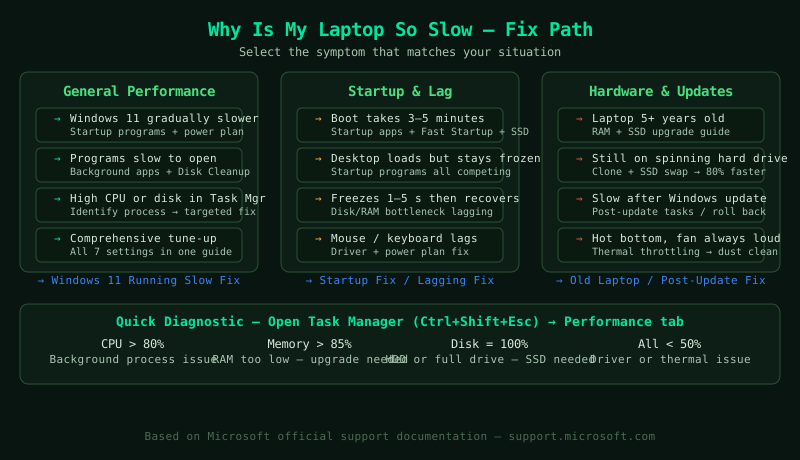
This hub covers every common PC slowdown scenario on Windows 11. Select the guide that matches your situation.
Fix guides in this pillar
Windows 11 Running Slow — Fix
Windows 11 became noticeably slower than when it was first installed — programs take longer to open, the system feels sluggish during normal use, and Task Manager shows consistent background CPU or disk activity. This guide covers disabling startup programs, reducing background app permissions, adjusting the power plan, clearing temporary files, and tuning visual effects for performance.
Best for: Windows 11 gradually getting slower over weeks or months, programs slow to open, high background CPU or disk usage in Task Manager, performance dropped after installing new software or a Windows feature update.
Laptop Slow on Startup — Fix
The laptop takes a long time to reach the Windows desktop after pressing the power button — startup previously took 20–30 seconds but now takes 2–5 minutes. This guide covers disabling startup programs, enabling Windows Fast Startup, repairing corrupted system files, and upgrading from HDD to SSD for permanently faster boot times.
Best for: Startup takes minutes instead of seconds, the login screen is slow to appear, the desktop loads but apps keep loading for minutes after login, startup time increased after Windows updates or new software installation.
Computer Lagging on Windows 11 — Fix
The computer freezes briefly, stutters during video playback, drops frames in games, or responds slowly to mouse and keyboard input during normal use. This guide covers identifying the bottleneck in Task Manager, updating drivers, adjusting power settings, and resolving high CPU or RAM usage from specific background processes.
Best for: Screen freezes for 1–5 seconds then recovers, mouse cursor lags behind movement, video or audio stutters, games stutter while the Windows desktop also feels slow, computer is unresponsive when switching between windows.
Speed Up Windows 11 — Performance Fix
A comprehensive guide to every Windows 11 performance setting — startup programs, power plan, visual effects, transparency, background app permissions, Storage Sense, and driver updates — applied together to maximise system responsiveness. Based on Microsoft’s official performance optimisation documentation.
Best for: Wanting a thorough optimisation rather than targeting one specific symptom, setting up a computer for maximum performance from the start, improving overall speed before considering a hardware upgrade.
Speed Up an Old Laptop — Windows Fix
Older laptops — typically 5 to 10 years old — slow down as software requirements increase while hardware remains unchanged. This guide covers software optimisations that help on any hardware, plus targeted upgrades (RAM and SSD) that deliver dramatic performance improvements without replacing the laptop entirely.
Best for: Laptop is 5 or more years old and noticeably slower than when new, cannot afford a replacement but need better performance, considering whether a RAM or SSD upgrade is worth the cost, Windows 11 runs slowly on hardware that originally shipped with Windows 7 or 8.
PC Slow After Windows Update — Fix
The computer became noticeably slower immediately after installing a Windows update — startup takes longer, programs are sluggish, or disk usage is consistently high. This guide covers post-update background processes that cause temporary slowdowns, driver compatibility issues introduced by the update, and how to roll back an update that permanently degraded performance.
Best for: Computer slow immediately after a Windows update, high disk or CPU usage in Task Manager showing TrustedInstaller or WaasMedicSvc processes, performance did not improve 24 hours after the update, the update broke a specific driver or application.