
Old laptop running slowly on Windows 11 means a computer that performed acceptably when new but is now frustratingly slow for everyday tasks — web browsing, office applications, and video calls. According to Microsoft’s official performance documentation, older hardware running Windows 11 benefits most from removing software overhead and addressing storage bottlenecks, because the CPU and RAM requirements of Windows 11 have grown relative to when many older laptops were manufactured.
Why old laptops slow down on Windows 11
Storage bottleneck — Most laptops manufactured before 2018 shipped with spinning hard drives (HDDs). Windows 11, modern browsers, and current office suites generate significantly more random disk read/write activity than software from 2015–2018. An HDD’s random read performance has not improved, but software’s demands on storage have increased, creating a widening gap.
Insufficient RAM — 4 GB of RAM was adequate for Windows 7 and Windows 10 in 2015. Windows 11 consumes 2.5–3 GB at idle, leaving 1–1.5 GB for all running applications. Chrome with five tabs, a document editor, and a video call consume more RAM than a 4 GB system provides, forcing constant page file swapping.
Thermal throttling from accumulated dust — Cooling systems designed to handle the heat output of a 2015-era CPU may be clogged with years of dust, reducing airflow and causing the CPU to throttle its clock speed under load to prevent overheating.
Accumulated software bloat — Years of software installation, Windows updates, and background service additions compound over time, adding startup entries, background processes, and scheduled tasks that consume resources throughout each session.
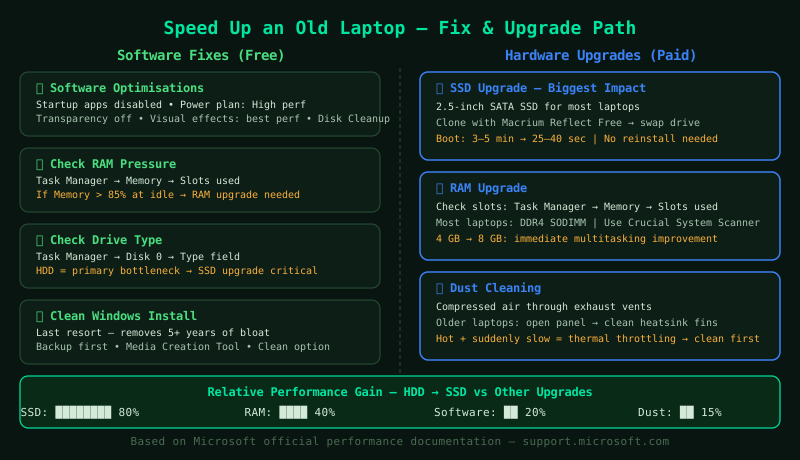
How to speed up an old laptop
Apply software fixes first (step 1), then assess whether hardware upgrades are warranted based on what Task Manager shows as the bottleneck.
How to verify the fix
After software optimisations: Task Manager at idle should show Disk below 50%, Memory below 75%, and CPU below 10%. After an SSD upgrade: measure startup time from power button press to a responsive desktop — it should be under 45 seconds. Application launch times (browser, word processor) should feel immediate rather than requiring a wait.
Known limitations
An SSD and RAM upgrade cannot improve a CPU that is genuinely too slow for modern software. CPUs from 2013–2015 (Intel 4th and 5th generation, AMD APU equivalents) run Windows 11 and modern browsers at an acceptable rate for basic tasks but struggle with video calls, multiple browser tabs, and background tasks simultaneously. If Task Manager shows the CPU consistently above 80% during normal use even after other optimisations, the processor is the bottleneck and hardware upgrades to storage and RAM will not fully resolve the slowness. In this case, a replacement computer or switching to a lighter operating system is the more pragmatic solution.
Step-by-step fix
Apply software optimisations first
Before spending money on hardware, apply the software fixes that help regardless of hardware age. Open Task Manager (Ctrl+Shift+Esc) > Startup apps tab and disable every non-essential startup program. Open Settings > Power & battery > Power mode and set it to Best performance when plugged in. Open Control Panel > Power Options and select High performance. Open Settings > Personalization > Colors, turn off Transparency effects. Open Settings > Accessibility > Visual effects, turn off Animation effects. Search for 'Adjust the appearance and performance of Windows' in Start and select Adjust for best performance. Finally, run Disk Cleanup: search for Disk Cleanup, select C:, click Clean up system files, and delete all categories shown. These changes are free and produce measurable improvement even on old hardware — they reduce software overhead that competes with the limited processing resources available.
Check whether the laptop has available RAM slots
Open Task Manager > Performance > Memory. Look at the Slots used field at the bottom of the memory graph — this shows how many physical RAM slots are in use. If it shows 1 of 2 slots used, the laptop has a free slot for a RAM upgrade. Also check the Used: field — if it reads above 85% at idle (for example, 3.5 GB of 4 GB), RAM pressure is the primary bottleneck and adding RAM will produce immediate improvement. To find the correct RAM specification: search for your laptop model number (found on the bottom label) plus 'RAM upgrade specs' to confirm the maximum supported RAM and the correct DDR generation (DDR3, DDR4, or DDR5). Most laptops from 2015–2022 support DDR4 SODIMM modules. Upgrading from 4 GB to 8 GB or from 8 GB to 16 GB is the most effective RAM upgrade path.
Check whether the laptop has an HDD or SSD
Open Task Manager > Performance > Disk 0. Look at the Type field — it shows either HDD or SSD. Alternatively, search for Defragment and Optimize Drives in Start — the Media type column shows Solid State Drive or Hard Disk Drive. If the laptop has an HDD and is more than 3 years old, replacing it with an SSD is the highest-impact upgrade available. To confirm the drive bay type before purchasing: check your laptop model's specs page or open the laptop and look — most laptops use 2.5-inch SATA drives. Some ultra-thin laptops use M.2 SATA or NVMe drives instead. Buy the matching form factor. A 500 GB SSD costs significantly less than a replacement laptop and delivers performance comparable to a much newer machine for everyday tasks.
Clone the existing drive to the new SSD
Before physically replacing the drive, clone the existing drive's contents to the new SSD to avoid reinstalling Windows and applications. Connect the new SSD via a USB-to-SATA adapter (inexpensive, available at electronics retailers). Download and install Macrium Reflect Free. In Macrium Reflect, select Clone this disk, choose the existing drive as source, and the new SSD as destination. Start the clone — it takes 30–90 minutes depending on data volume. When the clone completes, shut down the laptop, remove the battery, and swap the old drive for the new SSD in the drive bay. Reconnect the battery and power on. Windows boots from the SSD automatically without any reinstallation required. Verify the cloned drive is working normally before discarding the old drive.
Clean dust from the cooling vents
Old laptops accumulate dust in cooling vents and on heatsink fins over years of use. When airflow is restricted, the CPU and GPU overheat during load and thermal throttling activates — the processor automatically reduces its clock speed to prevent damage, which causes severe performance degradation during sustained use. Signs of thermal throttling: laptop runs acceptably for 10–15 minutes and then slows dramatically, the bottom of the laptop is very hot, the fan runs continuously at maximum speed. Use a can of compressed air to blow dust out through the exhaust vents. On laptops 5 or more years old, removing the bottom panel to access and clean the heatsink fins and fan blades directly produces better results. Apply fresh thermal paste to the CPU and GPU die if reseating the heatsink during cleaning.
Consider a clean Windows reinstall if performance is still inadequate
After hardware upgrades, if the laptop is still slow, a fresh Windows installation removes accumulated software bloat, corrupted system files, and manufacturer-installed crapware that a running system cannot clean up. Back up all data to an external drive. Download the Windows 11 Media Creation Tool from Microsoft's official site and create a bootable USB drive. Boot from the USB and install Windows 11 selecting the clean install option (do not keep files or apps). After installation, install only the software you actively use. A clean Windows install on an upgraded SSD with adequate RAM produces performance comparable to a new laptop for typical office, browsing, and media tasks.