
Windows 11 running slowly means the system takes noticeably longer than before to open programs, respond to clicks, or complete file operations — and the slowness persists throughout the session rather than being limited to a specific application. According to Microsoft’s official performance documentation, the primary causes are startup programs that install themselves without asking permission, background applications consuming CPU and disk without a visible window, and visual effects that tax system resources on lower-end hardware.
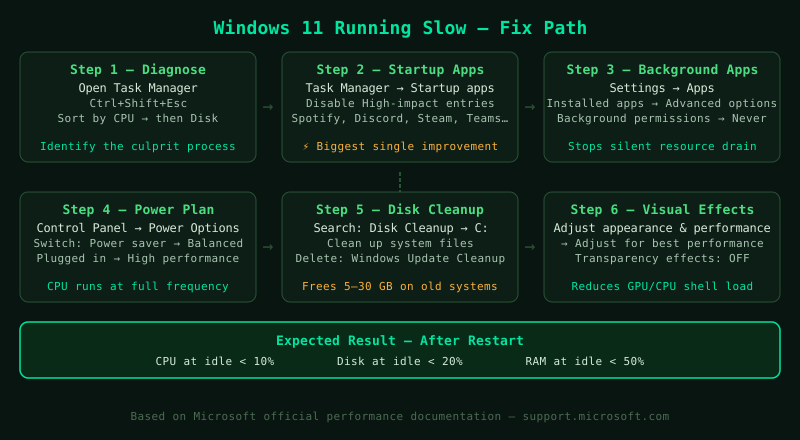
What causes Windows 11 to run slowly
Startup program accumulation — Every piece of software that installs on Windows adds a startup entry unless the installer explicitly asks permission not to. Over months of use, a Windows 11 computer can accumulate 15–30 programs launching at login, collectively consuming significant RAM and disk I/O before the user opens a single application.
Background application activity — Applications that run in the background — cloud storage clients, communication tools, update agents, and telemetry services — compete with foreground applications for CPU cycles and disk read/write bandwidth. On computers with a spinning hard drive, this competition is especially damaging because the drive can only serve one request at a time.
Power plan throttling — The Power saver power plan, which is sometimes enabled automatically when a laptop’s battery drops below a threshold, limits CPU clock speed to reduce power consumption. A CPU running at 50% of its rated frequency makes the entire system feel sluggish even when performing simple tasks.
Disk space pressure — Windows 11 writes temporary files, virtual memory page files, and shadow copies continuously during operation. When the system drive is more than 85% full, Windows cannot allocate space for these operations efficiently, causing measurable slowdowns across all file-dependent operations.
Pending or in-progress Windows Updates — Windows Update downloads and installs updates in the background, consuming disk I/O and sometimes significant CPU time during the installation phase. The post-installation background tasks — component store optimisation, search index rebuilding — can persist for 30–90 minutes after a restart.
How to fix Windows 11 running slowly
Work through the steps in order. Steps 1 and 2 (Task Manager check and startup programs) provide the fastest measurable improvement for most users.
How to verify the fix
After completing the steps, restart the computer and allow 5 minutes for Windows to settle. Open Task Manager and check the CPU and Disk columns at idle — neither should sustain above 10% when no application is actively in use. Open a commonly used application and note the launch time. If startup was slow, measure the time from pressing the power button to a fully responsive desktop and compare with the time measured before the fixes.
Known limitations
These optimisations reduce software overhead but cannot compensate for insufficient hardware. On computers with 4 GB RAM, Windows 11 itself consumes most of the available memory, leaving little headroom for applications regardless of startup program configuration. On computers with a spinning hard drive rather than an SSD, file operation speeds remain fundamentally limited by the drive’s mechanical read/write speed — software optimisations reduce the number of file operations but cannot increase the drive’s maximum throughput. Upgrading RAM to 8 GB or replacing an HDD with an SSD produces a more significant performance improvement than any combination of software settings on under-resourced hardware.
Step-by-step fix
Identify what is consuming resources in Task Manager
Press Ctrl+Shift+Esc to open Task Manager. Click the CPU column header to sort by CPU usage, then the Disk column. Look for processes using sustained high percentages during the slowdown. Common causes: antivirus (scheduled scan), Windows Update (TrustedInstaller, WaasMedicSvc), SysMain (formerly Superfetch), Windows Search (SearchIndexer.exe), and browser processes. If a Windows Update-related process is active, wait 30–60 minutes for it to complete before making any changes — most post-update background tasks are temporary. If antivirus is the cause, see the Antivirus Errors hub. Proceed with the steps below if no single high-usage process explains the slowdown.
Disable startup programs
Open Task Manager (Ctrl+Shift+Esc) and click the Startup apps tab. Review every entry in the list. Right-click and select Disable for any program that does not need to launch automatically with Windows. Common candidates: Spotify, Discord, Steam, OneDrive (if you don't use it), Teams, Zoom, Adobe updaters, and manufacturer utilities. Do not disable Windows Security or your antivirus startup entry. Each disabled startup program reduces the time Windows takes to become responsive after login, and also reduces background CPU and memory usage throughout the session.
Reduce background app permissions
Open Settings > Apps > Installed apps. For each app you use infrequently, click the three-dot menu, select Advanced options, and set Background app permissions to Never. This prevents apps from running update checks, syncing data, and sending notifications when you are not using them. On a laptop, this also reduces battery drain. For Microsoft Store apps, this setting appears in Settings > Apps > Installed apps under each app's Advanced options. For desktop applications (non-Store apps), background activity is managed through their own settings menus — check each app's Settings > Notifications or Background behaviour option.
Adjust the power plan
Open Control Panel (search for it in Start), go to Hardware and Sound > Power Options. If the current plan is Power saver, change it to Balanced. On desktop computers or plugged-in laptops where maximum performance is the priority, select High performance. The Power saver plan throttles the CPU to reduce energy consumption, which directly reduces performance. The Balanced plan adjusts CPU speed dynamically based on load, providing full performance when needed without unnecessary power draw when idle. Note: on laptops, High performance reduces battery life significantly — use it only when plugged in.
Clear temporary files with Disk Cleanup
Open Disk Cleanup by searching for it in the Start menu. Select the C: drive and click OK. Check all boxes in the list, then click Clean up system files, select C: again, and check all boxes including Windows Update Cleanup and Temporary Windows installation files. Click OK to delete. On a computer that has had several Windows updates installed without cleanup, this step can recover 5–20 GB of disk space. Storage drives above 85% full have measurably slower performance because Windows cannot write temporary files efficiently — freeing space directly improves responsiveness.
Adjust visual effects for performance
Right-click Start, select System, then click Advanced system settings on the right side (or search for 'Adjust the appearance and performance of Windows' in Start). In the Performance Options window, select Adjust for best performance to disable all animations and visual effects, or select Custom and keep only Smooth edges of screen fonts and Show thumbnails instead of icons. This reduces the CPU and GPU load from the Windows shell — the improvement is most noticeable on computers with less than 8 GB of RAM or integrated graphics only. Transparency effects specifically (Settings > Personalization > Colors > Transparency effects) can be turned off separately without affecting other visual settings.
Check for pending Windows Updates
Open Settings > Windows Update and check for updates. Install any available updates and restart. Some slowdowns are caused by a Windows Update that partially downloaded in the background but has not yet installed — the update's background download and pre-installation process consumes disk I/O continuously. Installing and completing the update eliminates this background activity. After the update installs and the computer restarts, allow 30 minutes for post-update background indexing to settle before judging the final performance.