
Speeding up Windows 11 involves adjusting multiple system settings that Microsoft deliberately sets to favour visual polish and background convenience over raw performance. According to Microsoft’s official performance optimisation documentation, the most impactful settings are startup program management, power plan configuration, and visual effect reduction — each targeting a different resource (disk I/O, CPU frequency, and GPU/CPU rendering load respectively) that contributes to overall system responsiveness.
What limits Windows 11 performance by default
Startup program defaults — Software installers add startup entries by default. Most users never review or disable them. After months of use, the cumulative effect is a desktop that takes minutes to become fully responsive after login.
Power plan defaults — Windows 11 defaults to the Balanced power plan on both laptops and desktops. Balanced mode throttles CPU frequency when the system appears idle, which can delay the initial response to a user action by hundreds of milliseconds — enough to feel sluggish on slower CPUs.
Visual effects overhead — Windows 11’s default visual settings include transparency effects, animation on window open and close, and multiple layers of GPU compositing. On integrated graphics hardware, these effects consume a meaningful fraction of GPU capacity that would otherwise be available for application rendering.
Storage accumulation — Windows Update and application installers leave behind gigabytes of temporary files that accumulate over time. On drives already holding a large amount of data, the drive’s performance degrades further as free space shrinks.
How to speed up Windows 11
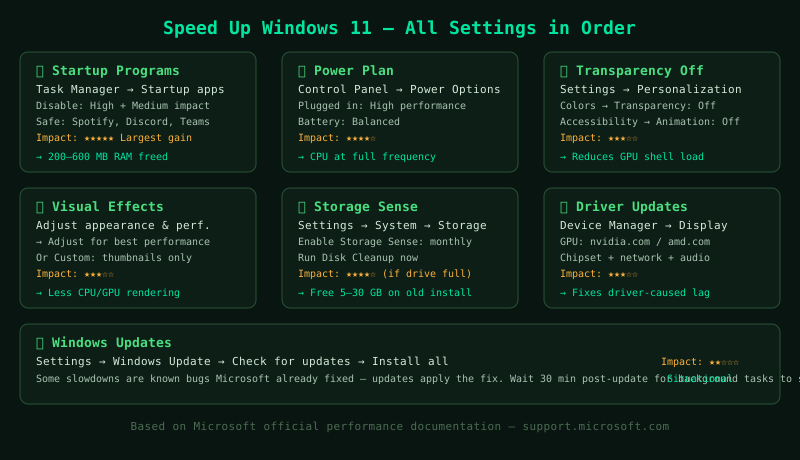
Apply the steps in order — earlier steps provide faster results. Step 1 (startup programs) and step 2 (power plan) together account for most of the performance improvement in a typical case.
How to verify the fix
After completing all steps and restarting, allow 5 minutes for Windows to settle. Open Task Manager > Performance and observe CPU, Memory, and Disk at idle. On a well-optimised Windows 11 system with 8 GB RAM, CPU should be below 5% at idle, Memory below 50%, and Disk below 10%. Open Task Manager > Startup apps and verify no High-impact entries remain enabled that are not essential.
Known limitations
These optimisations improve software efficiency but cannot change hardware capability. On computers with 4 GB RAM, RAM pressure remains a performance ceiling regardless of startup program configuration. On computers with HDDs rather than SSDs, disk access speeds remain the primary bottleneck for application launches and file operations. The settings in this guide represent the maximum performance extractable from Windows 11’s configuration options — beyond these settings, the next improvement comes from hardware upgrades: RAM to 8 GB or 16 GB, and HDD to SSD.
Step-by-step fix
Disable startup programs
Open Task Manager with Ctrl+Shift+Esc and click the Startup apps tab. Right-click each program with High or Medium startup impact and select Disable, unless it is your antivirus, audio software, or a program you use immediately after login. Every disabled startup program reduces the post-login load period and frees RAM that would otherwise be permanently consumed by background processes. Typical programs safe to disable: Spotify, Discord, Teams, Zoom, Steam, Epic Games Launcher, Adobe Creative Cloud, OneDrive (if you do not need immediate sync), and manufacturer utilities. After disabling, restart and allow Windows to settle for 2 minutes before judging the improvement.
Set the power plan to High Performance
Open Control Panel > Hardware and Sound > Power Options. If you are on a desktop computer or a plugged-in laptop, select High performance. On a laptop used on battery, select Balanced to preserve battery life while still allowing the CPU to run at full speed when needed. The High performance plan keeps the CPU running at or near its maximum frequency at all times, eliminating the throttle delays introduced by Balanced mode's dynamic scaling. In Windows 11, the equivalent setting is in Settings > System > Power & battery > Power mode — set to Best performance when plugged in. Note that High performance on a laptop generates more heat and drains the battery faster; always use it plugged in.
Disable transparency and animation effects
Open Settings > Personalization > Colors and turn off Transparency effects. Then open Settings > Accessibility > Visual effects and turn off Animation effects. Transparency effects require the GPU to continuously render a blurred copy of whatever is behind each transparent window — on integrated graphics, this consumes measurable GPU resources. Animation effects (window open/close, menu fade) add latency between clicking and the result appearing, which makes the system feel slower than it is even when performance is otherwise adequate. Disabling both makes the desktop feel immediately more responsive, especially on computers with integrated Intel or AMD Radeon graphics.
Adjust visual effects for best performance
Search for 'Adjust the appearance and performance of Windows' in the Start menu and open it. In the Performance Options window, select Adjust for best performance to disable all visual effects at once, or select Custom and keep only Show thumbnails instead of icons and Smooth edges of screen fonts. Disabling visual effects reduces the rendering load on the CPU and GPU, freeing resources for applications. The performance gain is most significant on computers with less than 8 GB RAM or with integrated graphics — on high-end hardware the difference is minimal. The desktop appearance becomes more basic but functions identically.
Enable Storage Sense and run Disk Cleanup
Open Settings > System > Storage and enable Storage Sense. Click Storage Sense and configure it to run every month, delete temporary files, and empty the Recycle Bin after 30 days. Then run a manual Disk Cleanup immediately: search for Disk Cleanup in Start, select C:, click OK, then click Clean up system files, select C: again, and check all boxes including Windows Update Cleanup and Temporary Windows installation files. On a computer with several cumulative Windows updates, this can recover 10–30 GB of space. Drives above 85% full show measurable performance degradation — Windows cannot allocate temporary files efficiently and the drive's performance degrades further as free space shrinks.
Update all drivers
Open Device Manager (right-click Start > Device Manager). Expand Display adapters and right-click your GPU to check for driver updates. Visit your GPU manufacturer's website directly for the latest drivers: NVIDIA at nvidia.com/drivers, AMD at amd.com/support, Intel at intel.com/download-center. Also update chipset, network, and audio drivers from your computer or motherboard manufacturer's support page. In Windows Update, go to Settings > Windows Update > Advanced options > Optional updates to check for driver updates delivered through Windows Update. After updating all drivers, restart the computer. Driver updates improve compatibility with Windows 11 and often fix performance regressions introduced when Windows updates change underlying APIs that drivers depend on.
Check for and install pending Windows Updates
Open Settings > Windows Update and click Check for updates. Install all available updates including optional updates. Some performance issues in Windows 11 are caused by known bugs that Microsoft has already fixed in subsequent updates — installing the latest updates applies these fixes. After updates install and the computer restarts, allow 30–60 minutes for post-update background tasks (component store optimisation, search index update) to complete before measuring final performance. Windows Update also delivers driver updates for common hardware components that may be more current than the drivers available on manufacturer websites.