
Hard drives give warnings before they fail completely. Recognising those warnings early — and acting on them — is the difference between a simple backup and losing everything. Most hard drive failures are gradual, not sudden, which means there is usually a window to save data if you know what to look for.
SSDs fail differently from traditional hard drives (HDDs). This article focuses primarily on HDDs, which have moving parts and exhibit more predictable failure patterns. SSD-specific failure signs are noted where they differ.
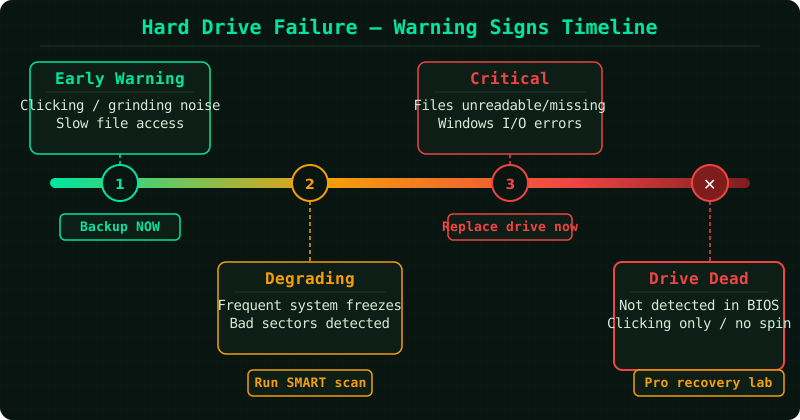
Warning signs of hard drive failure
Unusual sounds
Traditional hard drives contain spinning platters and a moving read/write head. A healthy drive is nearly silent during normal operation. These sounds indicate a problem:
- Clicking or ticking — the read/write head is repeatedly failing to find its position, known as the “click of death.” This is a serious mechanical failure sign. Back up immediately.
- Grinding or scraping — physical contact between the read/write head and the platters. Data loss may already be occurring.
- Loud spinning or whirring — the motor is struggling, often from bearing wear.
SSDs have no moving parts and make no sounds. Unusual sounds from a system with only SSDs point to a fan or other component, not the storage drive.
Slow file access and system performance
If copying files, opening documents, or loading applications has become noticeably slower — and the slowdown is inconsistent (sometimes fast, sometimes freezing) — the drive may be developing bad sectors. The drive is retrying read operations multiple times before succeeding, which causes the delay.
A system that was previously fast but now freezes for several seconds when accessing certain files or folders, then continues normally, is showing a classic early-failure pattern.
Files that were not deleted appearing as missing
If files disappear without being deleted, or folders appear empty when they previously contained files, the file system may be corrupted due to bad sectors or a failing drive controller.
Frequent crashes or blue screens
If Windows crashes with blue screen errors that reference disk-related error codes — such as CRITICAL_PROCESS_DIED, INACCESSIBLE_BOOT_DEVICE, or DISK_READ_ERROR — the drive should be checked immediately.
Windows prompts to format the drive
If Windows suddenly asks you to format a drive that was working normally, the file system has become unreadable. This can happen due to file system corruption or bad sectors in critical areas of the drive. Do not format. Run a recovery tool first (see below).
SMART errors reported by Windows or diagnostic tools
SMART (Self-Monitoring, Analysis, and Reporting Technology) is a built-in monitoring system in most hard drives and SSDs. Windows can display SMART status, and third-party tools provide more detail.
A SMART error message from Windows — typically shown as “Hard disk problem detected” in the notification area — means the drive has reported one or more failure indicators to Windows. This is a reliable warning that the drive is at elevated risk of failure.
How to check drive health in Windows
Using Windows Storage Health: Windows 11 includes a built-in storage health tool. Go to Settings > System > Storage > Disks & volumes, select a drive, and click Properties. The Health field shows the current status based on SMART data.
Using WMIC from Command Prompt (Windows 10 and 11):
wmic diskdrive get statusAn “OK” result means SMART has not reported a problem. Any other result warrants further investigation.
Using third-party SMART tools: Free tools such as CrystalDiskInfo provide detailed SMART attribute readings. Attributes in yellow (caution) or red (bad) indicate specific types of degradation — reallocated sectors, pending sectors, and uncorrectable errors are the most significant.
What to do if you see these signs
Immediately: back up data
If a drive is showing any of the above signs, back up all important data before doing anything else. Copy files to a different drive — an external hard drive, USB drive, or cloud storage. Do not attempt repairs until data is backed up.
If the drive is too slow or unreliable to copy files normally, try:
- Copying smaller batches of files at a time
- Connecting the drive externally via USB if it is an internal drive
- Using a tool such as Recuva or TestDisk if files are already missing
Run chkdsk to check for and repair file system errors
Open an administrator Command Prompt and run:
chkdsk C: /f /rThe /f flag fixes file system errors. The /r flag locates bad sectors and attempts to recover readable data. This requires a restart if run on the system drive.
Note: chkdsk /r does not repair a failing drive — it marks bad sectors so the operating system avoids them. If the drive has many bad sectors, they will continue to multiply.
Replace the drive promptly
A drive that has triggered SMART warnings or shown physical symptoms should be treated as unreliable, even if it appears to be functioning normally after a scan. The failure pattern of a degrading hard drive is unpredictable — it may continue working for months or fail the next day.
Replace the drive and restore from backup while data is still accessible.
When to stop and call a professional
Do not attempt software recovery if:
- The drive makes clicking or grinding noises — running software tools on a mechanically failing drive can cause further damage
- The drive is not detected at all, even in BIOS or Disk Management
- The drive appears and disappears intermittently from Windows
In these cases, professional data recovery services that work at the component level are the only option if the data is critical.
Common Questions
My drive passed a SMART check but is making clicking sounds. Which should I trust? Trust the sounds. SMART is useful for detecting gradual degradation but does not always catch mechanical failures before they become severe. A clicking drive should be treated as failing regardless of SMART status.
How long does a hard drive last before failing? Most hard drives are rated for three to five years of use, but failure rates vary widely by manufacturer and model. Environmental factors — heat, vibration, and movement — accelerate wear. There is no reliable way to predict exactly when a specific drive will fail.
Is a slow computer always a sign of a failing hard drive? No. Slow performance has many causes — malware, insufficient RAM, a full drive, or software issues. A failing drive is indicated by the combination of slowness with other symptoms: inconsistent freezing, missing files, sounds, or SMART warnings.