
A deleted file on Windows is not immediately gone. Windows marks the disk space as available but leaves the data in place until new files are written there. This gives a recovery window that ranges from hours on an active system drive to weeks on an external drive used only for storage.
The four methods below work in order from quickest (no tools needed) to deepest (full disk scan). Work through them in sequence — each step takes only a few minutes to attempt.
Which deletions are recoverable — and which are not
Always recoverable: Files in the Recycle Bin (right-click → Restore). Files in OneDrive Recycle Bin within 30 days. Files covered by File History or Windows Backup.
Usually recoverable (if drive not heavily used since deletion): Files deleted with Delete key or Send to Recycle Bin, then Recycle Bin emptied. Files deleted with Shift+Delete. Files on external drives deleted without Recycle Bin routing.
Rarely recoverable: Files on SSDs where TRIM has executed (can happen within minutes). Files on drives that have been filled with new data since deletion. Files from reformatted drives that have been used extensively since formatting.
How to verify the fix
Open each recovered file and check its contents before closing the recovery application. A file that recovers successfully opens completely with all its data intact. A partially recovered file will open with some content missing or display an error message. Only move fully intact files to your permanent storage location. Discard files that show corruption and do not waste time trying to repair them — if the sectors were overwritten, the data cannot be reconstructed.
Stopping the clock on recovery chances
The single most important action after accidental deletion is to stop using the drive. Every file you save, every web page you visit, every application that writes to disk reduces the chance of recovery by potentially overwriting the deleted file’s sectors. If the file is on your C: drive and you cannot stop using the computer, at minimum avoid downloading files, installing software, or saving new documents until you have run the recovery scan.
Step-by-step fix
Check the Recycle Bin first
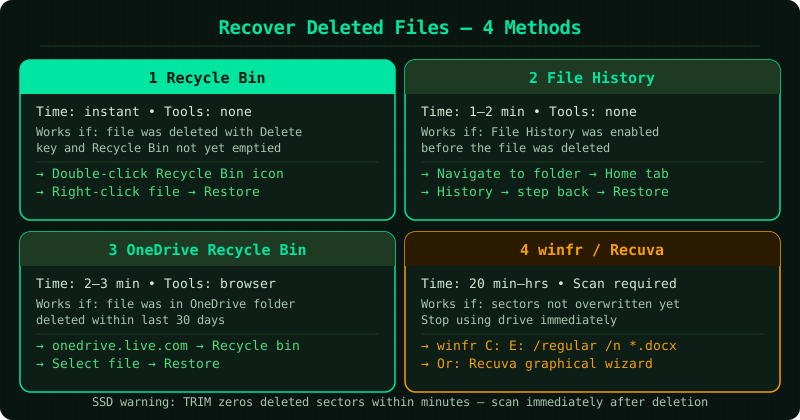
Double-click the Recycle Bin icon on your desktop. If you cannot see it, right-click the desktop and choose Personalize → Themes → Desktop icon settings, then check the Recycle Bin checkbox and click OK. Inside the Recycle Bin, look for your file by name or use the search box in the top-right corner. To restore a file to its original location, right-click it and select Restore. To restore it to a different folder, drag it from the Recycle Bin window to the target folder in File Explorer. You can also restore all items at once by right-clicking empty space inside the Recycle Bin and selecting Restore all items. If your file is not in the Recycle Bin, it was either permanently deleted (Shift+Delete), deleted from a network share, or the Recycle Bin was emptied — proceed to the next steps.
Check File History for a backed-up version
File History automatically backs up files in your Documents, Pictures, Videos, Music, and Desktop folders if it was enabled before the deletion. To check: navigate in File Explorer to the folder where the deleted file was stored. Click the Home tab in the toolbar, then click History (the clock icon with an arrow). If File History was running, a window opens showing backed-up versions of that folder's contents. Use the left and right arrows at the bottom to move between backup points in time. Find the version that still contains your file, click it to select it, then click the green Restore button. The file is restored to its original location. If the History button is greyed out or shows no backups, File History was not enabled — proceed to Step 3.
Check OneDrive Recycle Bin (if file was in a synced folder)
If the deleted file was inside a folder synced with OneDrive (typically the Documents or Desktop folder on most Windows setups), OneDrive keeps its own Recycle Bin separate from Windows. Open a web browser and go to onedrive.live.com. Sign in with your Microsoft account. In the left panel, click Recycle bin. Files deleted from OneDrive-synced folders within the last 30 days (or 93 days for Microsoft 365 subscribers) appear here. Click the file to select it, then click Restore. The file syncs back to your computer within a few minutes.
Use Windows File Recovery for permanently deleted files
If the Recycle Bin was emptied, File History was not active, and the file was not in OneDrive, use Windows File Recovery — Microsoft's free command-line tool from the Microsoft Store. Install it, open Command Prompt as administrator, and run: winfr C: D: /regular /n \Users\YourName\Documents\filename.ext — replace C: with your source drive, D: with a different destination drive, YourName with your Windows username, and filename.ext with the file name. If the exact filename is unknown, use a wildcard: winfr C: D: /regular /n *.docx recovers all Word documents. If Regular mode finds nothing, run winfr again with /extensive instead of /regular for a deeper scan. Recovered files appear in a Recovery folder on the destination drive.
Use Recuva as a graphical alternative
Recuva by Piriform (the company behind CCleaner) is a free Windows application with a graphical interface that performs the same type of raw-sector scanning as winfr but is easier to operate. Download Recuva from piriform.com (not from third-party sites). Install and launch it. The Wizard asks which file type to look for (pictures, music, documents, etc.) and where to look. Select the appropriate drive and click Scan. After the scan completes, a list of recoverable files appears with a condition indicator (Excellent, Poor, Unrecoverable). Check the files you want to recover, click Recover, and choose a destination folder on a different drive. If the standard scan finds nothing, click Switch to advanced mode, check Enable Deep Scan, and scan again — Deep Scan takes longer but searches at the sector level.