
The Recycle Bin is Windows’ first line of defence against accidental file deletion. Files deleted with the Delete key or by dragging to the Recycle Bin remain there intact until you choose to permanently delete them — they have not left the computer, they have only moved to a holding area.
When the Recycle Bin is emptied, recovery becomes more complex but is still possible in many cases using Windows’ built-in scanning tools.
What the Recycle Bin does and does not protect
Protected by the Recycle Bin: Files deleted with the Delete key from any location on an internal drive. Files dragged to the Recycle Bin icon. Files sent to Recycle Bin via right-click context menu.
Not protected — bypass the Recycle Bin: Files deleted with Shift+Delete. Files deleted from USB drives and external storage. Files deleted from network folders and mapped drives. Files deleted from Command Prompt using the del command. Files larger than the Recycle Bin’s configured maximum size.
How to verify the restoration
After restoring a file, navigate to the folder it was restored to and open the file. Confirm the contents are intact. If you restored a document, scroll through it. If you restored a photo, check it opens at full quality. Files restored from the Recycle Bin are byte-for-byte identical to the originals — the Recycle Bin does not alter file contents. If the file does not open correctly after restoration, the issue predates the deletion.
Step-by-step fix
Restore individual files from the Recycle Bin
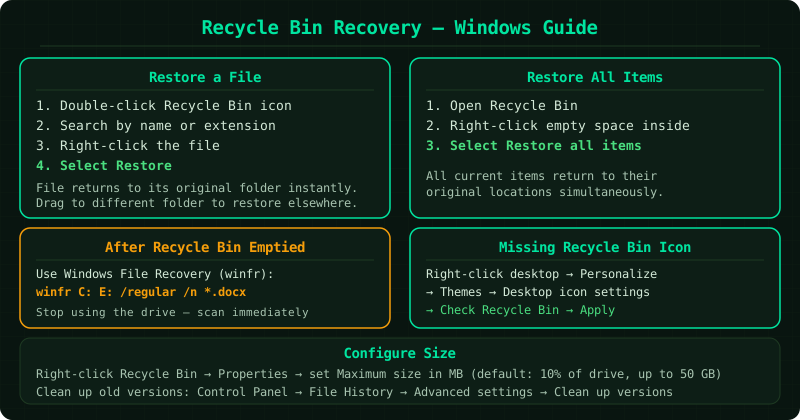
Double-click the Recycle Bin icon on your desktop to open it. If you cannot see the icon, skip to Step 4 to restore it. Inside the Recycle Bin, locate the file you want to restore. If the Recycle Bin contains many items, use the search box in the top-right corner and type the file name or extension — for example, type .docx to filter to Word documents only. Once you find the file, right-click it and select Restore. The file is immediately moved back to its original folder — the exact folder it was in before deletion. To restore a file to a different location instead of its original folder, drag it from the Recycle Bin window and drop it on the target folder in File Explorer. You can also select multiple files by holding Ctrl while clicking, then right-click one of the selected files and choose Restore.
Restore all files from the Recycle Bin at once
If you want to undo a full Recycle Bin empty or restore everything that was deleted in a session, right-click any empty space inside the Recycle Bin window and select Restore all items. Every item currently in the Recycle Bin is returned to its original location simultaneously. An alternative method: click Manage in the toolbar at the top of the Recycle Bin window, then click Restore all items. Note that this restores all items currently in the Recycle Bin, including files from earlier sessions — review the contents first if you only want to restore specific items. Files restored this way appear exactly as they were before deletion, with all original file attributes intact.
Recover files after the Recycle Bin was emptied
Once the Recycle Bin is emptied, files are no longer accessible through the Windows file system. However, the underlying data frequently remains on the disk in the sectors the files occupied, until new data overwrites it. To attempt recovery: download Windows File Recovery free from the Microsoft Store. Open Command Prompt as administrator (search cmd → right-click → Run as administrator). Run: winfr C: D: /regular /n \Users\YourName\filename.ext — replace C: with the drive the file was on, D: with a different destination drive, YourName with your Windows username, and filename.ext with the file name. If you do not know the exact name, use a wildcard: winfr C: D: /regular /n *.docx recovers all Word documents found. For files deleted more than a few days ago, use /extensive instead of /regular for a deeper scan. Stop using the drive immediately — every new file write reduces recovery chances.
Restore a missing Recycle Bin icon to the desktop
The Recycle Bin icon sometimes disappears from the desktop after a Windows Update, a display settings change, or if desktop icons were rearranged and the Recycle Bin was hidden. To restore it: right-click an empty area of the desktop and select Personalize. In the Personalization settings window, click Themes in the left panel, then scroll down and click Desktop icon settings. A small window opens showing checkboxes for Computer, Recycle Bin, User's Files, Network, and Control Panel. Check the Recycle Bin checkbox and click Apply, then OK. The Recycle Bin icon reappears on the desktop immediately. If you right-click the desktop and do not see Personalize, you may be in Tablet mode — open Settings → System → Display and turn off Tablet mode.
Configure Recycle Bin size and behaviour
By default, the Recycle Bin reserves up to 10% of each drive's capacity for deleted files, up to a maximum of 50 GB. When the Recycle Bin reaches its size limit, it automatically deletes the oldest items to make room for new ones. To increase the size: right-click the Recycle Bin icon on the desktop and select Properties. In the Properties window, select the drive you want to configure, then under Custom size set the Maximum size in MB. For example, 20480 MB = 20 GB. Click Apply. To check the current Recycle Bin size: right-click the Recycle Bin and select Properties — the current size is shown at the top. You can also check Don't move files to the Recycle Bin to make all deletions permanent — this is not recommended unless storage space is critical, as it eliminates the safety net the Recycle Bin provides.