
When you delete a file from OneDrive — whether by pressing Delete on your keyboard, moving it to the Windows Recycle Bin from a synced folder, or deleting it through the OneDrive website — it is moved to the OneDrive Recycle Bin, not permanently deleted. According to Microsoft’s documentation, files remain in the OneDrive Recycle Bin for 30 days on personal plans before being permanently removed.
This means recovery is straightforward as long as the 30-day window has not passed.
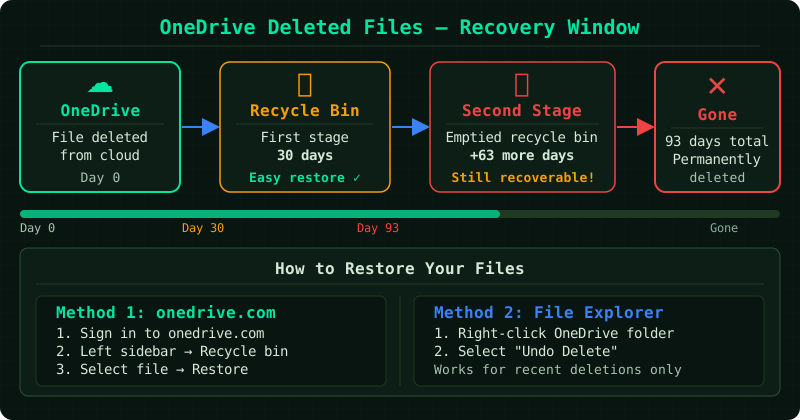
How long deleted files are kept
The retention period depends on your OneDrive plan:
| Plan | Recycle Bin retention |
|---|---|
| OneDrive Free (5 GB) | 30 days |
| Microsoft 365 Personal / Family | 30 days |
| Microsoft 365 Business plans | 93 days |
| SharePoint / Teams (work accounts) | 93 days (first stage) + additional second stage |
After the retention period ends, files are permanently deleted and cannot be recovered through OneDrive. There is no further recourse through Microsoft support once files are purged.
Step 1 — Open the OneDrive Recycle Bin
On a browser, go to onedrive.live.com and sign in with the Microsoft account connected to your OneDrive.
In the left sidebar, click Recycle bin. This shows all files deleted from your OneDrive within the retention period.
Alternatively, if you deleted a file from a synced OneDrive folder on your PC, it may also appear in the Windows Recycle Bin on your desktop. Restoring it from the Windows Recycle Bin also restores it to OneDrive.
Step 2 — Find the file
The Recycle Bin lists deleted files with the deletion date and original location. You can:
- Browse through the list sorted by deletion date (most recent first by default)
- Sort by name, location, or size using the column headers
- Search within the Recycle Bin by typing the filename in the search bar at the top of the page
If you deleted a folder, the entire folder contents appear individually in the Recycle Bin — search for filenames, not just the folder name.
Step 3 — Restore the file
Click the checkbox next to each file you want to recover. To select all items, click the checkbox in the column header.
Click Restore at the top of the page. The files return to their original folder location in OneDrive and sync automatically to all devices connected to that account.
If the original folder was also deleted, OneDrive recreates the folder structure automatically during restoration.
Step 4 — Check the second-stage Recycle Bin
If a file is not visible in the main Recycle Bin, it may have been emptied from the Recycle Bin manually or purged early. Scroll to the bottom of the Recycle Bin page and look for a link to Restore from second-stage Recycle Bin (also called the site collection Recycle Bin on business accounts).
The second-stage Recycle Bin temporarily holds items that were removed from the first-stage Recycle Bin, giving a short additional recovery window before permanent deletion.
Recovering older versions of a file
If the file still exists but its contents were overwritten or corrupted, OneDrive Version History allows you to restore a previous version. According to Microsoft’s documentation, OneDrive keeps version history for files in synced folders.
To access version history:
- Right-click the file in onedrive.live.com
- Select Version history
- Review the list of saved versions with dates
- Click the three-dot menu next to a version and select Restore
Version history is available on personal OneDrive accounts and on Microsoft 365 business accounts. The number of versions stored depends on the account type and storage settings.
Recovering deleted files on a work or school OneDrive (SharePoint)
If the OneDrive is connected to a work or school account, files are stored in SharePoint. The Recycle Bin is accessible at your organisation’s SharePoint URL rather than onedrive.live.com.
Go to your SharePoint site, click Recycle bin in the left navigation, and follow the same restore process. Business accounts have a 93-day retention period and a two-stage Recycle Bin — if files are not in the first stage, an administrator can check the second-stage Recycle Bin before the retention period expires.
If the retention period has passed, contact your IT administrator — some organisations maintain additional backups beyond the standard OneDrive retention.
If the file cannot be recovered from OneDrive
If the 30-day retention period has passed and the file is not in any Recycle Bin stage, it is permanently deleted from OneDrive’s servers. Microsoft does not maintain backups accessible to end users beyond the Recycle Bin retention window.
Check whether the file exists elsewhere:
- In the Windows Recycle Bin on the PC where it was deleted
- In a local backup if Windows Backup or File History was configured
- In an email attachment if it was shared previously
- In a cloud service such as Google Drive if the file was stored in multiple locations
Common Questions
I emptied the Windows Recycle Bin. Is the OneDrive file also gone? Not necessarily. Deleting from the Windows Recycle Bin removes the local copy, but the file may still be in the OneDrive Recycle Bin on the web. Check onedrive.live.com before concluding the file is gone.
A colleague deleted a shared file. Can I recover it? If the file was in a shared folder or SharePoint library, check the Recycle Bin of the site or the folder owner. On business accounts, any member with edit permissions can restore files from the Recycle Bin. Administrators can access the second-stage Recycle Bin for additional recovery options.
Can I recover a file deleted more than 30 days ago? On personal OneDrive accounts, no — files purged after the 30-day retention period are permanently deleted. On Microsoft 365 business accounts, the 93-day retention and two-stage Recycle Bin provide more time, and IT administrators may have additional backup options.