
USB flash drive problems fall into a few predictable categories, and each has a different solution. Accidentally deleted files, a drive you formatted by mistake, a drive that Windows cannot read, and a drive that is not detected at all — the approach changes depending on what actually went wrong.
The most important rule applies before you do anything else: stop writing to the drive. Every new file saved to a USB drive can overwrite the physical storage blocks where deleted data still exists. Eject the drive now and do not reconnect it until you are ready to attempt recovery.
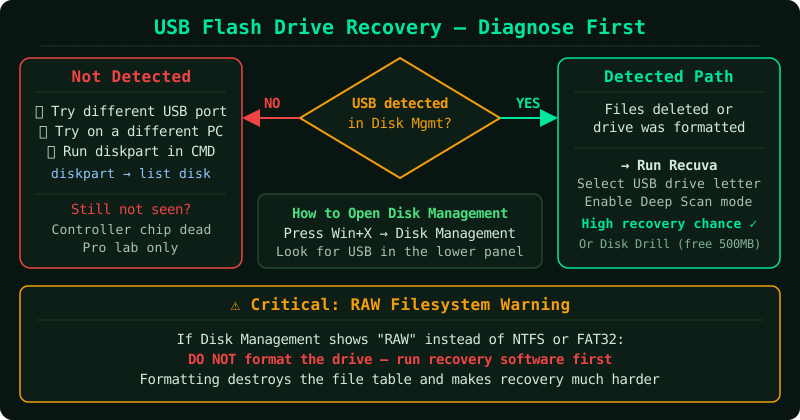
What kind of problem do you have?
Files were accidentally deleted
When a file is deleted from a USB drive, it is not sent to the Recycle Bin — it is immediately removed from the file system directory. However, the actual data on the drive is not erased immediately. The space is simply marked as available. Until something else is written to that space, the data can be recovered.
The drive was accidentally formatted
Formatting a USB drive in Windows performs a quick format by default, which wipes the file system tables but does not overwrite the actual file data. Recovery is often possible immediately after a quick format if nothing else has been written to the drive.
Windows cannot read the drive or shows it as RAW
If Windows displays a message saying the drive needs to be formatted, or Device Manager shows the file system as RAW instead of FAT32 or exFAT, the file system is corrupted. This does not mean the data is gone — it means the directory structure that points to the files is damaged. The files themselves are usually still present.
The drive is not detected at all
If the drive does not appear in File Explorer or Disk Management, the problem may be a hardware failure (failed controller chip or damaged NAND flash) rather than a software issue. Software recovery tools cannot help with hardware failures. This situation requires professional data recovery services if the data is critical.
Step 1 — Stop using the drive
Eject the USB drive and do not reconnect it until you are ready to run recovery tools. Keep the drive in a safe place.
Step 2 — Try Windows File Recovery
Windows File Recovery is a free command-line tool from Microsoft, available in the Microsoft Store. It works on Windows 10 (version 2004 and later) and Windows 11.
Install it: Search for “Windows File Recovery” in the Microsoft Store and install it.
Run it from an administrator Command Prompt:
winfr E: D:\Recovery\ /extensiveReplace E: with the drive letter of your USB drive and D:\Recovery\ with a folder on a different drive where recovered files will be saved. Never save recovered files back to the USB drive being recovered.
The /extensive mode performs a deep scan and works on formatted or heavily corrupted drives. For a simple deleted-file scan on a healthy drive, /regular is faster.
Refer to Microsoft’s Windows File Recovery guide for the full command reference.
Step 3 — Repair the file system if the drive shows as RAW
If Windows says the drive needs formatting, or if Disk Management shows the file system as RAW, try repairing it before running any recovery tool:
- Open an administrator Command Prompt
- Run:
chkdsk E: /f(replaceE:with your drive letter) - If chkdsk completes without errors, check whether File Explorer can now access the drive normally
If chkdsk reports that it cannot run because the volume is not a recognised file system, skip to the recovery tool step below.
Step 4 — Use a third-party recovery tool
If Windows File Recovery does not find the files you need, two free tools are widely used and trusted:
Recuva (free) — A graphical recovery tool from Piriform. Install it on your main drive (not the USB drive), select the USB drive as the scan target, enable deep scan mode, and scan. Recovered files can be saved anywhere except the USB drive being scanned.
TestDisk (free, open source) — A command-line tool for repairing partition tables and recovering lost partitions. More complex to use than Recuva, but effective for drives with severely corrupted file systems. The companion tool PhotoRec (included with TestDisk) recovers individual files by scanning for known file signatures rather than relying on the file system directory.
Both tools are available at no cost and do not require the drive to be writable.
When software recovery will not work
Software recovery tools read the data that is physically present on the drive’s storage chips. They cannot help when:
- The drive’s controller chip has failed (the drive is not detected at all, or detected inconsistently)
- The NAND flash memory chips have failed or are physically damaged
- The drive has been dropped, submerged, or exposed to heat
- A secure erase or full format (not quick format) has been run on the drive
In these cases, professional data recovery services can sometimes recover data by directly reading the NAND chips — a process called chip-off recovery. This is expensive (typically hundreds of dollars) and not guaranteed, but it is the only remaining option for physically failed drives.
Preventing future data loss
USB flash drives are not reliable long-term storage. The NAND flash memory in typical consumer drives has a finite number of write cycles, and cheap drives fail without warning. For files that matter, maintain at least one additional copy — cloud storage, a backup drive, or both.
Common Questions
The drive makes a clicking or grinding noise. Can I still recover files? USB flash drives do not have moving parts, so clicking noises typically indicate a faulty controller or partially failed NAND. Stop using the drive immediately and consider a professional recovery service if the data is critical. Continuing to use a failing drive risks making it completely unreadable.
I formatted the drive and then saved new files to it. Can I still recover the original files? Possibly, but the chances decrease with every file written after the format. The new files overwrite the physical locations where the old data was stored. Recovery tools may still find data in areas that were not overwritten, but complete recovery is unlikely.
Recuva found my files but they are corrupted or empty. Why? The data in those locations has been partially overwritten. The file system directory entry still existed, so the tool found the file name, but the actual data blocks have been reused. This is why stopping all writes immediately is the most important first step.