
A digital licence (called a digital entitlement in earlier versions of Windows) is a method of Windows activation that ties your licence to your device’s hardware rather than a product key. When Windows detects the same hardware configuration it was originally activated on, it activates automatically — no key required.
The digital licence system works seamlessly in normal use. Problems appear when the hardware changes significantly, when Windows is reinstalled, or when the Microsoft account linked to the licence is not connected during setup.
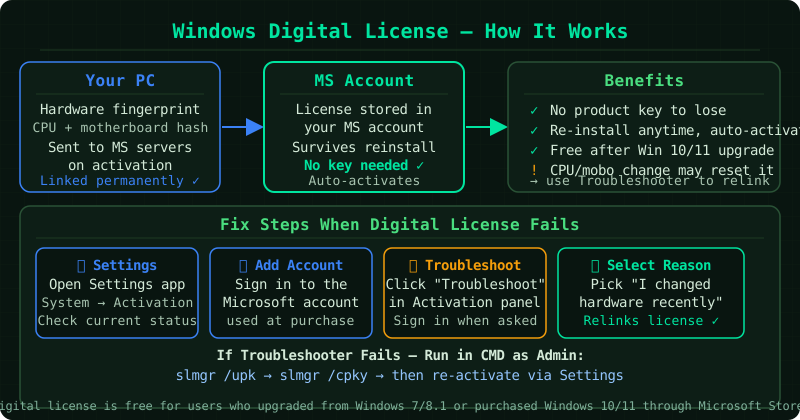
How digital licences work
According to Microsoft’s activation documentation, a digital licence is created when:
- You upgrade from Windows 7 or 8.1 to Windows 10 using the free upgrade offer
- You purchase Windows 10 or 11 from the Microsoft Store
- The device came with Windows pre-installed and was activated during setup
The licence is stored on Microsoft’s servers and linked to both your hardware fingerprint and, if you connected a Microsoft account during activation, to your Microsoft account. Linking to an account is optional but makes recovery after hardware changes much easier.
Why the digital licence stops working
Windows was reinstalled without linking a Microsoft account. If Windows was reinstalled using a clean install and no Microsoft account was signed in during setup, Windows cannot automatically retrieve the digital licence. It is still stored on Microsoft’s servers but needs to be claimed.
Significant hardware changes were made. Replacing the motherboard — the component that defines the device’s hardware identity — changes the hardware fingerprint that the digital licence is linked to. Windows no longer recognises the hardware as the same device.
Minor hardware changes exceeded the tolerance threshold. Replacing several components at once (RAM, GPU, storage, and network card) without replacing the motherboard can still change the hardware fingerprint enough that Windows no longer accepts the existing digital licence.
The wrong Microsoft account is signed in. If the digital licence was linked to a specific Microsoft account and a different account is now signed in, the licence recovery process uses the wrong account.
Step 1 — Sign in with the correct Microsoft account
The first step is ensuring the right Microsoft account is linked to Windows.
Go to Settings > System > Activation. If you see Add a Microsoft account, click it and sign in with the account that was active on this device when Windows was originally activated.
If you are not sure which account was linked, go to account.microsoft.com, sign in with each of your Microsoft accounts, and check the Devices section of each one. The device will appear under the account to which the digital licence was linked.
Step 2 — Run the activation troubleshooter
After confirming the correct Microsoft account is linked, run the activation troubleshooter:
Settings > System > Activation > Troubleshoot
When prompted, select the option that best describes your situation:
- I changed hardware on this device recently — for hardware upgrades or replacements
- I’m activating Windows on this device for the first time — for clean reinstalls
The troubleshooter connects to Microsoft’s licensing servers, verifies the account’s linked devices, and attempts to restore activation. If the device’s hardware fingerprint matches a stored digital licence under your account, activation completes automatically.
Step 3 — If the device is not listed in your Microsoft account
If the device does not appear under any of your Microsoft accounts, the digital licence may not have been linked to an account when it was created. In this case:
- If the device came with Windows pre-installed, the digital licence may be OEM-linked to the hardware and does not require a Microsoft account — try running the troubleshooter without adding a Microsoft account first
- If the licence was created during a free upgrade, the hardware fingerprint from the original activation is the key — contact Microsoft support with the device details
Step 4 — Contact Microsoft support
If the troubleshooter cannot locate or restore the digital licence, contact Microsoft support at support.microsoft.com. Provide:
- The device name and model
- The Microsoft account email used during the original activation
- A description of what changed (reinstall, hardware change, etc.)
Common Questions
My digital licence worked before reinstalling Windows. How do I get it back? After reinstalling Windows, go through setup and sign in with the same Microsoft account that was linked to the original activation. Windows checks Microsoft’s servers during setup and, if a digital licence is found for this hardware under that account, activates automatically. If it does not activate during setup, run the troubleshooter afterward.
I replaced the motherboard. Can I recover my digital licence? A motherboard replacement creates a new hardware identity, which the digital licence is no longer linked to. According to Microsoft’s documentation, contact Microsoft support — a retail digital licence can be transferred to new hardware once as a hardware upgrade, but this requires manual review by Microsoft support.
Does a digital licence expire? No. A digital licence does not have an expiry date. Once granted, it remains valid as long as the hardware configuration matches what was recorded at activation time, or until a hardware change exceeds what the licence covers.