
File History is Windows’ continuous backup feature. Once turned on with an external drive connected, it silently copies every change to files in your Documents, Pictures, Desktop, and other key folders — every hour by default. When a file is accidentally deleted or overwritten, you can step backward through time and restore the exact version you need.
Unlike recovery tools that scan for deleted data, File History restores from a complete, intact copy. There is no uncertainty about whether the data is still there — if it was backed up, it is recoverable in full.
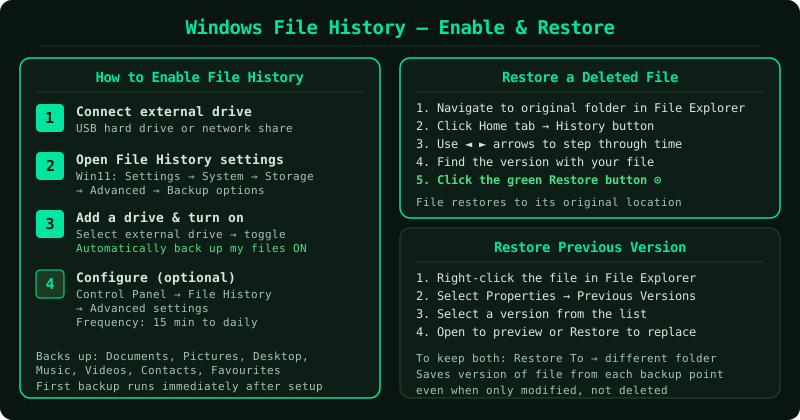
File History vs Windows Backup — which is which
File History (this guide) backs up files in your libraries continuously while you work. It is designed for recovering individual files and previous versions.
Windows Backup / System Image backs up the entire Windows installation, including the operating system, applications, and all files. It is designed for recovering from a complete system failure or hard drive replacement.
Both can be active simultaneously. File History is the faster and more flexible option for individual file recovery. A system image backup is the safety net for catastrophic drive failure.
How to verify the fix
After restoring a file or folder from File History, open it and confirm the contents are correct. If you restored a previous version of a document, compare it with the current version to ensure you retrieved the right point in time — use the Open option before Restore to preview the version first. File History backups are complete, uncompressed copies of the original files, so a successful restore produces a file identical to the backed-up version.
Step-by-step fix
Connect an external drive or network location for File History
File History requires a separate storage location — it cannot back up to the same drive your files are stored on. Connect an external USB hard drive or a USB flash drive with sufficient free space (ideally at least as much free space as the total size of the files you want to back up). A network-attached storage (NAS) device on your local network also works. File History does not work with cloud services like OneDrive or Google Drive as its backup destination — only locally-attached drives and network shares. Leave the drive connected whenever your computer is running to ensure backups happen automatically. You can disconnect the drive when away from home, but backups will pause and resume only when reconnected.
Turn on File History in Windows Settings
On Windows 11: open Settings (Windows + I), click System in the left panel, click Storage, scroll down to Advanced storage settings, and click Backup options. Under Back up using File History, click Add a drive and select your external drive from the list. Toggle Automatically back up my files to On. On Windows 10: open Settings, click Update & Security, then Backup. Click Add a drive and select your external drive. Toggle Automatically back up my files to On. Alternatively, both Windows 10 and 11: open Control Panel (search for it in Start), click File History, and click Turn on. File History begins its first backup immediately after being enabled. The initial backup may take several minutes to hours depending on how many files are in your libraries — subsequent hourly backups take seconds to minutes because only changed files are copied.
Configure what File History backs up and how often
By default, File History backs up files in the following locations: Documents, Music, Pictures, Videos, Desktop, and the Contacts and Favourites folders. It does not back up the entire Windows installation or program files. To customise: in the File History settings (Control Panel → File History → Advanced settings), you can change the backup frequency from every 15 minutes to daily, and set how long to keep saved versions from 1 month to forever. To add folders not included by default: in Control Panel → File History, click the Start menu version of File History, then click Exclude folders — you can also navigate to any folder and add it to the backup scope by opening File History Advanced settings and adjusting the library membership.
Restore a specific file or folder from File History
To restore a file that was deleted or overwritten: open File Explorer and navigate to the folder where the file was stored. Click the Home tab in the ribbon at the top of the window, then click the History button — it looks like a clock face with a circular arrow. A window opens showing the folder's backed-up versions. Use the green left arrow at the bottom to step backward through time and the right arrow to move forward. When you find the version containing the file you want (visible in the folder), click it once to select it, then click the large green circular Restore button at the centre-bottom of the window. The file is restored to its original location. If the file was in a subfolder that no longer exists, File History recreates the folder structure as well.
Restore a previous version of a file that was overwritten
File History saves versions of files as they were at each backup interval, even if the file was not deleted — only modified. This means you can recover a document you accidentally overwrote, a photo you edited but want the original back, or a spreadsheet from three days ago. Right-click any file in File Explorer and select Properties. Click the Previous Versions tab. A list of saved versions appears with dates and times. Click a version to select it, then click Open to preview it without restoring, or click Restore to replace the current version with the selected backup. To keep both versions, click the arrow next to Restore and select Restore To, then choose a different folder to save the historical version alongside the current one.