
Windows File Recovery is a free command-line tool published by Microsoft in the Microsoft Store. It can recover files deleted from the Recycle Bin, permanently deleted files, and files from formatted or corrupted drives. It works by scanning the raw sectors of a drive for file data that Windows has marked as deleted but not yet overwritten — unlike the Recycle Bin, which only works for files that were moved there, winfr searches at the disk level.
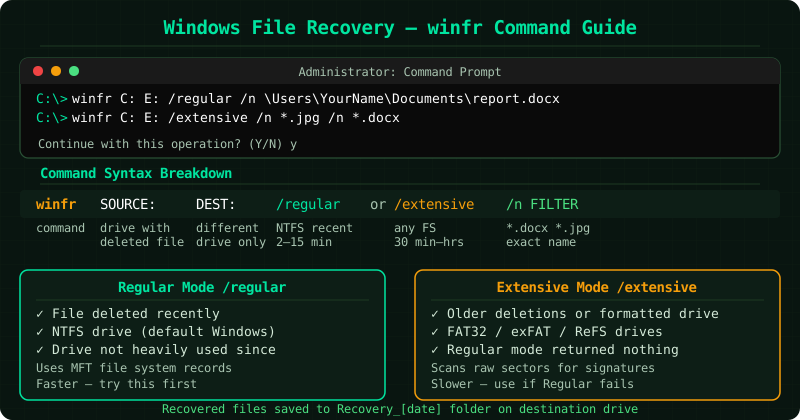
What Windows File Recovery can and cannot do
Can recover: Recently deleted files on NTFS drives (Regular mode), older deleted files and files from formatted drives (Extensive mode), files deleted with Shift+Delete, files from external hard drives and USB drives, files in FAT32 and exFAT format (Extensive mode only).
Cannot recover: Files on SSDs where TRIM has already zeroed the sectors, files on drives that have been heavily written to since deletion, files from drives with physical damage, files on BitLocker-encrypted drives without the decryption key.
When to use Regular mode vs Extensive mode
Regular mode (/regular) uses the NTFS file system records to locate deleted entries. It is faster (2–15 minutes) and more accurate when the deletion is recent. Use it first.
Extensive mode (/extensive) ignores file system records and searches for file type signatures directly in the raw sectors. It takes longer (30 minutes to several hours) but finds files Regular mode misses — especially on drives that have been formatted or used heavily after deletion. Use it if Regular mode returns no results.
How to verify the fix
Open each recovered file immediately to confirm its contents. A file that appears in the Recovery folder may be partially overwritten — it will open but display incomplete or corrupted content. Only files that open fully intact should be considered successfully recovered. Move confirmed files to a permanent location on a different drive from the one that was scanned.
Known limitations
winfr cannot improve results on an SSD where TRIM has executed. Consumer SSDs typically issue TRIM commands within seconds to minutes of file deletion. Enterprise SSDs and some older consumer drives may disable or delay TRIM, giving a wider recovery window. To check whether TRIM is active on your drive: open Command Prompt as administrator and run fsutil behavior query DisableDeleteNotify — a result of 0 means TRIM is enabled.
Step-by-step fix
Install Windows File Recovery from the Microsoft Store
Open the Microsoft Store application (search for it in the Start menu). In the Store search bar, type Windows File Recovery and press Enter. Click the result published by Microsoft Corporation — it is free. Click Get or Install. The tool is small (under 5 MB) and installs in under a minute. Windows File Recovery requires Windows 10 version 2004 (May 2020 Update) or later, or any version of Windows 11. If your Windows Update is current, the tool is supported. After installation, do not open the Store app — the tool runs from Command Prompt only.
Identify your source drive and choose a destination drive
The source drive is the drive where the deleted file was stored. The destination drive is where recovered files will be saved. These must be two different drives — winfr does not allow saving recovered files to the same drive being scanned, because writing new data to the source can overwrite the deleted file data you are trying to recover. If your computer has only one internal drive (C:), connect an external USB drive or use a USB flash drive as the destination. Open File Explorer to confirm the drive letters: source is usually C: (or D:, E: for secondary drives) and destination is your external drive letter, such as E: or F:.
Open Command Prompt as Administrator
Press the Windows key, type cmd, right-click on Command Prompt in the results, and select Run as administrator. Click Yes on the User Account Control prompt. Administrator access is required — winfr will not run without it. A black window opens with a C:\Windows\System32> prompt. You will type all winfr commands here. Do not close this window until the scan is complete.
Run winfr in Regular mode for recently deleted files
Regular mode works best on NTFS drives (the default format for Windows system drives) when the file was deleted recently and the drive has not been heavily used since. The basic syntax is: winfr SOURCE: DESTINATION: /regular /n FILTER — replace SOURCE with your source drive letter, DESTINATION with your external drive letter, and FILTER with the filename or file type you want to recover. Example to recover a specific Word document: winfr C: E: /regular /n \Users\YourName\Documents\report.docx — replace YourName with your Windows username. Example to recover all JPG photos from the Pictures folder: winfr C: E: /regular /n \Users\YourName\Pictures\*.jpg — the asterisk matches any filename. Press Enter to start the scan. Type y and press Enter when winfr asks for confirmation. The scan takes 2–15 minutes depending on drive size.
Run winfr in Extensive mode for older deletions or formatted drives
Extensive mode performs a deeper sector-by-sector scan and works on any file system (NTFS, FAT32, exFAT, ReFS). Use it when Regular mode found nothing, when the deletion happened more than a few days ago, or when the drive has been formatted. The syntax replaces /regular with /extensive: winfr C: E: /extensive /n *.docx recovers all Word documents from the C: drive regardless of folder. Extensive mode scans more thoroughly and takes significantly longer — 30 minutes to several hours on large drives. On SSDs, Extensive mode is less effective than on HDDs because TRIM commands can have already zeroed the sectors, but it is still worth running.
Browse recovered files in the Recovery folder
When the scan completes, winfr creates a folder named Recovery_[date]_[time] on your destination drive. Open File Explorer, navigate to your destination drive, and open this folder. Inside you will find subfolders organised by file type or original path. Open each recovered file to verify its contents — partially overwritten files may appear in the folder but contain corrupted or incomplete data. Copy only the files that open correctly to their permanent new location. You can safely delete the Recovery folder itself once you have confirmed which files are intact.