
Phone activation is Microsoft’s official alternative to online activation for Windows. It is available for Windows 10 and Windows 11 and works independently of your internet connection — the verification is handled over the phone through an automated system.
According to Microsoft’s activation documentation, phone activation is intended for situations where online activation fails, including cases where the product key has been flagged due to hardware changes, where the device does not have an internet connection, or where repeated online activation attempts have been blocked.
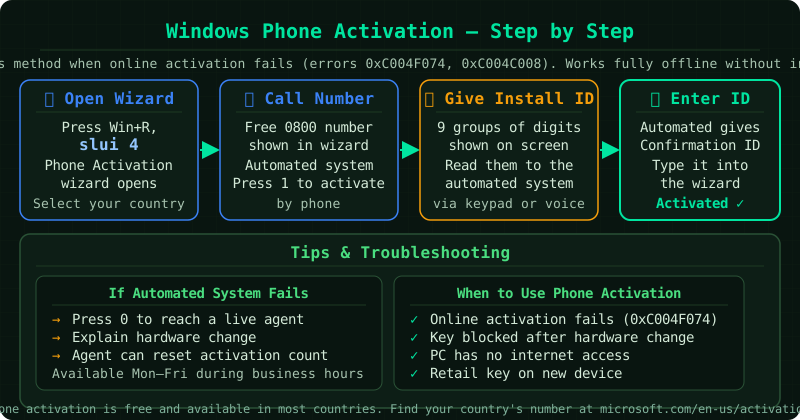
When to use phone activation
Phone activation is appropriate when:
- Online activation fails with an error code and the troubleshooter cannot resolve it
- The device does not have internet access
- You are transferring a retail licence from an old device to a new one and online activation is blocked
- A hardware change caused the existing activation to lapse and the troubleshooter cannot restore it
- Microsoft support has directed you to use phone activation
Phone activation does not bypass Microsoft’s licensing requirements. The automated system checks that the Installation ID (generated from your product key and hardware) corresponds to a valid licence with available activations. If the check passes, a Confirmation ID is issued.
Step 1 — Open the phone activation interface
Open an administrator Command Prompt and run:
slui 4This opens the Windows Activation by Phone window directly. Alternatively:
- Go to Settings > System > Activation
- Select Troubleshoot
- If phone activation is offered as an option, select it
The window displays your Installation ID — a long number divided into groups of digits. This ID is generated from your product key and your hardware configuration. Do not share it with anyone other than the Microsoft activation system.
Step 2 — Select your country
In the activation window, select your country or region from the dropdown. Microsoft provides a local or toll-free phone number for most countries. The number changes based on your selection — make sure you select the correct country before noting the number.
Step 3 — Call the number
Call the number displayed on screen. You will reach an automated telephone system. When prompted:
- Say or enter the digits of your Installation ID, reading each group in sequence
- The system will confirm each group before moving to the next
Read the digits slowly and clearly. If the automated system does not understand a group, it will ask you to repeat it.
Step 4 — Receive and enter the Confirmation ID
If the Installation ID corresponds to a valid, available licence, the automated system will provide a Confirmation ID — another long number divided into groups.
Type each group of the Confirmation ID into the corresponding fields in the Windows Activation by Phone window. When all groups are entered, click Activate Windows.
Windows will process the Confirmation ID and complete activation immediately. No internet connection is required for this step.
If the automated system rejects the Installation ID
If the automated system cannot issue a Confirmation ID — for example, because the key appears to be in use on too many devices — it will offer the option to speak with a support representative.
When connected to a representative:
- Explain that you are trying to activate a legitimately purchased Windows licence
- Describe your situation: transferring to a new device, reinstalling after a hardware change, etc.
- Provide your proof of purchase if requested
A support representative can manually issue a Confirmation ID for legitimate licence transfers that the automated system cannot approve automatically.
After activation
Once the Confirmation ID is accepted, Windows shows as activated immediately. Verify activation at Settings > System > Activation — the status should show “Windows is activated.”
To confirm from the Command Prompt:
slmgr /dliThe output should show “Licence Status: Licensed.”
Common Questions
Is phone activation still available for Windows 10 and 11?
Yes. According to Microsoft’s documentation, phone activation remains available for Windows 10 and Windows 11. The slui 4 command opens the phone activation interface on both versions.
The automated system says my key has already been used. What do I do? Stay on the line and select the option to speak with a representative. Explain that you are activating on a single device and that you own the licence. Representatives can approve legitimate transfers that exceed the automated system’s threshold.
Does phone activation work without an internet connection? Yes. Phone activation requires only a phone call — no internet connection is needed. This is one of its primary use cases: activating Windows on a device that cannot access the internet.
How long does the phone activation process take? Using the automated system, the process typically takes three to five minutes. If the automated system cannot approve the activation and you need to speak with a representative, wait times vary by region and time of day.