
Windows Update error 0x80070005 means Access Denied — Windows Update cannot read or write to a folder it needs during the update process. The error occurs because the Windows Update service does not have the required permissions on the SoftwareDistribution or System32\catroot2 folders.
According to Microsoft’s official documentation, this error most commonly appears after a failed previous update left behind corrupted permission entries, or after third-party security software modified system folder access controls.
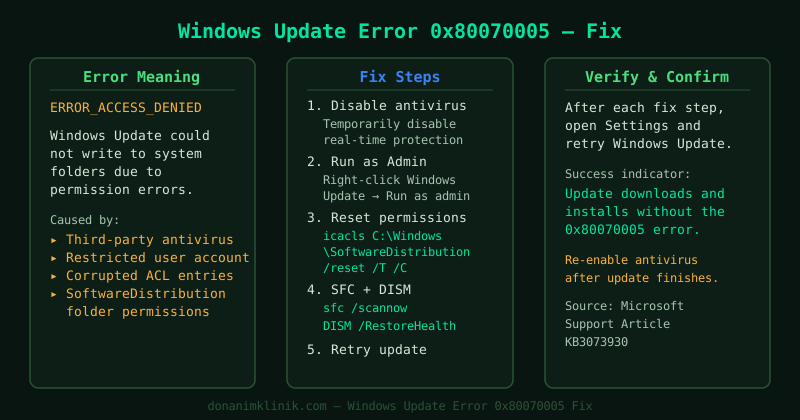
Which fix works for your situation
| Your situation | Start here |
|---|---|
| First time seeing this error | Step 1 — Troubleshooter |
| Error appeared after antivirus update | Step 3 — Disable antivirus |
| Error appeared after Windows update failure | Step 2 — Reset folder permissions |
| “icacls” commands say Access Denied | Run Command Prompt as administrator |
| Error on school or work PC | Step 6 — Group Policy check |
| All steps failed, update still won’t install | Step 5 — Manual install from Catalog |
What causes Windows Update error 0x80070005
The 0x80070005 error code translates directly to ERROR_ACCESS_DENIED in the Windows system error table. Windows Update triggers this error when:
- Corrupted folder permissions — a previous failed update left incomplete permission entries on the SoftwareDistribution folder
- Third-party antivirus interference — security software with real-time protection blocks Windows Update from accessing system files
- Corrupted system files — damaged Windows system files cause the update service to fail permission checks
- Group Policy restrictions — in managed environments, Group Policy can restrict Windows Update service account permissions
How to fix Windows Update error 0x80070005
Step 1 — Run the Windows Update Troubleshooter
Microsoft’s built-in troubleshooter resets the Windows Update components automatically and resolves the most common causes of 0x80070005.
- Go to Settings → System → Troubleshoot → Other troubleshooters
- Find Windows Update in the list and click Run
- Follow the prompts and allow the troubleshooter to apply any fixes it finds
- Restart the computer when prompted
- Open Settings → Windows Update and try updating again
Step 2 — Reset Windows Update folder permissions
If the troubleshooter does not resolve the error, manually resetting the permissions on the SoftwareDistribution and catroot2 folders clears the corrupt access entries.
Open Command Prompt as administrator (right-click Start → Terminal (Admin) or Command Prompt (Admin)) and run these commands in order:
Stop the services:
net stop wuauserv
net stop cryptSvc
net stop bits
net stop msiserver
Reset permissions:
icacls %systemroot%\SoftwareDistribution /reset /T /C /Q
icacls %systemroot%\System32\catroot2 /reset /T /C /Q
Restart the services:
net start wuauserv
net start cryptSvc
net start bits
net start msiserver
Restart the computer and run Windows Update again.
Step 3 — Temporarily disable third-party antivirus
Real-time protection in third-party antivirus software can intercept file access requests from Windows Update and block them, generating a false 0x80070005 error.
- Right-click your antivirus icon in the system tray (bottom-right corner)
- Select Disable, Pause, or Turn off protection temporarily
- Open Settings → Windows Update → Check for updates
- Allow the update to download and install
- Re-enable antivirus protection immediately after the update completes
If the update succeeds with antivirus disabled, add Windows Update to your antivirus exclusion list or check for an antivirus update that resolves the conflict.
Step 4 — Run System File Checker
Corrupted Windows system files can cause the Update service to fail permission checks. SFC scans and repairs protected system files.
- Open Command Prompt as administrator
- Run:
sfc /scannow - Wait for the scan to complete — this takes 10–15 minutes
- If SFC reports corrupted files it could not fix, also run:
DISM /Online /Cleanup-Image /RestoreHealth - Restart the computer and attempt Windows Update again
Step 5 — Install the update manually from Microsoft Update Catalog
If all previous steps fail, bypass the Windows Update service entirely by downloading the update directly.
- Note the KB number of the failing update from Settings → Windows Update → Update history
- Go to catalog.update.microsoft.com
- Search for the KB number
- Download the version matching your Windows edition (64-bit or 32-bit)
- Run the downloaded
.msufile and follow the prompts
Step 6 — Check Group Policy settings (school or work PCs)
On PCs managed by an IT department, Group Policy can restrict the Windows Update service account from writing to system folders, causing persistent 0x80070005 errors that permission resets do not fix.
- Press Win + R, type
gpedit.msc, press Enter (requires Windows Pro or Enterprise) - Navigate to Computer Configuration → Administrative Templates → Windows Components → Windows Update
- Check that Configure Automatic Updates is set to Not Configured or Enabled
- Navigate to Computer Configuration → Windows Settings → Security Settings → Local Policies → User Rights Assignment
- Open Bypass traverse checking — confirm the Local Service account is listed
If Group Policy is locked (you see grayed-out settings), contact your IT administrator — the restriction is applied remotely and cannot be changed locally.
On Windows Home (no Group Policy editor): Use Registry Editor instead.
- Press Win + R, type
regedit, press Enter - Navigate to:
HKEY_LOCAL_MACHINE\SOFTWARE\Policies\Microsoft\Windows\WindowsUpdate - If this key exists and contains values like
DisableWindowsUpdateAccess = 1, an administrator has blocked Windows Update. Delete the WindowsUpdate key only if you are the administrator of the machine.
How to verify the fix
- Go to Settings → Windows Update → Check for updates
- Confirm updates download and install without showing the 0x80070005 error
- Check Update history to confirm the previously failing update now shows Successfully installed
Common Questions
Error 0x80070005 appears on every update, not just one. If the error appears consistently across all updates, the SoftwareDistribution folder permissions are likely corrupted at a deeper level. Complete Step 2 (permission reset) and Step 4 (SFC + DISM) before attempting updates again.
0x80070005 appears in Microsoft Store, not Windows Update. Error 0x80070005 in Microsoft Store is a separate issue related to Store service permissions, not Windows Update. Go to Settings → Apps → Microsoft Store → Advanced options → Reset to clear the Store cache and permissions.
The icacls commands show “Access is denied” when run. This means the Command Prompt was not opened as administrator. Close it, right-click Start, select Terminal (Admin) or Command Prompt (Admin), and run the commands again.
Error 0x80070005 appears on Windows 11 but not Windows 10. Windows 11 introduced stricter folder permission inheritance rules. The same icacls permission reset commands from Step 2 apply to Windows 11, but run them in Windows Terminal (Admin) instead of the classic Command Prompt for full compatibility.
How long does the permission reset (Step 2) take?
The icacls commands complete in under 2 minutes on most systems. The /T flag processes all subfolders — on a large SoftwareDistribution folder (can grow to several GB), this may take 3–5 minutes. Do not close the window until you see the “Successfully processed” message.
Is error 0x80070005 dangerous? Can it damage Windows? No. The error blocks the update from installing but does not damage your existing Windows installation or personal files. The partial update files are stored in SoftwareDistribution\Download and are safe to delete (Step 2 clears them indirectly by resetting folder permissions). Your PC continues to function normally while the update is blocked.