
Windows Update errors stop your PC from receiving security patches, feature updates, and driver upgrades. According to Microsoft’s official documentation, most update failures fall into three categories: service configuration problems, corrupted update caches, and network or disk space constraints.
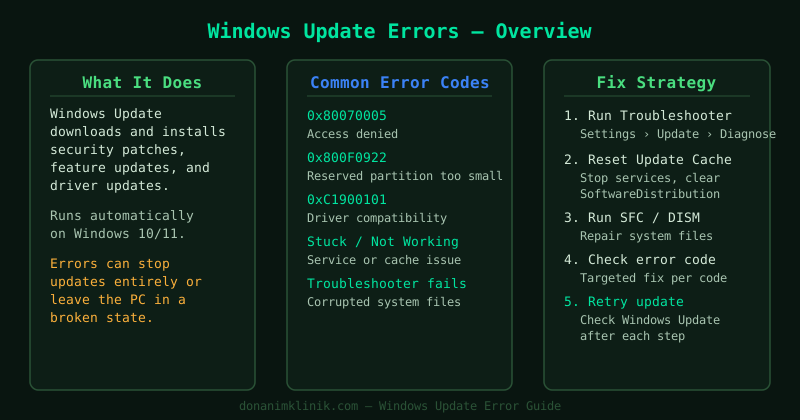
This hub covers the most common Windows Update problems. Select the guide that matches your situation.
Fix guides in this pillar
Windows Update Not Working — Fix
Windows Update opens but nothing downloads, the progress bar does not move, or every update attempt ends with a generic error. This guide walks through the Windows Update Troubleshooter, restarting the Windows Update service, clearing the SoftwareDistribution cache, and resetting update components via the command line.
Best for: Updates stuck at 0%, repeated failures with no specific error code, Windows Update opening to a blank screen.
Windows Update Stuck — Fix
The update begins downloading or installing but freezes and never completes — the percentage counter stops moving, or the “Working on updates” screen stays on indefinitely after a restart. This guide covers safe forced restarts, booting into Safe Mode, clearing the SoftwareDistribution folder, running DISM and SFC scans, and downloading updates manually from the Microsoft Update Catalog.
Best for: Stuck at 0%, 30%, 100% during install; “Working on updates — Do not turn off your PC” loop; update appears to install but reverts on reboot.
Windows Update Troubleshooter — How to Run
The Windows Update Troubleshooter is the correct first step for almost every update problem. This guide shows how to open it on both Windows 10 and Windows 11, what it automatically fixes, how to read the results report, and what to do if the troubleshooter itself fails to run or completes without fixing anything.
Best for: Any Windows Update problem — always run this first before manual fixes.
Windows Update Error 0x80070005 — Fix
Error 0x80070005 (“Access Denied”) appears during a Windows Update attempt. This guide covers resetting Windows Update permissions, running the Update Troubleshooter in administrator mode, and restoring the correct ACL on the SoftwareDistribution folder.
Best for: “Access denied” error when checking for or installing updates, 0x80070005 in the update history log.
Windows Update Error 0x800f0922 — Fix
Error 0x800f0922 appears when a cumulative update fails to install. This guide explains the two most common causes — insufficient space in the System Reserved partition and a failed .NET Framework update — and provides targeted fixes for each.
Best for: Cumulative updates failing with 0x800f0922, repeated update failure at a specific KB number.
Windows Update Error 0xc1900101 — Fix
Error 0xc1900101 (and its variants: -0x20017, -0x30018, -0x40017) is a driver rollback error that occurs during a feature update or Windows 11 upgrade. This guide identifies the failing driver and walks through targeted uninstall and reinstall steps.
Best for: Windows 11 upgrade failing with 0xc1900101, feature update rollback after restart.
How Windows Update works
Windows Update downloads update packages from Microsoft’s servers and stores them temporarily in C:\Windows\SoftwareDistribution\Download. The Windows Update service (wuauserv) manages the download, verification, and installation process. If any part of this chain breaks — the service crashes, the cache becomes corrupted, or disk space runs low — the update fails.
Understanding this helps explain why the fixes in these guides work: clearing the SoftwareDistribution folder removes corrupted package data, restarting the service restores a crashed component, and DISM repairs the underlying Windows image that the update modifies.
When to contact Microsoft Support
If you have worked through all guides in this pillar and updates still fail, Microsoft offers direct support at support.microsoft.com. Provide the specific error code from Settings → Windows Update — this is the fastest way to get a targeted fix.