
Windows Update error 0x800f0922 appears when Windows cannot complete a cumulative update installation. The error has two distinct root causes: the System Reserved partition is full, or a .NET Framework component installation failed (logged internally as CBS_E_INSTALLERS_FAILED).
According to Microsoft’s official documentation, identifying which cause applies requires checking the System Reserved partition size first, then examining the CBS.log file for .NET-related failures.
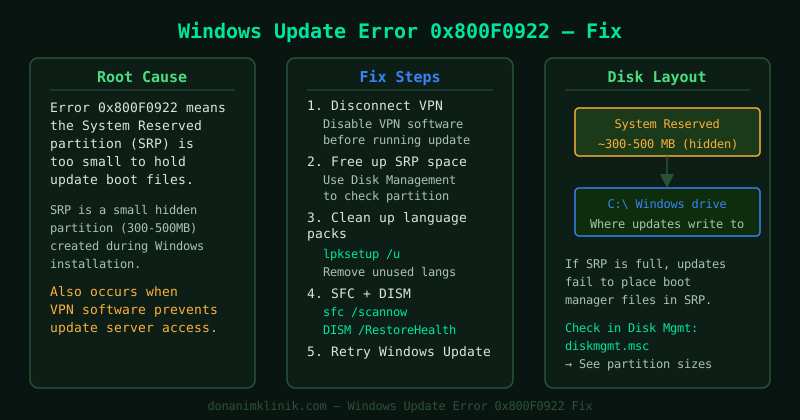
What causes Windows Update error 0x800f0922
The 0x800f0922 error appears in two scenarios:
- System Reserved partition is full — this small partition (100–500 MB) holds bootloader files and Windows Update staging data. When it runs out of space, updates cannot be applied
- .NET Framework installation failed — cumulative updates often include .NET Framework components; if the existing .NET installation is corrupted, the update fails with CBS_E_INSTALLERS_FAILED, which surfaces as 0x800f0922
- Corrupted Windows component store — the Windows servicing stack (DISM/CBS) has inconsistencies that prevent update installation
How to fix Windows Update error 0x800f0922
Step 1 — Check the System Reserved partition space
- Right-click Start and select Disk Management
- Find the System Reserved partition — it is a small partition (100–500 MB) on the same disk as your Windows installation, labeled “System Reserved”
- Check the Free Space column
- If free space is less than 50 MB, the partition is full and causing the error
A full System Reserved partition is the most common cause of 0x800f0922 on Windows 10 systems that were upgraded from Windows 7 or 8.
Step 2 — Clean up the System Reserved partition
Run these commands in Command Prompt as administrator to free space on the system partition:
Clean up Windows component store:
Dism /Online /Cleanup-Image /StartComponentCleanupRemove old shadow copies (if present):
vssadmin delete shadows /for=C: /OldestAfter the cleanup completes, return to Disk Management and check if the System Reserved partition now has more free space. Then run Windows Update again.
Step 3 — Repair .NET Framework via Windows Features
If the System Reserved partition has adequate space, the error is likely caused by a .NET Framework installation failure.
- Press Win+R, type
optionalfeatures, press Enter - In the Windows Features window, locate .NET Framework 3.5 (includes .NET 2.0 and 3.0)
- If it is checked, uncheck it and click OK — restart when prompted
- Re-open Windows Features, check .NET Framework 3.5 again, and click OK
- Windows reinstalls .NET Framework 3.5 — restart when complete
- Run Windows Update again
Step 4 — Run DISM and SFC
If the above steps do not resolve the error, the Windows component store may be corrupted.
- Open Command Prompt as administrator
- Run:
DISM /Online /Cleanup-Image /RestoreHealth- This contacts Windows Update servers to download and replace corrupted components
- It takes 10–20 minutes to complete
- After DISM completes, run:
sfc /scannow - Restart the computer and run Windows Update
Step 5 — Install the update manually
If 0x800f0922 persists, download the failing update directly from Microsoft.
- In Settings → Windows Update → Update history, note the KB number of the failing update
- Go to catalog.update.microsoft.com
- Search for the KB number and download the correct package for your Windows version and architecture
- Double-click the downloaded
.msufile to install it directly - Restart the computer when prompted
How to verify the fix
- Open Settings → Windows Update → Check for updates
- Confirm that updates download and install without showing 0x800f0922
- In Update history, confirm the previously failing update now shows Successfully installed
Common Questions
0x800f0922 appears only when installing a specific cumulative update. Check the KB number against the Microsoft Update Catalog. Some cumulative updates have known issues on specific hardware configurations. Microsoft typically releases a follow-up patch within days. Installing the update manually from the catalog (Step 5) often resolves version-specific issues.
Disk Management does not show a System Reserved partition. Some systems — particularly those that booted directly from a USB installer or use third-party boot managers — do not have a System Reserved partition. In this case, the error is caused by .NET Framework or component store corruption. Proceed directly to Step 3.
DISM /RestoreHealth fails with an error. If DISM cannot connect to Windows Update servers to download repair files, run it with a local source: mount the Windows installation ISO and specify the source path. Open Command Prompt as administrator and run: DISM /Online /Cleanup-Image /RestoreHealth /Source:D:\Sources\install.wim (replace D: with your ISO drive letter).