
Windows Update not working means updates either refuse to download, freeze at a percentage, or complete the download but fail to install — often returning a generic error or rolling back automatically. According to Microsoft’s official troubleshooting documentation, the most common causes are a stopped Windows Update service, a corrupted download cache in the SoftwareDistribution folder, or insufficient disk space on the system drive.
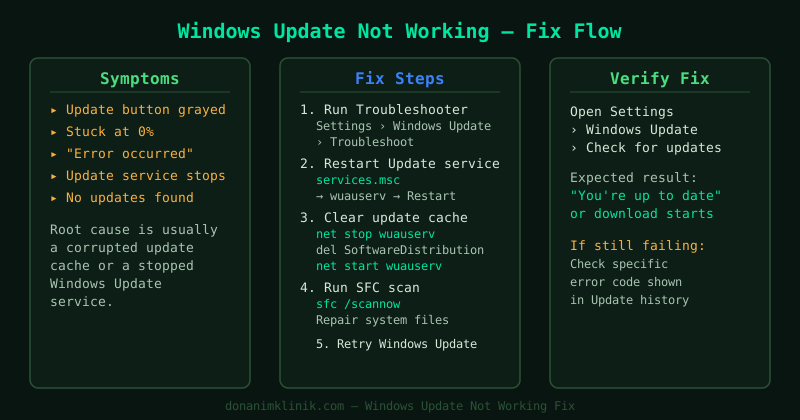
What causes Windows Update to stop working
Windows Update depends on several Windows services and a temporary download cache. Any of these can break after a failed update, a power interruption during an update, or a software conflict:
- Windows Update service (
wuauserv) stopped — updates cannot start if the service is not running - Corrupted SoftwareDistribution folder — partially downloaded or corrupted packages block new downloads
- Background Intelligent Transfer Service (BITS) stopped — Windows Update uses BITS to download files in the background
- Insufficient disk space — the system drive needs at least 10 GB free for most updates
- Corrupted Windows system files — damaged system files prevent updates from applying correctly
- Antivirus or firewall interference — security software occasionally blocks Windows Update connections
How to fix Windows Update not working
Step 1 — Run the Windows Update Troubleshooter
The Windows Update Troubleshooter is Microsoft’s built-in diagnostic tool. According to Microsoft’s documentation, it checks the Windows Update service configuration, BITS status, and update file integrity, and applies automatic fixes for the most common problems.
On Windows 11:
- Go to Settings → System → Troubleshoot → Other troubleshooters
- Click Run next to Windows Update
- Follow the prompts and apply any fixes the tool suggests
On Windows 10:
- Go to Settings → Update & Security → Troubleshoot → Additional troubleshooters
- Click Windows Update → Run the troubleshooter
After the troubleshooter completes, restart your PC and then go to Settings → Windows Update → Check for updates. This alone resolves the issue for many users.
If Windows Update returns a specific error code after running the troubleshooter, a targeted guide will resolve it faster: error 0x80070005 (Access Denied) or error 0x800f0922 (System Reserved partition).
Step 2 — Restart the Windows Update service
If the troubleshooter did not fix the problem, the Windows Update service may have stopped and not restarted correctly.
- Press Win + R, type
services.msc, and press Enter - In the Services window, scroll to Windows Update
- Right-click it and select Restart (or Start if it shows Stopped)
- Repeat for Background Intelligent Transfer Service (BITS)
- Repeat for Cryptographic Services
All three services must be in a Running state for Windows Update to work. After restarting them, return to Settings → Windows Update and try checking for updates again.
Step 3 — Clear the SoftwareDistribution folder
Windows Update stores downloaded update packages in C:\Windows\SoftwareDistribution\Download. If any file in this folder is corrupted, new updates cannot complete. Deleting the folder contents forces Windows to re-download clean packages.
- Right-click Start → Terminal (Admin) or Command Prompt (Admin)
- Stop the update services:
net stop wuauserv
net stop bits- Open File Explorer and navigate to
C:\Windows\SoftwareDistribution\Download - Select all files and folders inside (Ctrl + A) and delete them — leave the Download folder itself in place
- Return to Command Prompt and restart the services:
net start wuauserv
net start bits- Go to Settings → Windows Update → Check for updates
Windows will rebuild the download cache automatically. The first update check may take a few minutes longer than usual.
Step 4 — Reset Windows Update components
If clearing the cache did not work, a deeper reset of all Windows Update components is needed. This renames the corrupted folders rather than deleting them, so Windows creates fresh replacements.
Run these commands in an administrator Command Prompt in this exact order:
Stop all services:
net stop wuauserv
net stop cryptsvc
net stop bits
net stop msiserver
Rename the corrupted folders:
ren C:\Windows\SoftwareDistribution SoftwareDistribution.old
ren C:\Windows\System32\catroot2 catroot2.old
Restart all services:
net start wuauserv
net start cryptsvc
net start bits
net start msiserver
Restart your PC, then check for updates. If needed, you can delete the .old folders after confirming updates work.
Step 5 — Check available disk space
Windows Update requires free disk space to download and stage update packages before installing them. Microsoft recommends at least 10 GB of free space on the C: drive for feature updates, and 3–5 GB for monthly cumulative updates.
- Open File Explorer
- Right-click drive C: → Properties
- Check the Free space figure
If space is low, run Disk Cleanup:
- Search for Disk Cleanup in the Start menu and open it
- Select drive C: and click OK
- Click Clean up system files (requires administrator)
- Check Windows Update Cleanup, Temporary files, and Recycle Bin
- Click OK → Delete Files
After freeing space, check for updates again.
How to verify the fix
- Go to Settings → Windows Update and click Check for updates — updates should begin downloading without error
- If updates download but fail to install, note the error code shown under the failed update and search for it specifically at support.microsoft.com
- After a successful update, confirm in Settings → Windows Update → Update history that the update status shows Successfully installed
Common Questions
Windows Update says “Updates are available” but nothing downloads. This is typically a BITS service issue. Open services.msc, check that Background Intelligent Transfer Service is running, and restart it. Then clear the SoftwareDistribution\Download folder and try again.
Windows Update fails with error code 0x80070002 or 0x80070003.
These codes indicate missing or corrupted update files. Clear the SoftwareDistribution folder (Step 3) and run the Windows Update Troubleshooter (Step 1). If the error persists, run sfc /scannow from an administrator Command Prompt to repair system files.
Windows Update was working and then stopped after installing an antivirus.
Some security software blocks Windows Update’s network connections. Temporarily disable the antivirus’s real-time protection, check for updates, and re-enable it once updates complete. If updates succeed with the antivirus disabled, add Windows Update (C:\Windows\SoftwareDistribution) to the antivirus exclusion list.