
Windows Update stuck means the download or installation progress has frozen — the percentage counter stops moving and the update never completes. According to Microsoft’s troubleshooting documentation, updates most commonly get stuck during the download phase (at 0% or a fixed percentage) or during the installation phase (the “Working on updates — Do not turn off your PC” screen after a restart).
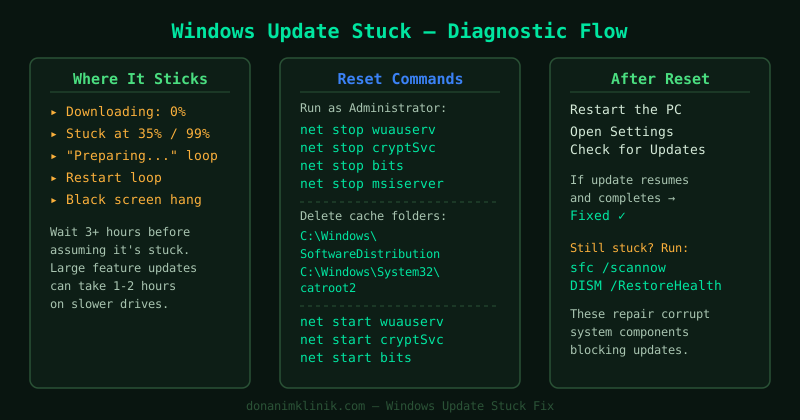
If the stuck update fails with a specific error code rather than freezing silently, a targeted guide resolves it faster: error 0x80070005 (Access Denied) or error 0x800f0922 (System Reserved partition full).
What causes Windows Update to get stuck
A stuck update is almost always caused by one of the following:
- Corrupted download package — a partially downloaded file in the SoftwareDistribution folder prevents the download from completing
- Windows Update service crash — the service stops mid-download and the progress counter freezes
- Corrupted Windows component store — the Windows image (used during installation) has damaged entries that prevent the update from applying
- Conflict with another update — some cumulative updates require a previous update to be installed first; if the prerequisite is missing, the installation hangs
- Insufficient disk space — the update cannot stage its files and freezes rather than reporting an error
How to fix Windows Update stuck
Step 1 — Wait, then force a safe restart
Before taking any action, confirm the update is genuinely stuck:
- Downloading: If the percentage has not changed in 2 hours, it is stuck
- Installing (post-restart screen): If the “Working on updates” screen has shown the same percentage for 2 hours, it is stuck
A single percentage change — even from 0% to 1% — means the update is still running slowly. Do not interrupt it.
When it is confirmed stuck, restart safely:
- On the “Working on updates” screen: hold the power button for 5 seconds to shut down
- Wait 10 seconds, then power on normally
- Windows will detect the incomplete installation and attempt an automatic rollback — this is normal and safe
- Once Windows boots to the desktop, the update will appear as failed in Update history
- Go to Settings → Windows Update → Check for updates to retry
Most stuck downloads resolve after this step — the service resets and the download restarts from scratch.
Step 2 — Boot into Safe Mode and clear the download cache
If the update gets stuck again after a retry, the SoftwareDistribution download cache contains corrupted data that must be removed in Safe Mode (to ensure the Windows Update service is not running while files are deleted).
Enter Safe Mode:
- Click Start → hold Shift and click Restart
- Go to Troubleshoot → Advanced options → Startup Settings → Restart
- When the Startup Settings menu appears, press 4 to enter Safe Mode (no networking needed for this step)
Clear the download cache in Safe Mode:
- Open File Explorer and navigate to
C:\Windows\SoftwareDistribution\Download - Select all contents (Ctrl + A) and delete them
- Leave the
Downloadfolder itself in place — only delete the contents inside it
Restart normally:
- Click Start → Power → Restart to exit Safe Mode and boot normally
- Go to Settings → Windows Update → Check for updates
Windows rebuilds the download cache with fresh data. The stuck update will re-download from the beginning.
Step 3 — Run DISM and SFC to repair Windows
If the update gets stuck during installation (not download), the Windows component store — which the update modifies — may be corrupted. DISM repairs it by downloading replacement files directly from Microsoft.
- Right-click Start → Terminal (Admin) or Command Prompt (Admin)
- Run DISM:
DISM /Online /Cleanup-Image /RestoreHealthDISM connects to Microsoft’s servers and repairs any damaged entries in the Windows component store. This process takes 15–30 minutes — let it complete. A progress percentage is displayed.
- After DISM completes, run SFC:
sfc /scannowSFC scans all protected Windows system files and replaces any that are damaged or missing.
- Restart the PC after both scans complete
- Go to Settings → Windows Update → Check for updates and retry the stuck update
Note: If DISM reports “The source files could not be found,” your PC is not connected to the internet, or the Windows image repair servers are temporarily unavailable. Ensure you have an internet connection and retry.
Step 4 — Download the update manually from the Microsoft Update Catalog
If Windows Update continues to get stuck on the same specific update, you can install it directly from Microsoft’s Update Catalog, bypassing the Windows Update system entirely.
Find the KB number:
- Go to Settings → Windows Update → Update history
- Note the KB number of the failed or stuck update (e.g., KB5034441)
Download from the catalog:
- Open a browser and go to catalog.update.microsoft.com
- Search for the KB number
- From the results, download the package that matches:
- Your Windows version (Windows 10 or Windows 11)
- Your architecture: x64 for most modern computers (check via Settings → System → About → System type)
Install the update:
- Double-click the downloaded
.msufile - Follow the installation wizard
- Restart when prompted
After the manual install completes, Windows Update should recognise the update as installed and stop attempting to re-download it.
Step 5 — Run the Windows Update Troubleshooter to clean up
After resolving the stuck update, run the troubleshooter to reset any residual service state problems.
On Windows 11:
- Go to Settings → System → Troubleshoot → Other troubleshooters
- Click Run next to Windows Update
On Windows 10:
- Go to Settings → Update & Security → Troubleshoot → Additional troubleshooters
- Click Windows Update → Run the troubleshooter
This step is important for preventing the same issue from recurring on the next update cycle.
How to verify the fix
- Go to Settings → Windows Update → Update history
- Confirm the previously stuck update now shows Successfully installed with today’s date
- Click Check for updates again — any additional pending updates should now download and install without freezing
Common Questions
Windows Update is stuck at exactly 0% for hours. This almost always indicates a corrupted entry in the SoftwareDistribution download folder. Follow Step 2 (Safe Mode cache clear) — it resolves the 0% stuck problem in the majority of cases.
The “Working on updates” screen is stuck at 100% and has been for over an hour. 100% stuck is the most common installation freeze point. A forced restart (Step 1) typically causes Windows to roll back cleanly. After the rollback, run DISM and SFC (Step 3) before retrying — the corruption that caused the 100% freeze is usually in the component store.
Windows is in a restart loop: it starts updating, reboots, then shows the same percentage again. Stop the loop by performing a hard shutdown (hold power button 5 seconds). Boot into Safe Mode (Step 2), clear the SoftwareDistribution cache, restart normally, then run DISM before retrying. If the loop continues, manually install the update from the Microsoft Update Catalog (Step 4).