
When your hotspot shows as connected on the laptop or tablet but no websites load, the problem is almost always on the host phone — not the device trying to connect. The hotspot signal is reaching your device fine, but the phone itself cannot get data from the mobile network to pass through.
This guide covers both sides: what to check on the phone creating the hotspot and what to fix on the device connecting to it.
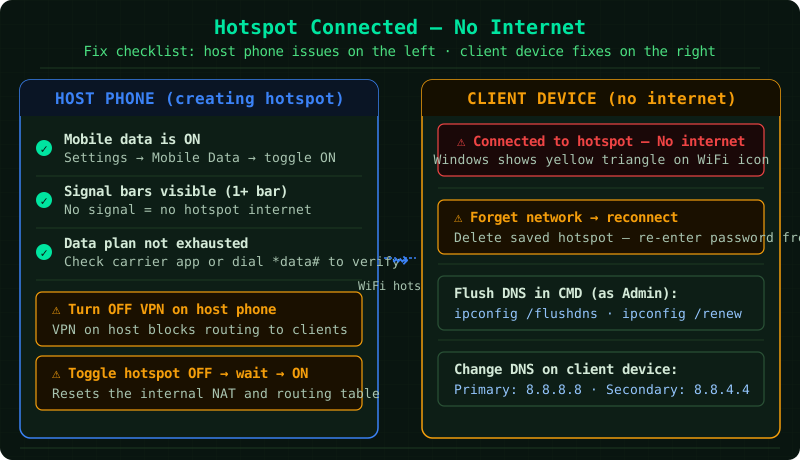
Understand the Problem First
A phone hotspot works in two stages:
- The phone connects to your carrier’s mobile data network (4G/5G)
- The phone shares that data connection over WiFi with your devices
When the connected device shows “no internet,” stage 1 is usually broken — the phone itself has no mobile data to share. Your laptop successfully joined the hotspot WiFi network, but the phone has nothing to give it.
Fix 1 — Verify Mobile Data Is ON
This sounds obvious but catches many people: the Personal Hotspot toggle and the Mobile Data toggle are separate switches.
On iPhone: Go to Settings → Mobile Data → confirm the toggle is green (ON). Then go to Settings → Personal Hotspot and confirm it is also ON.
On Android: Go to Settings → Connections → Mobile Networks → confirm Mobile Data is ON. Then go to Settings → Connections → Mobile Hotspot and Tethering → confirm Mobile Hotspot is ON.
If Mobile Data was OFF, turning it on and waiting 15 seconds will restore internet to all connected devices immediately.
Fix 2 — Check Signal and Reset the Cell Connection
Look at the signal bars on the host phone. One bar or no signal means the phone cannot reach the carrier’s tower with enough strength to sustain a data session.
- Move to a window or outside for better signal
- Turn Airplane Mode ON for 10 seconds, then OFF — this forces the phone to drop and re-acquire its cell connection, often resolving a stuck registration
- Check if the problem is carrier-wide: try opening a browser on the phone itself. If the phone’s own browser also shows no internet, the issue is confirmed as the mobile data connection, not the hotspot sharing
Fix 3 — Toggle the Hotspot Off and On
Long-running hotspot sessions accumulate routing table state that can break internet for connected devices while leaving the hotspot WiFi signal intact.
- On the host phone: Settings → Hotspot → OFF
- Wait 10 seconds
- Turn hotspot ON
- On the connecting device: forget the hotspot network, reconnect, and re-enter the password
This resets the phone’s internal NAT table and DHCP server, which reassigns a clean IP address to your device.
Fix 4 — Disable VPN on the Host Phone
A VPN app running on the host phone is one of the least obvious causes of hotspot internet failure. Most consumer VPN apps create a virtual tunnel interface that intercepts all traffic — including packets from devices connected to the hotspot — and route them through the VPN server. If the VPN server is overloaded or the VPN configuration does not support tethered traffic, internet fails on all connected devices.
Fix: Open the VPN app on the host phone and disconnect. Or go to Settings → VPN and toggle it off. Test immediately — if internet works on the connected device, the VPN was the cause.
Some VPN apps have a Split Tunneling or Allow Local Network setting that exempts hotspot traffic from the VPN tunnel. Enable this if you need the VPN and the hotspot simultaneously.
Fix 5 — Forget and Reconnect on the Client Device
The laptop or tablet that cannot access internet may have saved an incorrect network profile for the hotspot — specifically a wrong default gateway or DNS address from a previous connection.
On Windows:
- Click the WiFi icon in the taskbar
- Right-click the hotspot network → Forget
- Reconnect and enter the hotspot password
On Mac: System Settings → Wi-Fi → click the ⓘ next to the hotspot → Forget This Network → reconnect
On Android/iOS: Tap and hold the hotspot network → Forget → reconnect
After reconnecting fresh, the device receives a clean DHCP lease with the correct gateway and DNS from the host phone.
Fix 6 — Flush DNS on Windows
On Windows, open Command Prompt as Administrator and run:
ipconfig /flushdns
ipconfig /release
ipconfig /renew
This clears stale DNS entries and requests a new IP address from the hotspot. Follow with a browser test. If this resolves the issue, the root cause was a cached DNS entry pointing to an address that was no longer valid on the hotspot network.
Fix 7 — Check Your Data Plan
Many mobile plans throttle hotspot speeds after a monthly limit (separate from your overall data limit) or block hotspot entirely on lower-tier plans. Open your carrier’s app or dial your carrier’s usage number to check:
- Is your hotspot data allowance exhausted?
- Is your account in good standing (no overdue balance that would suspend data)?
- Does your plan include mobile hotspot? Some prepaid plans do not.
If hotspot is not included in your plan, upgrade the plan or use a data SIM in a dedicated mobile router instead.
Fix 8 — Reset Network Settings on the Host Phone
If none of the above fixes work, reset the host phone’s network settings. This is a targeted reset that clears APN settings, saved WiFi networks, Bluetooth pairings, and VPN profiles — without affecting your photos, apps, or data.
iPhone: Settings → General → Transfer or Reset iPhone → Reset → Reset Network Settings
Android: Settings → General Management → Reset → Reset Network Settings
After resetting, go to Settings → Mobile Data → APN and verify the APN settings match your carrier’s requirements (most carriers configure this automatically, but some MVNOs require manual entry).
When Hotspot Does Not Work at All
If the hotspot consistently fails across all your devices and all the above steps have not helped:
- Contact your carrier — some carriers block hotspot on specific SIM cards or account types, and only they can enable it
- Test a different SIM — if you have access to a SIM from another carrier, test whether hotspot works with it
- Factory reset as a last resort — rare software corruption can permanently break the phone’s NAT routing; a factory reset is the only fix for this
Summary
In order of probability, check: Mobile Data ON → signal strength → VPN off → toggle hotspot off/on → forget and reconnect on the client device → data plan limits → reset network settings. Over 90% of hotspot-connected-but-no-internet cases are resolved by the first three steps.
Step-by-step fix
Confirm mobile data is ON on the host phone
Go to Settings on the host phone. Make sure Mobile Data or Cellular Data is turned ON — not just the Personal Hotspot switch. The hotspot shares the phone's mobile data connection; if mobile data is off, the hotspot broadcasts a WiFi network but has no internet to share. This is the most common cause.
Check mobile signal on the host phone
Look at the signal bars in the status bar of the host phone. If signal is 1 bar or shows 'No Service' or 'Searching', the phone itself has no mobile data. Move to a location with better signal. Also check that Airplane Mode is not partially active — turn it on for 10 seconds and turn it off, which forces the phone to re-register on the cell network.
Turn the hotspot off and back on
On the host phone, go to Settings and turn Personal Hotspot (iPhone) or Mobile Hotspot (Android) OFF. Wait 10 seconds. Turn it back ON. On the connecting device, forget the hotspot network and reconnect fresh. This clears any routing state that may have become stale since the hotspot was first activated.
Disable any VPN on the host phone
A VPN running on the host phone intercepts all outgoing traffic — including traffic from devices connected to the hotspot. Many VPN configurations block this tethered traffic by default. Go to Settings → VPN on the host phone and disconnect. Test internet on the connected device. If it works, the VPN was the cause; check the VPN app's settings for a tethering or split-tunnel option.
Forget and reconnect to the hotspot on the client device
On the laptop or tablet that cannot get internet, go to WiFi settings, find the hotspot network, and choose Forget Network. Then reconnect from scratch and enter the hotspot password again. A stale network profile on the client device can store an incorrect gateway or DNS address, preventing internet even when the hotspot itself is working correctly.
Reset network settings on the host phone if nothing else works
On iPhone, go to Settings → General → Transfer or Reset iPhone → Reset → Reset Network Settings. On Android, go to Settings → General Management → Reset → Reset Network Settings. This clears all saved WiFi passwords, Bluetooth pairings, and mobile data configurations, restoring them to factory defaults. After resetting, reconfigure the hotspot password and reconnect your devices.