
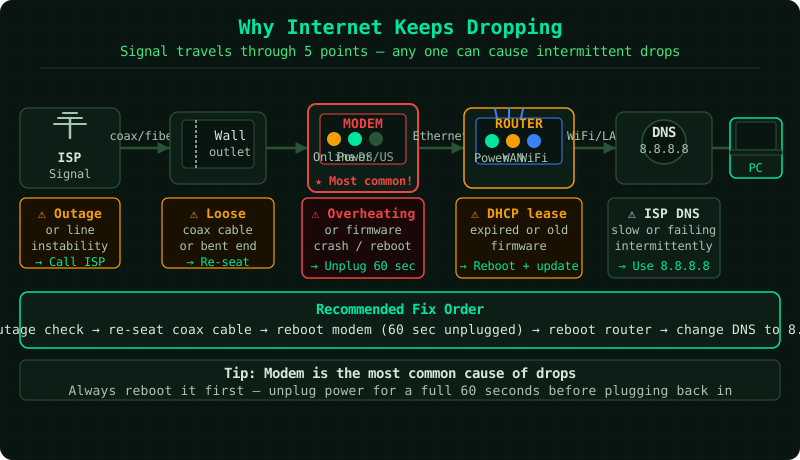
When your internet keeps disconnecting — dropping every few minutes, every hour, or at random — the cause is almost never the website you were visiting. It is always something in the path between your device and your ISP: a loose cable, an overheating modem, an expired DHCP lease, or a failing DNS server.
This guide works through every layer of that path, from the street cabinet to your device, so you fix the real cause rather than rebooting endlessly and hoping.
Is It Your Device or Your Whole Network?
The first question to answer before doing anything else: grab a second device — a phone, a tablet, another laptop — and connect it to the same WiFi. Browse a few pages and watch whether internet drops there too.
- Only your device drops → the problem is local: network adapter driver, IP conflict, or stale DNS cache on that machine.
- All devices drop at the same time → the problem is the modem, router, ISP line, or DNS. Work through the steps below in order.
Step 1 — Check Your ISP’s Status Page
Open your ISP’s app or search for “[your ISP] outage map.” If there is a reported outage in your area, nothing you do at home will fix the dropping — wait it out. If the status page shows everything is fine, the problem is in your home network.
Step 2 — Re-Seat All Coax and Fiber Cables
Power off the modem. At the back of the modem, unscrew the coaxial cable (the thick, threaded cable coming from the wall) completely and screw it back on until finger-tight. Do the same at the wall outlet. A coax connection that is even a quarter-turn loose introduces signal noise that causes the modem to repeatedly re-acquire its downstream channels — which your devices experience as the internet dropping for 30–60 seconds at a time.
For fiber connections, check that the fiber cable’s connector is fully inserted into the ONT or media converter. Fiber is fragile; a small bend too close to the connector can cause intermittent signal loss.
Step 3 — Reboot the Modem for a Full 60 Seconds
Unplug the modem’s power cable from the wall outlet. Wait a full 60 seconds. This matters because modems hold a registration state with the ISP’s CMTS (Cable Modem Termination System) in memory, and a short power cycle does not always clear it. A 60-second unpowered wait forces a full re-registration.
Plug the modem back in and watch its lights:
- Power LED → solid immediately
- DS/US or Downstream/Upstream LED → blinks for 30–90 seconds as the modem locks on to channels
- Online LED → solid green when the modem has successfully connected to the ISP
Do not touch the router until the Online LED is solid. Starting the router before the modem finishes registering is one of the most common reasons internet keeps dropping.
Step 4 — Power Cycle the Router
Once the modem’s Online LED is solid, unplug the router for 30 seconds. This forces the router to release its IP lease from the modem and request a fresh one. Plug the router back in and wait 60 seconds.
A router that has been running continuously for weeks or months accumulates a stale DHCP lease table and memory fragmentation that manifests as periodic disconnections. Most home users never reboot their routers — a monthly reboot prevents this class of problem entirely.
Step 5 — Change Your DNS Servers
This fix resolves disconnections that are actually DNS failures in disguise. When your ISP’s DNS server is slow or temporarily unreachable, every website appears to be down even though the internet connection itself is working fine.
Log in to your router admin panel:
- Open a browser and go to 192.168.1.1 (or 192.168.0.1 — check your router’s label)
- Go to WAN Settings or Internet → find the DNS field
- Set Primary DNS: 8.8.8.8 (Google) and Secondary DNS: 8.8.4.4
- Alternative: 1.1.1.1 and 1.0.0.1 (Cloudflare — fastest globally)
- Save and restart the router
After this change, your router uses Google’s or Cloudflare’s DNS instead of your ISP’s. Both are faster, more reliable, and have 100% uptime SLAs.
Step 6 — Address Router Overheating
Pick up your router. If the underside is uncomfortably warm, overheating is causing CPU throttling that produces brief 5–15 second internet drops every 45–90 minutes. Move the router to an open shelf, away from other electronics, and make sure nothing is sitting on top of it.
Also check for a firmware update: log in to the admin panel and look under Administration, Advanced, or Firmware Update. Router manufacturers regularly release firmware that fixes DHCP lease renewal bugs — exactly the type of bug that causes internet to drop at regular intervals.
Step 7 — Fix the Problem on Your Device (Windows)
If internet only drops on one Windows computer, run these commands in Command Prompt (opened as Administrator):
ipconfig /release
ipconfig /renew
ipconfig /flushdns
netsh winsock reset
Restart the computer after running these. Also check Device Manager → Network Adapters → right-click your WiFi adapter → Update driver. A buggy driver version is a common cause of adapter-level disconnections that look like internet dropping.
When to Call Your ISP
Call your ISP if:
- The modem’s Online LED blinks repeatedly or never becomes solid after a full reboot
- The modem shows any error LEDs (red or blinking orange)
- You see high error counts in the modem’s signal diagnostics (log in to 192.168.100.1 — the modem’s own admin page on most cable modems)
- Internet drops at exactly the same time every day (a scheduled modem re-registration that is failing)
Intermittent disconnections that follow a precise schedule are almost always an ISP line or equipment issue. An engineer visit is the only fix.
Summary
The most common cause of internet that keeps dropping is the modem — specifically a stale ISP session or overheating. The second most common cause is ISP DNS failure, which is invisible at the modem and router level. Work through the steps in order and you will find the cause in the first three steps in the majority of cases.