
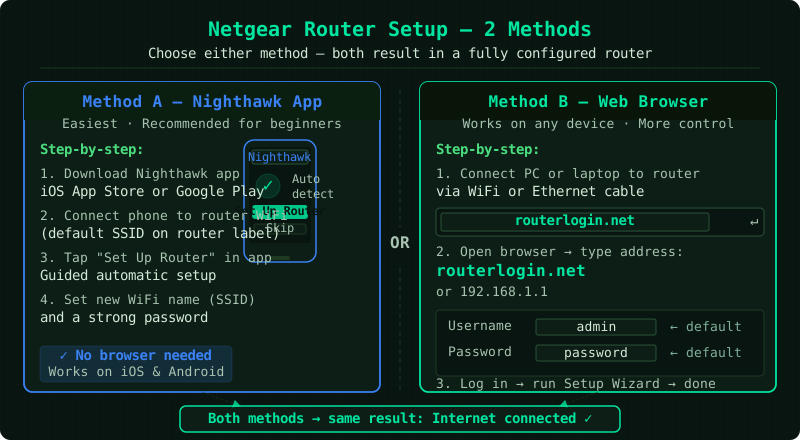
NETGEAR routers can be set up in two ways: through the Nighthawk app on a smartphone (the faster method) or through the web browser admin panel at routerlogin.net. According to NETGEAR’s official installation guide, both methods produce identical results — the app simply guides you through the steps visually.
Before you start
What you need:
- NETGEAR router (any model)
- Modem (provided by your ISP or purchased separately)
- Ethernet cable (included in the router box)
- A smartphone (for the app method) or computer (for the browser method)
- Your ISP connection (the cable from your wall to the modem)
How to set up a NETGEAR router
Step 1 — Connect the hardware
The order of powering devices on matters:
- Unplug your modem from power
- Disconnect any existing router from the modem
- Connect the Ethernet cable from the modem’s Ethernet port to the NETGEAR router’s yellow WAN (Internet) port
- Plug the modem back in — wait 60 seconds for it to fully reconnect to your ISP
- Plug in the NETGEAR router — wait 60 seconds for it to boot
- The router’s Power LED turns green when ready; the Internet LED turns green when it receives an IP from the modem
Step 2 — Connect to the router’s default network
On your phone or laptop:
- Open WiFi Settings
- Look for a network named
NETGEAR_xxxxorNETGEAR-xxxx(where xxxx is a unique identifier) - The WiFi password (called the WiFi Passphrase) is printed on the label on the bottom of the router
- Connect using that password
Step 3a — Set up using the Nighthawk app (recommended)
The Nighthawk app is the fastest setup method and works for all recent NETGEAR routers:
- Download the Nighthawk app from the App Store (iOS) or Google Play (Android)
- Open the app and tap Set Up a New Router
- Follow the on-screen instructions — the app detects the router automatically
- When prompted, enter your new WiFi name and password
- The app completes the setup and shows a success screen when done
Step 3b — Set up using a web browser
If you prefer the browser method or do not have a smartphone:
- Open any web browser on a connected computer
- Go to routerlogin.net — NETGEAR’s router address. Alternatively, type 192.168.1.1 directly
- A login page appears. Enter:
- Username: admin
- Password: password (or the password printed on the router label)
- The NETGEAR Smart Wizard launches automatically on first login
- Follow the wizard steps: it checks the internet connection, then lets you set a new WiFi name and password
Step 4 — Set your WiFi name and password
Whether using the app or browser, you will be asked to create:
WiFi Network Name (SSID):
- Choose a name you will recognise — avoid including your full name or address
- NETGEAR dual-band routers let you set different names for 2.4 GHz and 5 GHz bands
WiFi Password:
- Minimum 8 characters (12+ recommended)
- Use letters, numbers, and at least one symbol
- Write it down somewhere safe before clicking Apply
After saving, the router restarts — this takes about 60 seconds.
Step 5 — Connect your devices
After the router restarts with the new network name:
- On each device, open WiFi Settings and select your new network name
- Enter the new password
- For desktop computers and smart TVs: connect via Ethernet cable to one of the router’s four LAN ports (numbered 1–4) for the fastest, most stable connection
How to verify the setup
- Open a browser on any connected device and load a website
- In the router admin panel (routerlogin.net or 192.168.1.1), go to Router Status or Basic Home — the Internet Port section should show a valid IP address
Common Questions
The NETGEAR Internet LED is amber/red after connecting. The modem did not assign an IP address to the router. Restart the modem (unplug 30 seconds, replug), wait 60 seconds, then restart the router. If the LED stays amber, confirm the Ethernet cable is in the yellow WAN port — not a LAN port.
I cannot reach routerlogin.net.
Make sure your device is connected to the NETGEAR network. Some browsers block local addresses — try typing http://routerlogin.net with the http:// prefix. If still unreachable, use the IP address 192.168.1.1 instead.
The Nighthawk app says it cannot detect the router. Ensure your phone is connected to the NETGEAR router’s WiFi (not your home network from another provider). Disable mobile data on your phone during setup — the app only works over the local network connection.
I forgot the new admin password. Press and hold the Reset button on the back of the router for 10 seconds. This restores all factory default settings. You will need to redo the WiFi name and password setup.