
The NETGEAR Nighthawk line includes high-performance routers (RAX series, R7000, R8000, and others) designed for demanding home networks. According to NETGEAR’s official Nighthawk documentation, setup using the Nighthawk app takes under 10 minutes and is the recommended method for first-time installation.
Nighthawk models covered
This guide applies to all NETGEAR Nighthawk routers including:
- Nighthawk RAX series (WiFi 6 and WiFi 6E)
- Nighthawk R7000, R7000P, R7800
- Nighthawk R8000, R8500
- Nighthawk XR series (gaming routers)
How to set up a Nighthawk router
Step 1 — Connect the hardware
- Unplug your modem — do not skip this. The modem needs to reset to accept the new router
- Remove any existing router from the modem connection
- Connect the included Ethernet cable:
- One end into the modem’s Ethernet port
- Other end into the Nighthawk’s yellow Internet (WAN) port
- Plug the modem back in — wait 60 seconds
- Plug the Nighthawk in using the included power adapter — wait 60 seconds
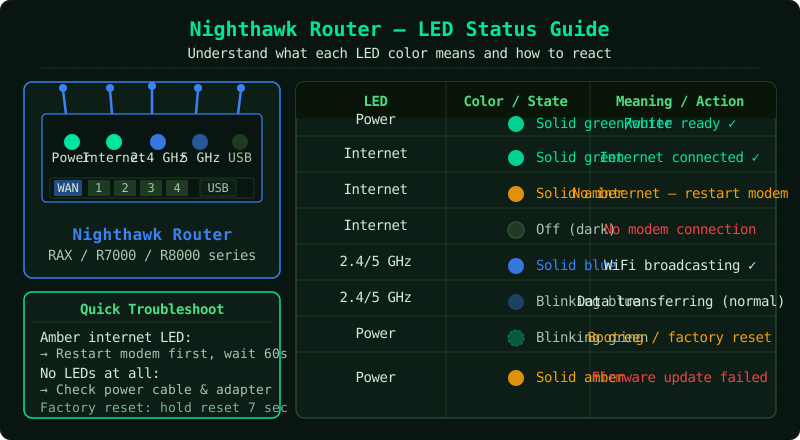
- Check the LEDs:
- Power LED — solid white or green when ready
- Internet LED — solid when the router received an IP address from the modem
Step 2 — Connect to the default Nighthawk network
- On your phone or computer, open WiFi Settings
- Look for the Nighthawk’s default network — typically
NETGEAR_xxxxorNighthawk_xxxx - The WiFi Passphrase is printed on the label on the bottom of the router
- Connect using that passphrase
Step 3a — Set up with the Nighthawk app
The app is the fastest and most guided method:
- Download the Nighthawk app:
- iOS: App Store → search “Nighthawk”
- Android: Google Play → search “Nighthawk”
- Open the app and tap Set Up a New Router
- The app detects your Nighthawk automatically over WiFi
- Follow the step-by-step prompts:
- WiFi Name (SSID): enter your chosen network name
- WiFi Password: enter a strong password (12+ characters)
- Admin Password: set a unique login password for the router admin panel
- The app checks for firmware updates and installs them automatically
- Setup completes with a success screen — your Nighthawk is ready
Step 3b — Set up with a web browser
- Open any browser and go to routerlogin.net or type 192.168.1.1
- Enter the default admin credentials:
- Username: admin
- Password: password (or the password on the router label)
- The Smart Setup Wizard launches automatically
- The wizard walks through:
- Internet connection check — confirms the Nighthawk can reach the internet
- WiFi name and password setup
- Admin password change
- Click Apply to save — the router restarts with the new settings
Step 4 — Connect your devices
After setup, the Nighthawk broadcasts with your new WiFi name:
- On each device, open WiFi Settings
- Select your new network name
- Enter the password you set during setup
Performance tips for Nighthawk:
- Connect the 2.4 GHz band to: smart home devices, IoT sensors, devices far from the router
- Connect the 5 GHz band to: laptops, phones, streaming boxes near the router
- Use Ethernet cables for desktop computers and game consoles — Gigabit Ethernet eliminates WiFi congestion for high-bandwidth devices
Advanced Nighthawk features (optional)
MU-MIMO and Beamforming: These are enabled by default on Nighthawk routers — they intelligently direct WiFi signal toward devices rather than broadcasting in all directions. Leave them enabled.
Quality of Service (QoS): In the admin panel under Advanced → Setup → QoS, you can prioritize gaming, streaming, or voice traffic over other network activity.
Dynamic QoS: Available on newer Nighthawk models — automatically detects and prioritizes bandwidth-intensive applications.
Common Questions
The Nighthawk Internet LED is not turning on. The modem did not release its IP lease to the new router. Restart the modem: unplug for 30 seconds, plug back in, wait 90 seconds. If the Internet LED stays off, confirm the cable is in the yellow WAN port (not a LAN port) and try a different Ethernet cable.
The Nighthawk app cannot find my router. Make sure your phone is connected to the Nighthawk’s WiFi. Turn off mobile data on your phone — the app only works over the local WiFi connection, not the cellular network. If the app still cannot find it, close and reopen the app.
I need to reset the Nighthawk to factory settings. Press and hold the Reset button on the back of the router for 10 seconds until the Power LED blinks. The router resets and reboots with factory defaults — you will need to redo the setup.