
The WiFi connected but no internet error is one of the most common network problems across Windows, Android, and Mac. Your device successfully joins the Wi-Fi network — the Wi-Fi icon appears, the signal bars are full — but web pages refuse to load and apps report no connection.
According to Microsoft’s Windows networking troubleshooting documentation, this error occurs when your device connects to the router but the router cannot reach the internet, or when the device has incorrect DNS or IP configuration that prevents it from resolving addresses even with a valid connection.
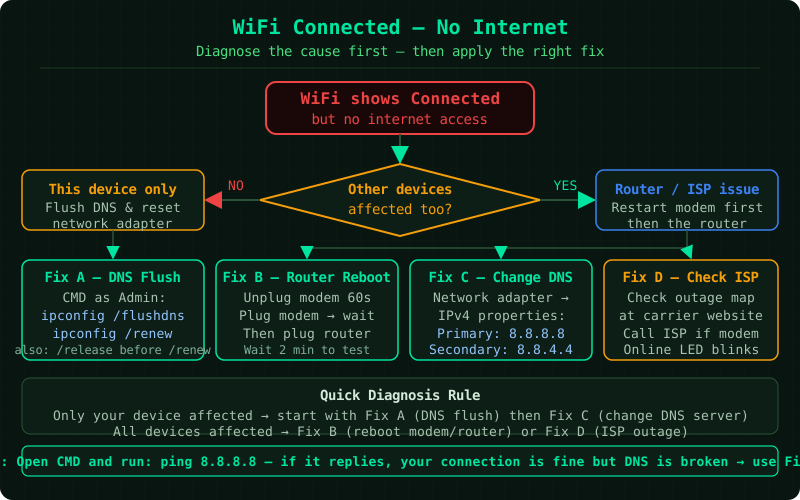
What causes “WiFi connected but no internet”
The error appears in two distinct scenarios:
Scenario 1 — The router has no internet (all devices affected)
- Your ISP has an outage
- The router’s WAN connection dropped (cable unplugged, PPPoE session expired)
- The router needs to be restarted
Scenario 2 — Only one device has the problem
- The device received an incorrect IP address (APIPA address:
169.254.x.x) - DNS servers are unreachable or returning errors
- The Windows Winsock or TCP/IP stack is corrupted
- A VPN or firewall application is blocking traffic
How to fix WiFi connected but no internet
Step 1 — Restart the router and your device
A router restart clears the DHCP lease table and forces all connected devices to request new IP addresses. It also resets the router’s WAN connection to the ISP.
- Unplug the router’s power cable from the wall outlet
- Wait 30 seconds — this ensures the router’s memory fully clears
- Plug the power cable back in
- Wait for the internet indicator light to become solid (typically 30–90 seconds depending on your ISP)
- Restart your computer or phone
After both devices restart, check whether the internet is restored before continuing to further steps.
Step 2 — Run the Windows Network Troubleshooter
Windows includes a built-in diagnostic tool that detects and fixes common network configuration errors automatically.
On Windows 11:
- Go to Settings → System → Troubleshoot → Other troubleshooters
- Click Run next to Internet Connections
- Follow the prompts and apply any suggested fixes
On Windows 10:
- Go to Settings → Update & Security → Troubleshoot → Additional troubleshooters
- Click Internet Connections → Run the troubleshooter
The troubleshooter checks DNS resolution, adapter configuration, and Windows network services. It can detect and fix corrupted adapter settings that are not visible through the network settings menu.
Step 3 — Flush DNS and reset the network stack
A corrupted DNS cache or a damaged Winsock configuration prevents Windows from translating website names into IP addresses — even when the physical connection is working.
- Right-click the Start button and select Terminal (Admin) or Command Prompt (Admin)
- Run each command, pressing Enter after each one:
ipconfig /flushdns
netsh winsock reset
netsh int ip reset- Restart the computer after all three commands complete — the Winsock reset only takes effect after a restart
After restarting, check whether internet access is restored.
Step 4 — Change DNS servers
Your ISP’s default DNS servers can become slow or unresponsive, causing the “no internet” error even when the connection itself is working. Switching to a public DNS server (Google or Cloudflare) bypasses the ISP’s DNS.
On Windows 11:
- Go to Settings → Network & internet → Wi-Fi
- Click your connected Wi-Fi network
- Click Hardware properties
- Under DNS server assignment, click Edit
- Switch from Automatic (DHCP) to Manual
- Enable IPv4 and enter:
- Preferred DNS:
8.8.8.8(Google) or1.1.1.1(Cloudflare) - Alternate DNS:
8.8.4.4(Google) or1.0.0.1(Cloudflare)
- Preferred DNS:
- Click Save
On Windows 10:
- Go to Control Panel → Network and Sharing Center → Change adapter settings
- Right-click your Wi-Fi adapter → Properties
- Select Internet Protocol Version 4 (TCP/IPv4) → Properties
- Select Use the following DNS server addresses and enter the values above
Step 5 — Check for a router or ISP outage
If the steps above have not resolved the issue, confirm whether the problem is with your device or with the router and ISP.
Check other devices: Connect a phone or tablet to the same Wi-Fi network. If it also shows no internet, the problem is with the router or ISP — not your computer.
Check the router’s WAN status:
- Open a browser and go to
192.168.1.1or192.168.0.1(your router’s admin page) - Log in with the router’s admin credentials (usually printed on the router label)
- Look for WAN Status, Internet Status, or Connection Status
- If it shows Disconnected, No IP, or 0.0.0.0, the router is not receiving an internet connection from the ISP
If the router shows no WAN IP, contact your ISP. If the router shows a valid WAN IP but devices still have no internet, factory reset the router as a last resort.
How to verify the fix
- Open a browser and navigate to a website you have not visited recently (to avoid cached results)
- Open Command Prompt and run
ping 8.8.8.8— you should see replies, not timeouts - Also run
ping google.com— if this works but8.8.8.8did not, there is a specific DNS issue
Common Questions
WiFi connected but no internet only on one website.
If most sites work but specific ones do not, the problem is with those servers or your DNS cache for those domains. Run ipconfig /flushdns and try again. If the site is down, the issue is not on your end.
Phone shows WiFi connected but no internet. On Android: go to Settings → Network & internet → Wi-Fi → tap your network → Modify network → Advanced → IP settings → switch from DHCP to Static, and enter the DNS values manually (8.8.8.8 / 8.8.4.4). On iPhone: go to Settings → Wi-Fi → tap the ⓘ next to your network → Configure DNS → Manual → add 8.8.8.8.
VPN is connected and now there’s no internet. A VPN that routes all traffic but cannot reach its server causes the “connected but no internet” error. Disconnect the VPN, check if internet is restored, then reconnect the VPN. If the VPN itself is the cause, contact the VPN provider or check the server status.