
Wi-Fi that repeatedly disconnects — dropping every few minutes, reconnecting automatically, then dropping again — is almost never a hardware failure. According to Microsoft’s Windows networking documentation, the most common causes are the Windows Wi-Fi adapter power management setting and an outdated or incompatible wireless driver.
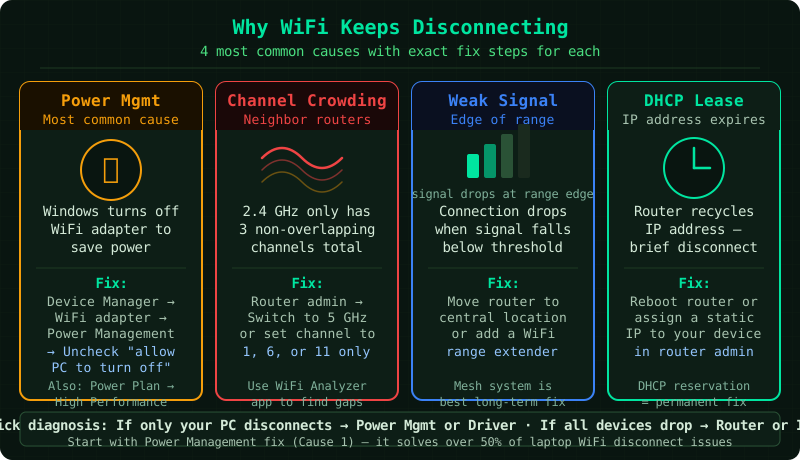
What causes Wi-Fi to keep disconnecting
Windows manages Wi-Fi adapters aggressively to save power on laptops. Other common causes include:
- Power management — Windows turns off the Wi-Fi adapter to save power when it detects low activity, then reconnects — this is the most common cause on laptops
- Outdated or buggy Wi-Fi driver — particularly common after Windows updates that replace manufacturer drivers with generic ones
- Roaming aggressiveness — Windows scans for stronger access points and briefly drops the connection while switching
- Router channel congestion — too many nearby networks on the same channel cause interference and dropped packets
- DHCP lease expiry — the router periodically renews IP leases, which can cause a momentary disconnection
How to fix Wi-Fi that keeps disconnecting
Step 1 — Disable Wi-Fi adapter power management
Windows has a setting that allows it to turn off the Wi-Fi adapter to reduce power consumption. When activity drops, Windows powers down the adapter — then reconnects when activity resumes. This creates a repeating disconnect/reconnect cycle.
- Right-click the Start button and select Device Manager
- Expand Network adapters
- Double-click your Wi-Fi adapter (it typically includes the word “Wireless,” “WiFi,” or the adapter brand — Intel, Realtek, Qualcomm)
- Click the Power Management tab
- Uncheck the box next to Allow the computer to turn off this device to save power
- Click OK
Also adjust the Windows power plan:
- Go to Settings → System → Power & sleep → Additional power settings
- Select High performance or Balanced (not Power saver)
- Click Change plan settings → Change advanced power settings
- Expand Wireless Adapter Settings → Power Saving Mode
- Set it to Maximum Performance
Step 2 — Update or roll back the Wi-Fi driver
An incompatible or outdated driver is the second most common cause of repeated disconnections. Windows Update sometimes installs generic drivers that do not fully support your adapter’s features.
Update the driver:
- In Device Manager, right-click your Wi-Fi adapter
- Select Update driver → Search automatically for drivers
- If Windows finds and installs an update, restart the computer and test
Roll back the driver (if disconnections started after an update):
- In Device Manager, right-click your Wi-Fi adapter → Properties
- Click the Driver tab
- If Roll Back Driver is available (not greyed out), click it
- Select a reason and confirm — Windows restores the previous driver version
- Restart the computer
If neither option resolves the issue, download the latest driver directly from the laptop manufacturer’s support page (not Windows Update) for the most compatible version.
Step 3 — Reduce roaming aggressiveness
Windows Wi-Fi adapters continuously scan for stronger access points. When the adapter detects another access point with a marginally better signal (even your own router’s 5 GHz band), it briefly disconnects to switch — then reconnects. This is called roaming aggressiveness.
- Open Device Manager and double-click your Wi-Fi adapter
- Click the Advanced tab
- Scroll through the Property list and find one of:
- Roaming Aggressiveness
- Roaming Sensitivity
- BSS PLR (some Intel adapters)
- In the Value dropdown, select 1 (Lowest) or Lowest
- Click OK
Setting this to the lowest value tells the adapter to stay connected to the current access point unless the signal drops significantly, preventing unnecessary scanning-induced disconnections.
Step 4 — Release, renew, and flush DNS
If the disconnections occur at regular intervals (every 30 minutes or every hour), the router’s DHCP lease renewal process may be causing brief drops. Releasing and renewing the IP address resets the lease timer.
- Right-click Start → Terminal (Admin) or Command Prompt (Admin)
- Run each command in order:
ipconfig /release
ipconfig /renew
ipconfig /flushdns- After the commands complete, also set a static DNS:
- Settings → Network & internet → Wi-Fi → your network → Hardware properties
- Set DNS to Manual with
8.8.8.8and8.8.4.4
Step 5 — Change the router’s Wi-Fi channel
In crowded areas — apartments, offices, dense neighborhoods — many routers broadcast on the same channel, causing interference that manifests as repeated disconnections.
- Open a browser and go to your router’s admin page (
192.168.1.1or192.168.0.1) - Log in (credentials are printed on the router label)
- Navigate to Wireless Settings or Wi-Fi Settings
- For the 2.4 GHz band, change the channel to 1, 6, or 11 — these are the only non-overlapping channels on the 2.4 GHz band
- For the 5 GHz band, try channels 36, 40, 44, or 48
- Also check for a Firmware Update option in the router admin panel and apply any available update
- Save settings and restart the router
How to verify the fix
- After applying the fixes, leave the Wi-Fi connected without doing anything for 30 minutes
- Check the Wi-Fi icon in the system tray — it should remain connected without dropping
- In Command Prompt, run
ping -t 8.8.8.8(continuous ping) and watch for timeouts — a working connection shows consistent reply times with no “Request timed out” lines
Press Ctrl+C to stop the continuous ping.
Common Questions
Wi-Fi disconnects only when the laptop lid is closed. Windows can disconnect Wi-Fi when the lid closes to save power. Go to Control Panel → Power Options → Choose what closing the lid does → set On battery and Plugged in both to Do nothing (or Sleep if preferred, but not Hibernate which fully powers down the adapter).
Wi-Fi disconnects only at night or at a specific time. Some routers have a scheduled Wi-Fi on/off feature. Log into the router’s admin page and check under Wireless or Parental Controls for any scheduled disable rules.
Wi-Fi disconnects on Windows 11 but not on Windows 10. Windows 11 introduced changes to the Wi-Fi adapter driver model. Update the Wi-Fi driver from the laptop manufacturer’s site (not Windows Update), and set the power management and roaming aggressiveness as described in Steps 1 and 3 above.