
Microphone not working on Windows 11 means applications cannot detect or receive audio from the microphone — the mic shows no activity in the input level meter, apps display “no microphone found,” or the microphone works in some applications but not others. According to Microsoft’s official microphone troubleshooting documentation, the most common causes are microphone access blocked by Windows privacy settings, the wrong input device selected, or an outdated audio driver.
What causes microphone not working on Windows 11
Microphone privacy setting disabled — Windows 11 introduced granular privacy controls that block microphone access at the system level and per application. A single disabled toggle in Privacy & security settings prevents all apps — or specific apps — from using the microphone regardless of other settings.
Wrong input device selected — If multiple audio input devices are present (a built-in laptop mic and an external USB mic, for example), Windows may use the wrong one as the default. The application receives audio from the inactive device and appears to record nothing.
Input volume at zero or device muted — The microphone input level in Sound settings is separate from the output volume. A low or muted input level allows other audio to work normally while the microphone records nothing.
Outdated audio driver — Laptop manufacturers frequently update audio drivers to fix microphone sensitivity and noise cancellation issues. The generic Microsoft audio driver installed by Windows Update may not fully support the microphone hardware on specific models.
How to fix microphone not working on Windows 11
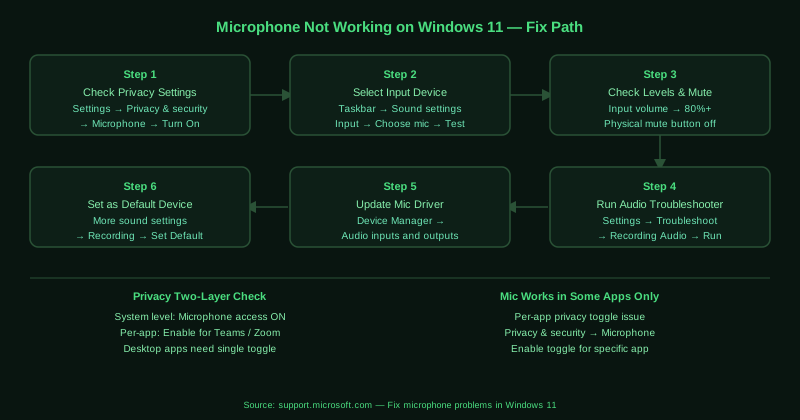
Work through the steps in order. Step 1 (privacy settings) resolves the majority of app-specific microphone failures.
How to verify the fix
After each step, go to Settings > System > Sound > Input, click your microphone, and click Start test. Speak into the microphone — the input bar should move in response to your voice. Then open the application that was failing and confirm it now receives microphone audio. For calls and meetings, use the application’s own microphone test feature if available.
Known limitations
Microsoft’s microphone troubleshooter and privacy settings do not cover hardware failures. A physically damaged microphone capsule — from moisture, impact, or manufacturing defects — will appear as a valid input device in Windows and pass all software tests while recording only silence or distorted audio. If the microphone passes Windows diagnostics but produces no audio, test it on another computer to confirm whether the hardware is functional.
Step-by-step fix
Check microphone privacy permissions
Open Settings > Privacy & security > Microphone. Ensure Microphone access is turned On at the top. Below that, ensure Let apps access your microphone is also turned On. Scroll down to find the specific app that cannot access the microphone — Teams, Zoom, Discord, or any other app — and enable microphone access for it individually. Windows 11 controls microphone access at both the system level and the per-app level independently.
Select the correct input device
Right-click the speaker icon in the taskbar and select Sound settings. Scroll down to the Input section. Click the dropdown under Choose a device for speaking or recording and select your microphone. If multiple microphones are listed (built-in and external, for example), confirm the correct one is selected. Click on the microphone device and then click Start test to verify the device is receiving audio — the bar next to Input volume should move when you speak.
Check microphone levels and mute status
Right-click the speaker icon in the taskbar and select Sound settings. Under Input, click on your microphone device. Set Input volume to at least 80%. Some microphones also have a physical mute button or switch on the cable or base — check this is not engaged. For USB microphones, the mute status is independent of Windows settings and a muted hardware button produces silence even when Windows shows the input level moving.
Run the Windows Speech troubleshooter
Open Settings > System > Troubleshoot > Other troubleshooters. Find Recording Audio and click Run. The troubleshooter checks the selected input device, verifies driver integrity, tests the microphone signal, and applies available fixes. It also checks whether the Windows Audio Endpoint Builder service is running correctly. After completing, restart your computer and test the microphone in the problematic application.
Update or reinstall the microphone driver
Open Device Manager (right-click Start > Device Manager). Expand Audio inputs and outputs. Find your microphone device — it may be listed as Microphone Array, Realtek Microphone, or by the device manufacturer name for USB or headset microphones. Right-click it and select Update driver > Search automatically for drivers. If no update is found and the microphone is built into a laptop, download the audio driver from your laptop manufacturer's website — microphone and speaker drivers are typically bundled together. For USB microphones, check the manufacturer's website for a dedicated driver package.
Set the microphone as the default recording device
Right-click the speaker icon in the taskbar and select Sound settings. Scroll to the Input section and click More sound settings. In the Recording tab, right-click your microphone and select Set as Default Device. Also right-click and select Set as Default Communication Device. Some applications, particularly communication apps like Teams and Zoom, use the default communication device rather than the default recording device — setting both ensures all apps use the correct microphone.