
Sound and audio errors on Windows 11 range from complete silence to microphone failures, distorted output, and missing audio devices. According to Microsoft’s official audio troubleshooting documentation, most Windows 11 audio problems fall into three categories: wrong output device selected, corrupted or outdated audio driver, and audio service failures.
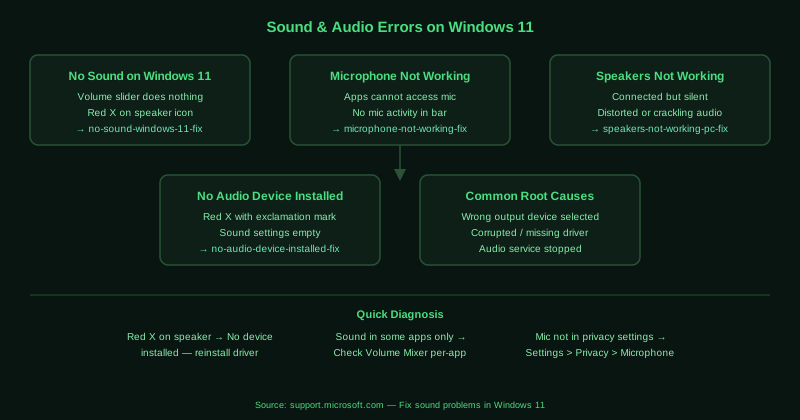
This hub covers the most common sound and audio errors on Windows 11 and Windows 10. Select the guide that matches your situation.
Fix guides in this pillar
No Sound on Windows 11 — Fix
Complete silence on Windows 11 — no audio from speakers or headphones, the volume icon may show a red X, or audio plays in some applications but not others. This guide covers selecting the correct output device, running the Windows Audio troubleshooter, restarting the Windows Audio service, and reinstalling the audio driver.
Best for: No audio at all, volume slider does nothing, red X on the speaker icon, audio stopped working after a Windows update.
Microphone Not Working on Windows 11 — Fix
The microphone is connected but Windows 11 does not detect it, apps cannot access it, or it records no audio. This guide covers checking microphone privacy settings, selecting the correct input device, updating the audio driver, and fixing microphone access in app permissions.
Best for: Microphone not detected in apps, microphone bar shows no activity, “We couldn’t find a microphone” error, microphone works in one app but not another.
Speakers Not Working on PC — Fix
Speakers are connected and powered but produce no sound, or produce distorted audio. This guide covers checking physical connections and volume, selecting speakers as the default output device, updating or reinstalling the speaker driver, and disabling audio enhancements that can cause distortion.
Best for: Speakers powered on but silent, distorted or crackling audio from speakers, speakers work on another device but not the PC, speakers stopped working after connecting new hardware.
No Audio Device Is Installed — Windows 11 Fix
Windows 11 shows “No audio output device is installed” when you hover over the speaker icon, or the sound settings page shows no output devices. This guide covers reinstalling the audio driver, running the Hardware and Devices troubleshooter, checking Device Manager for missing audio hardware, and restoring audio after a Windows update removed the driver.
Best for: “No audio output device is installed” error message, sound settings shows no devices, speaker icon has a red X with an exclamation mark, audio device disappeared after Windows Update.