
Speakers not working on PC means the speakers are connected and powered but produce no sound, distorted audio, or only one channel works. According to Microsoft’s official audio troubleshooting documentation, the most common causes are the wrong output device selected in Sound settings, a corrupted audio driver, or audio enhancements that conflict with the speaker hardware.
What causes speakers not to work on PC
Wrong output device selected — Windows 11 switches the default audio output automatically when new devices are connected. Speakers may stop receiving audio after connecting headphones, a Bluetooth speaker, or an HDMI monitor with built-in speakers.
Faulty cable or audio jack — 3.5mm audio cables are prone to internal wire breaks from bending, particularly near the connectors. A partially broken cable may produce intermittent or one-sided audio.
Audio enhancements conflict — Windows applies signal processing effects (bass boost, virtual surround, loudness equalization) to audio output. These effects can cause distortion or silence on certain motherboard audio hardware combinations.
Outdated or corrupted audio driver — Windows Update sometimes replaces manufacturer-specific audio drivers with generic versions. Generic drivers may not correctly handle the speaker output configuration on specific motherboards.
Disabled audio device — Speakers can be disabled in Windows Sound settings or Device Manager, either manually or by certain software installations, causing them to disappear from the output device list.
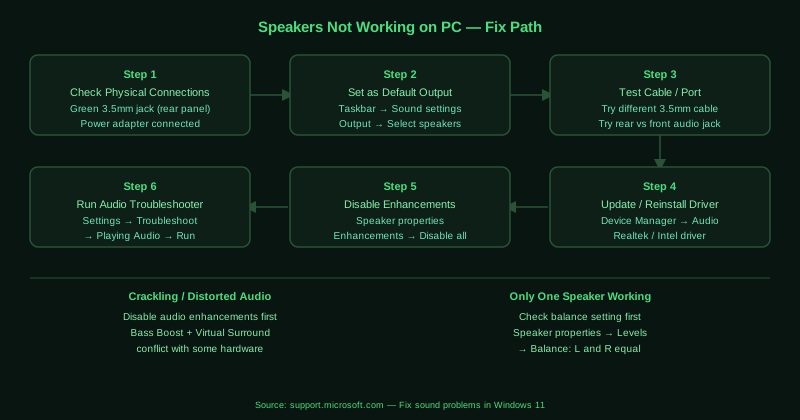
How to fix speakers not working on PC
Work through the steps in order. Step 1 (physical check) and step 2 (output device selection) resolve the majority of cases.
How to verify the fix
After each step, play audio through a browser or media player. If sound comes from both speakers at normal volume without distortion, the fix worked. To confirm the balance is correct, right-click the speaker icon, go to Sound settings, click your speakers, then Additional device properties, then the Levels tab, and click Balance — both channels should show equal values.
Known limitations
Windows audio troubleshooting tools cannot detect blown speaker drivers, failed crossover circuits, or broken speaker cones — physical hardware faults that cause permanent distortion or silence. If all software fixes fail and the speakers produce no sound on any device they are tested on, the speakers have a hardware fault. Additionally, some budget PC speakers have no driver at all and rely entirely on the motherboard audio chip — if the motherboard audio chip fails, no software fix restores audio to these speakers.
Step-by-step fix
Check physical connections and power
Confirm the speaker cable is firmly inserted into the correct audio jack — the green 3.5mm jack on desktop PCs or the headphone jack on laptops. On desktop computers, use the rear panel audio jacks rather than front panel connectors, as rear jacks connect directly to the motherboard audio chip and are more reliable. Ensure the speakers are powered on and the speaker volume knob is not at zero. If using USB-powered speakers, try a different USB port. For speakers with a separate power adapter, verify the adapter is connected and the power indicator light is on.
Set speakers as the default output device
Right-click the speaker icon in the taskbar and select Sound settings. Under Output, open the Choose where to play audio dropdown and select your speakers. If the speakers do not appear in the list, click More sound settings, go to the Playback tab, right-click an empty area, and select Show Disabled Devices — your speakers may have been disabled. Right-click the speaker entry and select Enable. Then right-click again and select Set as Default Device.
Test with a different audio cable or port
A faulty 3.5mm audio cable is a common cause of speakers working on one device but not another. Try a different audio cable if available. Also try plugging the speakers into a different audio jack on the computer — desktop motherboards typically have three or more jacks (line-in, line-out, microphone). The green jack is line-out for speakers. If your motherboard has separate front and rear audio jacks, test both. For USB speakers, try all available USB ports.
Update or reinstall the audio driver
Open Device Manager (right-click Start > Device Manager). Expand Sound, video and game controllers. Right-click your audio device — typically Realtek High Definition Audio, Intel Smart Sound Technology, or a similar name — and select Update driver > Search automatically for drivers. If no update is found, visit your laptop or motherboard manufacturer's website and download the latest audio driver for your specific model. To reinstall, right-click the device and select Uninstall device, then restart the computer — Windows reinstalls the driver automatically on reboot.
Disable audio enhancements
Right-click the speaker icon in the taskbar and select Sound settings. Click on your speaker device under Output, then click Additional device properties. Go to the Enhancements tab (or Advanced tab in some Windows versions). Check Disable all enhancements (or uncheck individual effects like Bass Boost, Virtual Surround, and Loudness Equalization). Click Apply. Audio enhancements are software effects applied by Windows — they can cause distortion, crackling, or unexpected silence on certain audio hardware combinations. Disabling them often restores clear audio immediately.
Run the Windows Audio troubleshooter
Open Settings > System > Troubleshoot > Other troubleshooters. Find Playing Audio and click Run. Select your speakers when prompted. The troubleshooter checks the audio service status, driver integrity, and output device configuration. It also checks for common Windows Update driver conflicts. After the troubleshooter completes and applies any fixes, restart the computer and test your speakers.