
No audio output device is installed is a Windows 11 error shown when you hover over the speaker icon in the taskbar — the icon displays a red X and Sound settings shows no output devices available. According to Microsoft’s official audio troubleshooting documentation, this error occurs when the audio driver is missing or corrupted, the audio device is disabled in Device Manager, or a Windows update replaced the manufacturer driver with an incompatible generic version.
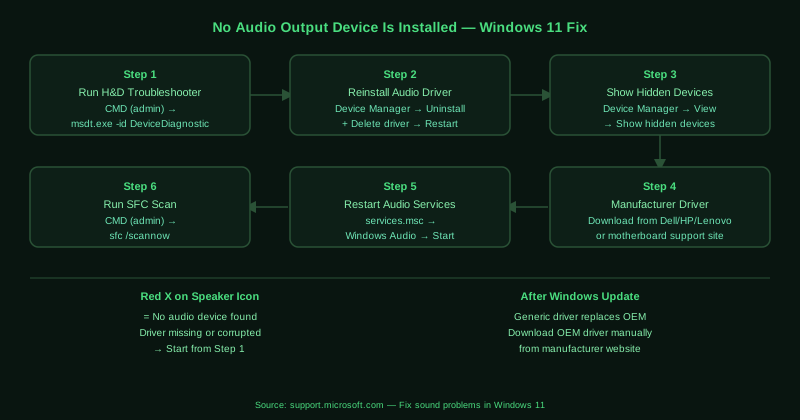
What causes “No audio output device is installed” on Windows 11
Missing or corrupted audio driver — The audio driver is the software that allows Windows to communicate with the audio hardware. If the driver is missing, corrupted, or incompatible, Windows cannot detect the audio device and reports no output device is installed.
Windows Update replaced the driver — Windows Update sometimes installs a generic Microsoft High Definition Audio driver over a working manufacturer-specific driver. The generic driver may not include the correct hardware identifiers for the specific audio chip, causing the device to appear as unknown or undetected.
Audio device disabled in Device Manager — An audio device can be manually disabled in Device Manager or disabled by certain software installation processes. A disabled device does not appear in Sound settings and triggers the no audio output device error.
Corrupted Windows system files — Windows audio components depend on system DLLs and service files. If these files are corrupted — by an incomplete update, malware, or disk errors — the audio subsystem fails to initialise and the audio device becomes unavailable.
How to fix “No audio output device is installed” on Windows 11
Work through the steps in order. Steps 1 and 4 (troubleshooter and manufacturer driver) resolve the majority of cases.
How to verify the fix
After each step, hover over the speaker icon in the taskbar — if the red X is gone, the audio device has been detected. Open Sound settings and confirm an output device appears under Output. Play audio through a browser to verify sound is working. If the device appears but produces no sound, check volume levels and the selected output device.
Known limitations
Microsoft’s Hardware and Devices troubleshooter and driver reinstall process cannot restore audio on a system with a physically failed audio chip. If the motherboard audio chip has failed — due to age, electrical damage, or manufacturing defects — no driver installation resolves the error. The audio chip must be repaired or replaced, or a USB audio adapter used as an alternative. Additionally, some OEM laptop audio chips require a proprietary driver that is only available from the laptop manufacturer and cannot be sourced from Windows Update or generic audio driver packages — if the manufacturer no longer provides Windows 11 drivers for an older laptop model, the audio device may remain undetectable on Windows 11.
Step-by-step fix
Run the Hardware and Devices troubleshooter
Open Command Prompt as administrator (search for cmd, right-click, select Run as administrator). Type msdt.exe -id DeviceDiagnostic and press Enter. The Hardware and Devices troubleshooter scans for audio devices that Windows detected but failed to install drivers for. It can automatically install missing drivers and re-enable devices that were incorrectly disabled. Follow the prompts and apply any fixes the troubleshooter suggests, then restart your computer.
Reinstall the audio driver from Device Manager
Open Device Manager (right-click Start > Device Manager). Expand Sound, video and game controllers. If you see your audio device listed, right-click it and select Uninstall device. Check the box that says Delete the driver software for this device, then click Uninstall. Restart your computer — Windows will attempt to reinstall the driver automatically. If the driver reinstalls correctly, the 'No audio output device is installed' message disappears. If no audio device appears under Sound, video and game controllers, check Other devices for entries with a yellow exclamation mark.
Check for hidden or disabled audio devices
In Device Manager, click the View menu at the top and select Show hidden devices. This reveals audio devices that Windows has detected but hidden, including devices that failed to install or were disabled by a previous uninstall. Look under Sound, video and game controllers and Audio inputs and outputs for any greyed-out entries. Right-click any hidden audio device and select Enable device. If the device has a yellow exclamation mark, right-click it and select Update driver.
Download and install the manufacturer audio driver
Windows Update often installs a generic High Definition Audio driver that does not fully support the specific audio hardware on your laptop or motherboard. Visit your laptop manufacturer's support website (for example, Dell Support, HP Support, Lenovo Support) or your motherboard manufacturer's website and search for your model. Download the audio driver for Windows 11 and run the installer. Manufacturer-specific drivers include the correct device identifiers that allow Windows to recognise the audio hardware and add it to the output device list.
Restart the Windows Audio services
Press Windows + R, type services.msc, and press Enter. Scroll to Windows Audio and check that its Status shows Running and Startup Type is Automatic. If it is stopped, right-click it and select Start. Repeat for Windows Audio Endpoint Builder. Also check that the Plug and Play service is running — this service detects hardware changes and notifies Windows when audio devices are added. If Plug and Play was stopped, the audio device may not have been registered with Windows after a restart.
Run System File Checker to repair corrupted audio files
Open Command Prompt as administrator. Type sfc /scannow and press Enter. System File Checker scans Windows system files — including audio-related drivers and DLLs — for corruption and replaces them automatically. The scan takes approximately 10–15 minutes. After it completes, restart your computer. If SFC reports that it found and repaired corrupted files, test your audio. If SFC cannot repair all files, run DISM: type DISM /Online /Cleanup-Image /RestoreHealth and press Enter, then run sfc /scannow again.